Staff payroll: base pay, a share of sales, and the payout
The shop assistant gets base pay, the senior one base pay plus a percentage, the helper a percentage only. The app works out the bonus from every paid receipt, remembers advances and loans, and records the payout as an expense in one press.
Adding an employee
Three steps, in order
Staff: the list of people who work for you
Payroll starts not with money but with a list of people. Every salesperson needs their own login — otherwise there is no way to tell who rang up a sale, and nothing to base a percentage on.
 1
2
3
1
2
3
 4
5
4
5
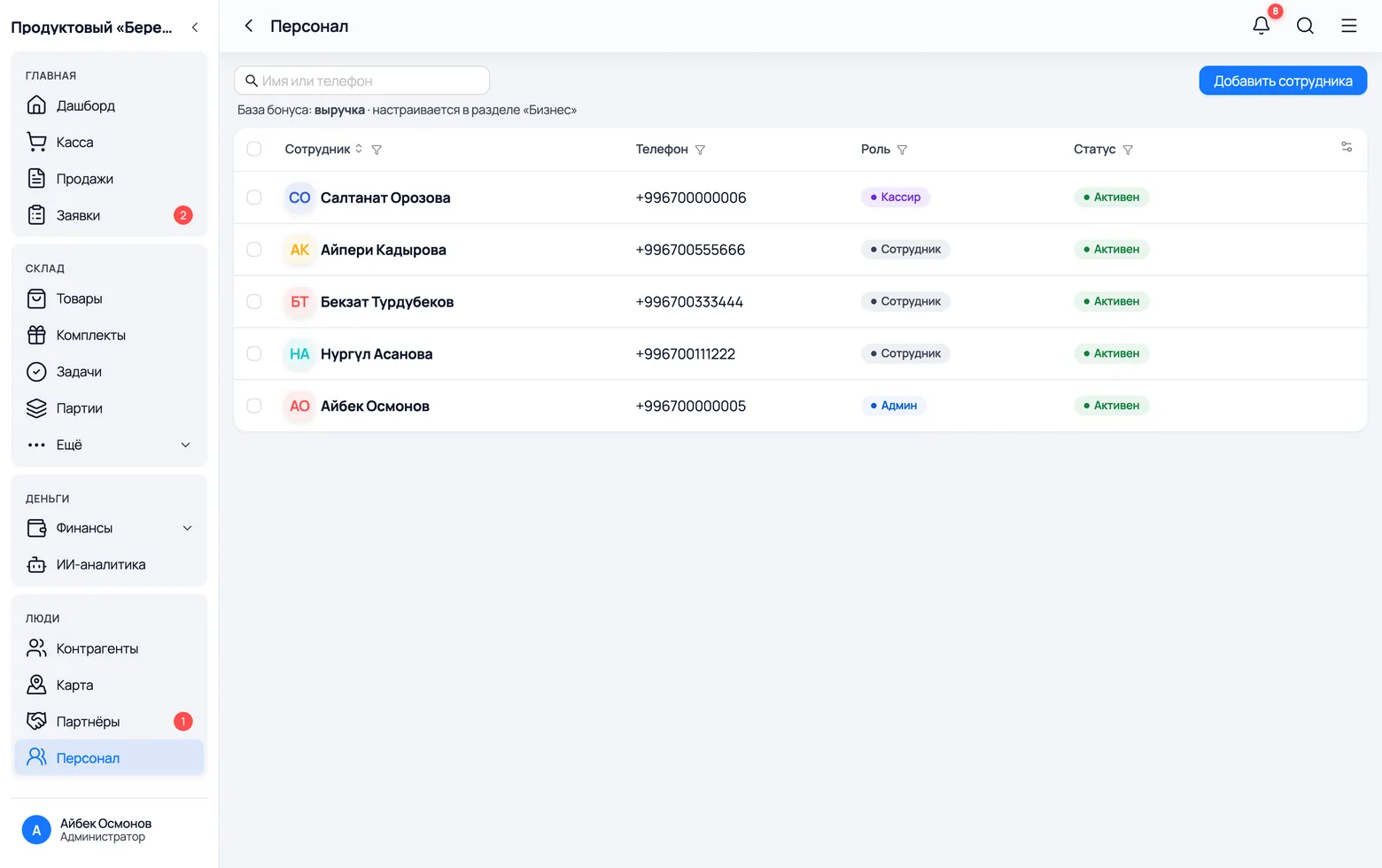
- 1In the menu on the left: People → Staff. On a phone: More → Staff.
- 2Add employee creates a login for the person. Everything else starts here.
- 3The Role column: 'Employee' is an ordinary salesperson — the percentage is worked out for them. 'Admin' is you. 'Cashier' and 'Field agent' are special roles with their own set of screens.
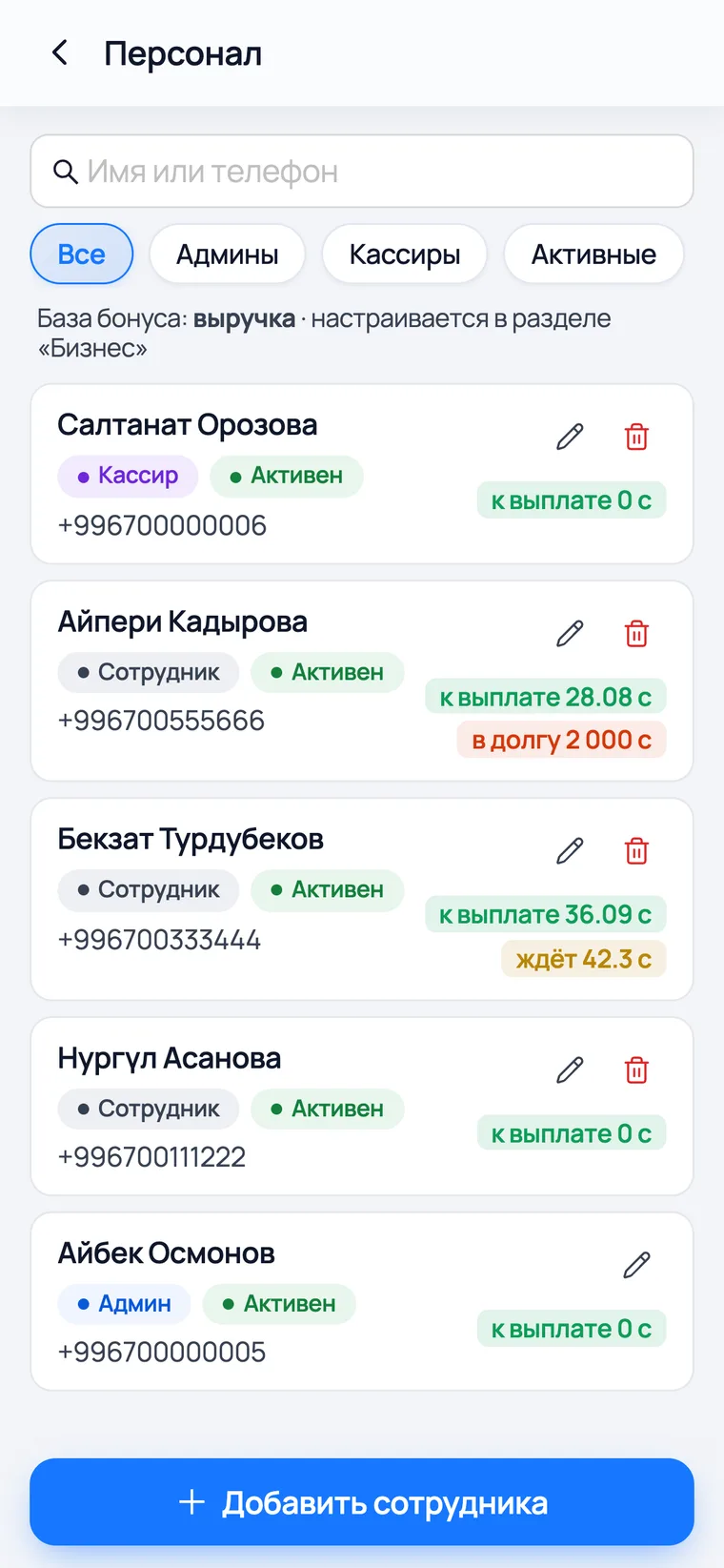
- 4On a phone you see at once what each person is owed: Bekzat has 36.09 som to pay and 42.3 som pending — the second figure sits on an unpaid receipt.
- 52,000 som owed by Aiperi is not pay — it is cash she took from the till. There is a separate chapter about that.
- On a computer the table shows only the name, phone, role and status — the money lives inside the person's card, so click the row.
- Base pay and percentage are set for each person separately. There is no single monthly payroll sheet for everyone — the calculation is always per person.
A new employee: name, phone, password, role
A login is a phone number and a password. The role decides what the person sees inside — extra sections only get in a salesperson's way.
 1
2
3
4
5
1
2
3
4
5
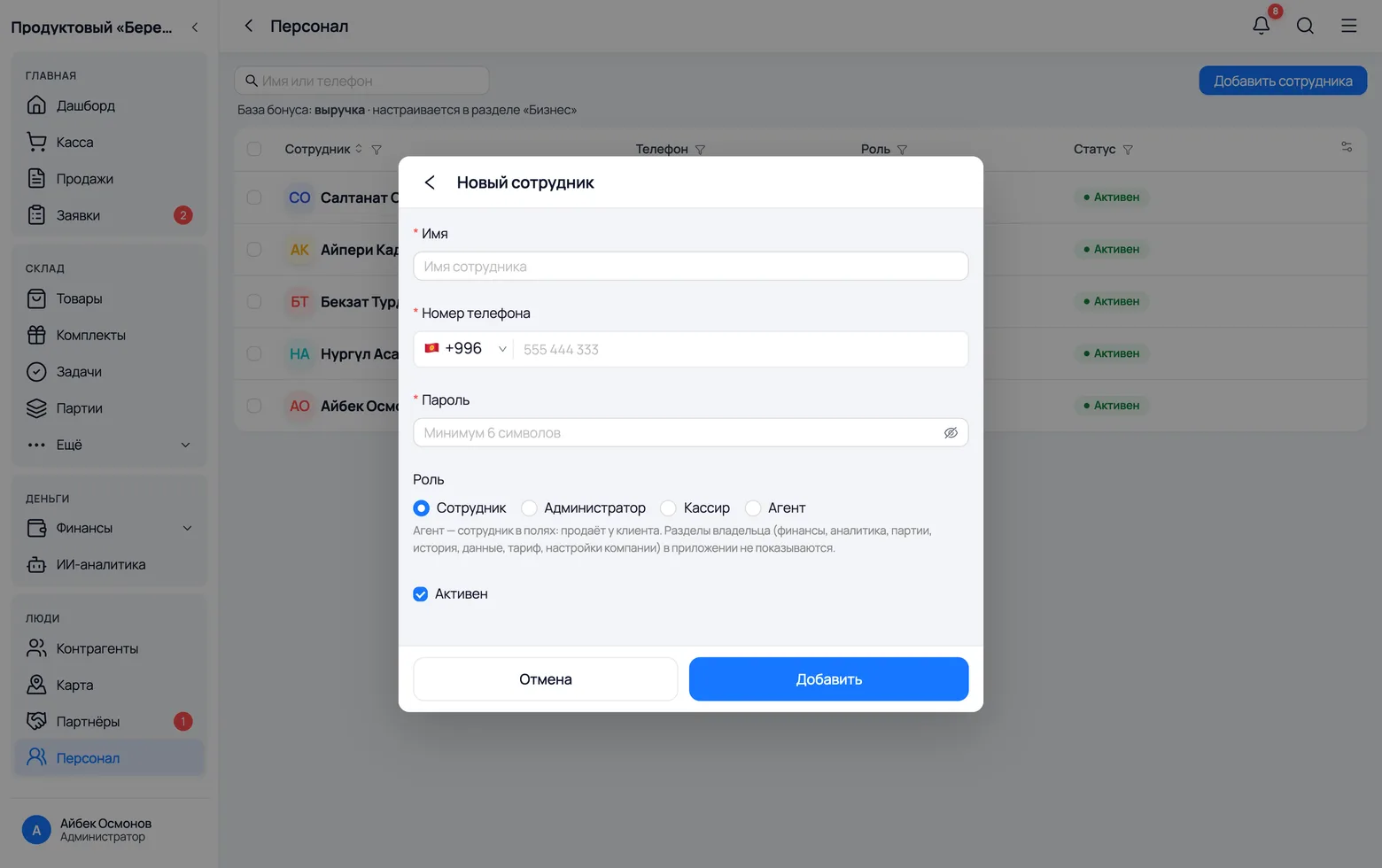
- 1Name — what the person is called. It will appear on their receipts and payouts, so write it the way you say it out loud.
- 2Phone number — this is what they sign in with. The +996 code is already filled in, so enter only 9 digits.
- 3Password — at least 6 characters. The salesperson can change it themselves in their profile.
- 4Role. 'Employee' is an ordinary salesperson and earns the percentage. 'Administrator' is a second owner — they see the company's money and settings. 'Cashier' gets only the till and receipts. 'Field agent' is the one who travels to customers.
- 5Add — the person appears in the list and can sign in.
- The roles are mutually exclusive: a person is either an employee, an administrator, a cashier or a field agent — never two at once.
- There is no base pay or percentage on this form — they are set in the next step, on the employee's card.
- If someone leaves, do not delete them — untick Active. Their sales and payouts stay in the history, but they can no longer sign in.
An employee's base pay and percentage
Two numbers on the card decide everything: how much the person gets simply for showing up, and how much from each of their own sales. You can set both, or just one.
 1
2
3
4
5
1
2
3
4
5
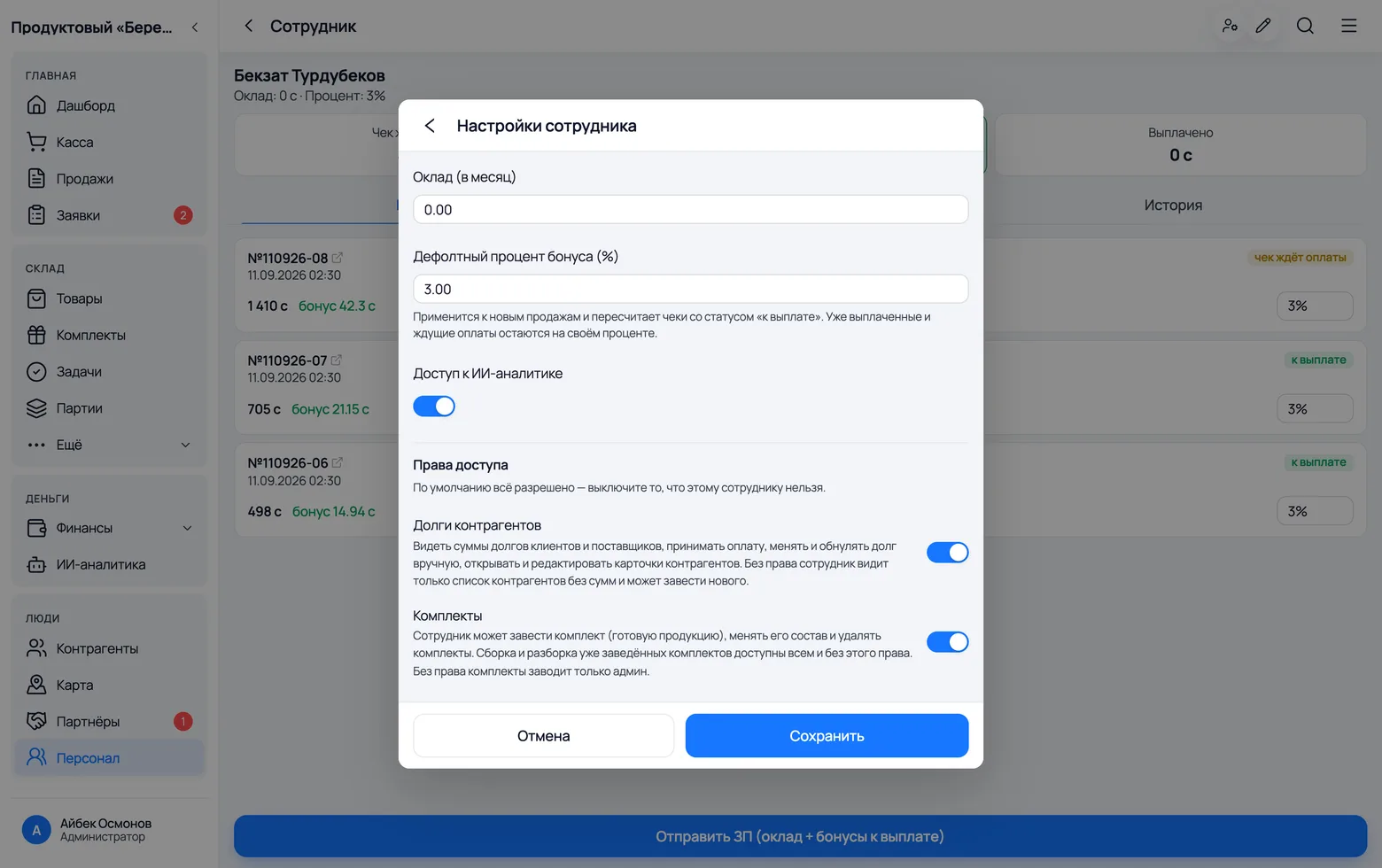
- 1Click a person in the Staff list, then press the Edit pencil at the top of their card.
- 2Base pay (per month) — the fixed part. Nurgul's is 18,000 som; Bekzat's is 0, because he works on the percentage alone.
- 3Default bonus percentage (%) — how much of a sale this person gets. Bekzat's is 3%. Set 0 if there is no percentage.
- 4Below are the Permissions: everything is allowed by default, so switch off what this person must not do. It is not about pay, but it lives on the same card.
- 5Save.
- The percentage is frozen into the receipt at the moment of sale. A new percentage applies to future sales and only recalculates receipts already marked 'to pay'. Sales made before you set the percentage stay at zero bonus forever — which is why percentages are set before the first shift, not at the end of the month.
- Base pay is simply a monthly figure. The app keeps no hours, shifts or timesheets: if someone worked half a month, you pay out half the base pay by hand — the amount in a payout is editable.
- There are no fines and no tax deductions here. The only deduction the app can make is an employee's loan owed back to you.
How it is calculated
Here the app does the maths
What the percentage is taken from, and when it is handed over
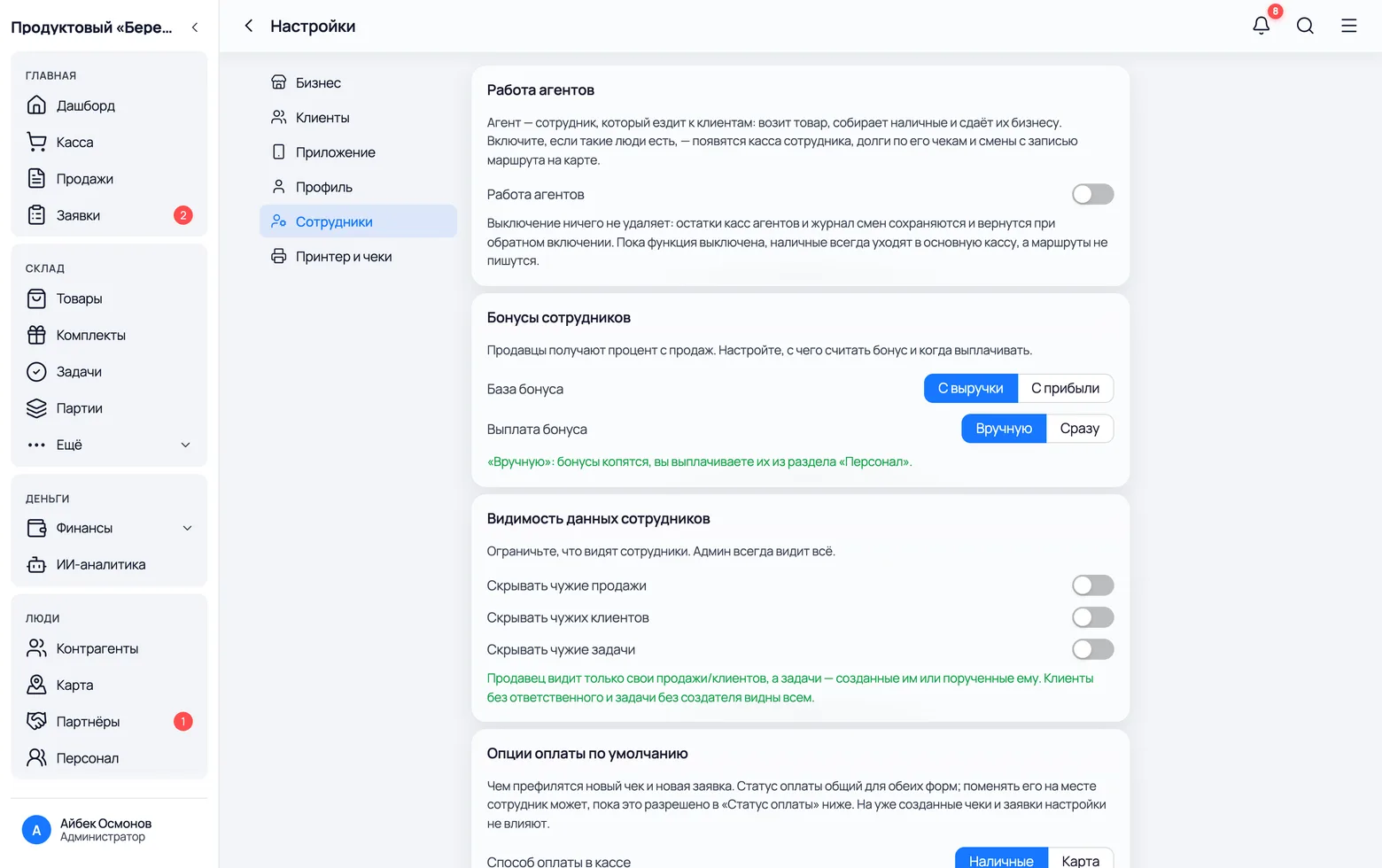
Two settings for the whole company: work the bonus out from the receipt total or from what you earned on it — and let bonuses build up until payday or hand them over at once.
 1
2
3
4
1
2
3
4
- 1Menu → Settings → Staff, the 'Employee bonuses' card.
- 2Bonus base — 'From revenue' means a percentage of the receipt total minus any returns. That is what the example uses, and the seller can check their bonus in their head.
- 3From profit — a percentage of the difference between what the goods sold for and what they cost you. The seller cannot work this out themselves: they do not see purchase prices.
- 4Bonus payout: 'Manually' — bonuses build up and you hand them over from the Staff section. 'Instantly' — as soon as a receipt is fully paid, the bonus is written off to expenses automatically.
- The setting is shared by everyone: you cannot give different people a different base. Only the percentage differs from person to person.
- 'From profit' means the profit of that particular receipt, not the shop's monthly profit. There is no percentage of the company's overall profit in the app.
- Changing the base recalculates bonuses that have not been paid yet. What has already been paid out is left alone — that money is gone.
How the percentage gets into a receipt
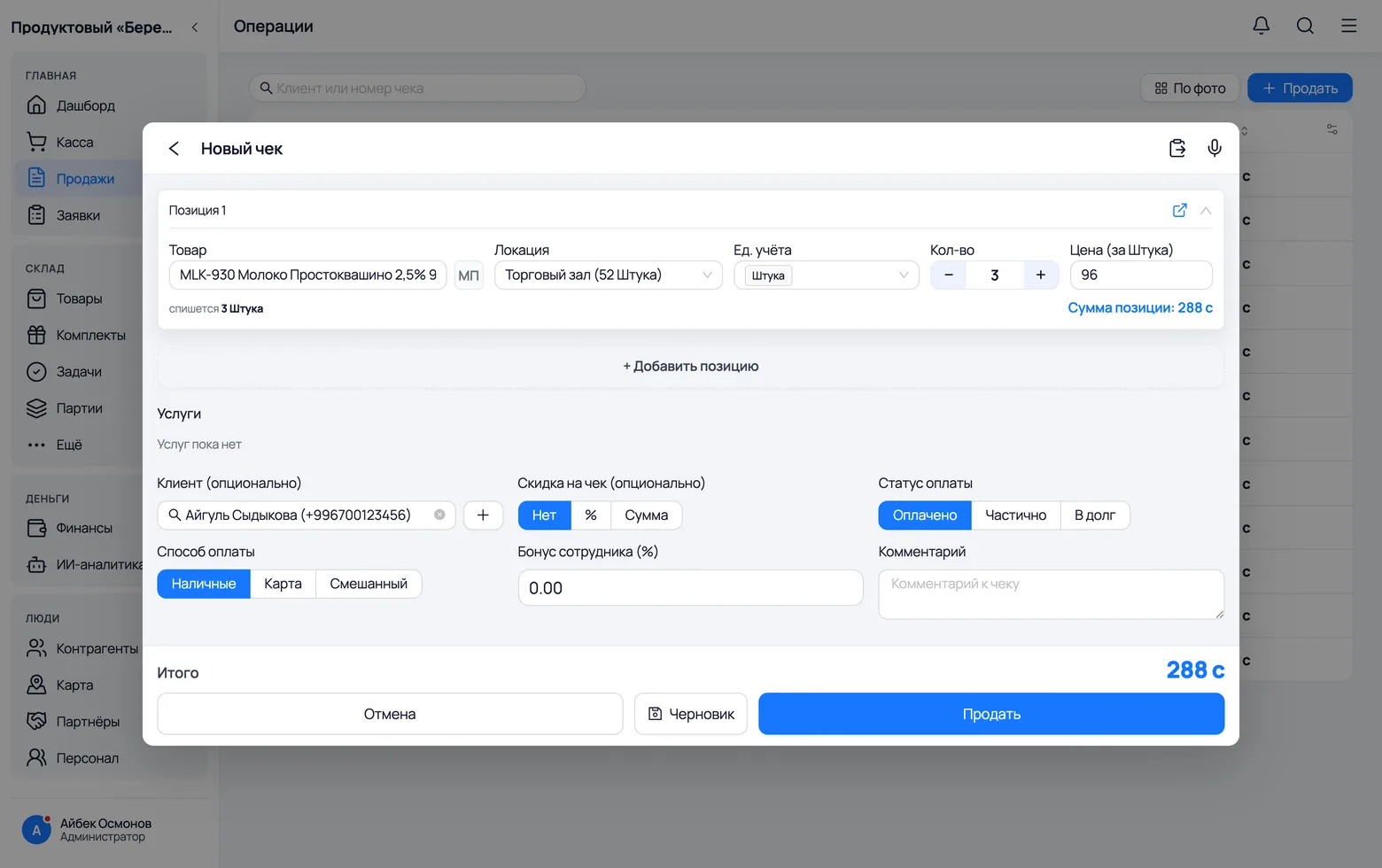
A bonus is never worked out after the fact. The moment the seller presses 'Sell', the app writes their percentage into the receipt — and from then on that recorded percentage is what counts.
 1
2
3
1
2
3
- 1Employee bonus (%) — the app fills in the percentage from the card of whoever is selling. In this shot the owner is ringing up the sale, and his percentage is 0. You can edit the field right in the receipt — for example, to give a higher percentage for a difficult sale.
- 2Payment status decides when the bonus can be handed over. 'Paid' — the bonus becomes payable at once. 'Partial' and 'On credit' — the bonus waits until the customer settles up.
- 3Sell — at that second the percentage is written into the receipt and never changes on its own again.
- If you change the percentage on the card afterwards, it will not change in a receipt already rung up. Only receipts marked 'to pay' are recalculated; receipts with 0% stay at zero.
- The bonus is worked out from the receipt total minus returns: if the customer brings half the goods back, the bonus shrinks by itself. A cancelled receipt carries no bonus at all.
- The bonus goes to whoever's login rang up the receipt. If the seller used your login, the bonus is recorded against you. Only the owner can reassign a finished receipt — open it on the Sales screen and change the Receipt issuer.
The employee card: three numbers and all their sales
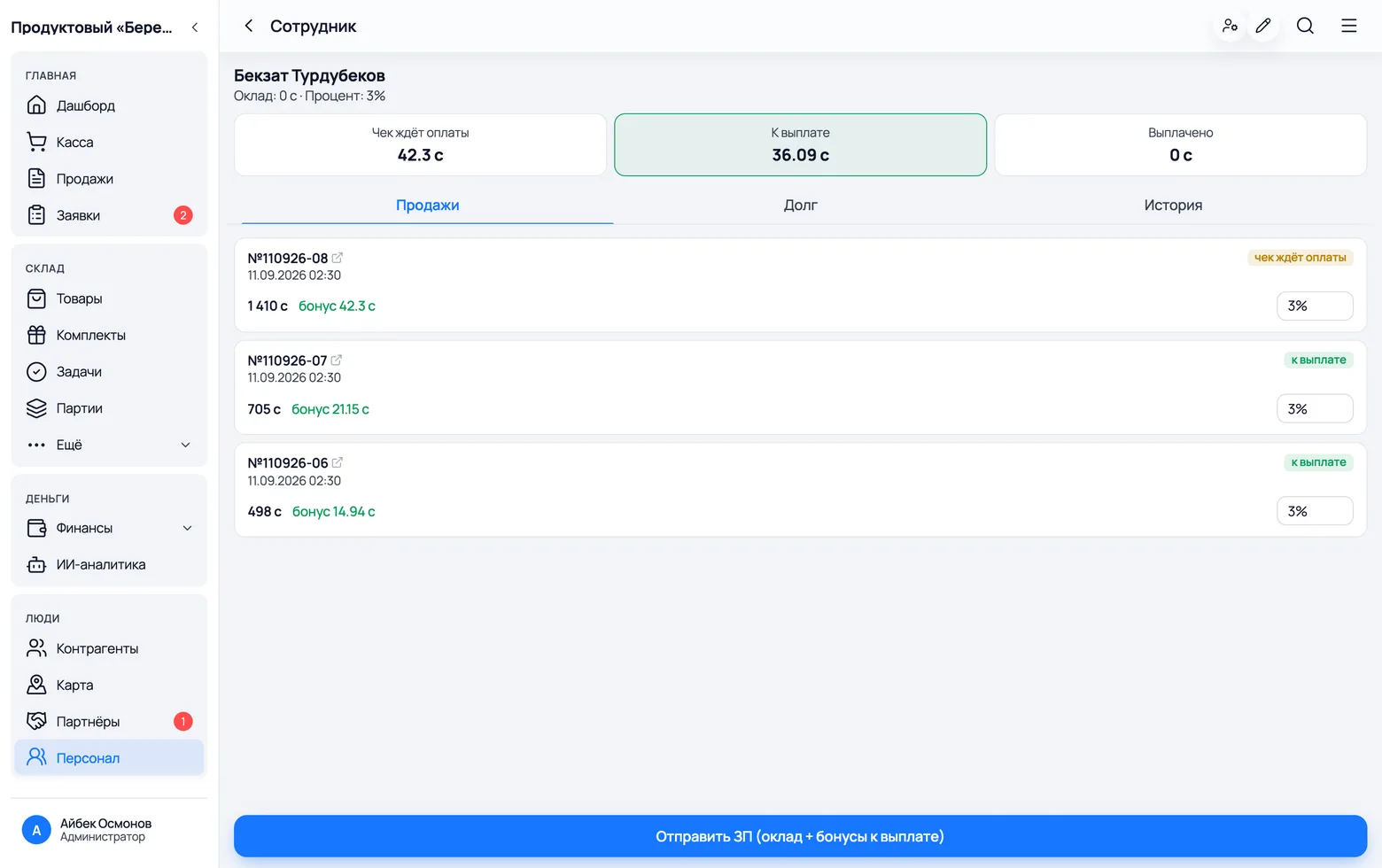
Everything the person has earned is on one screen. The three tiles at the top say how much they are owed and why part of it is not theirs yet.
 1
2
3
4
5
1
2
3
4
5
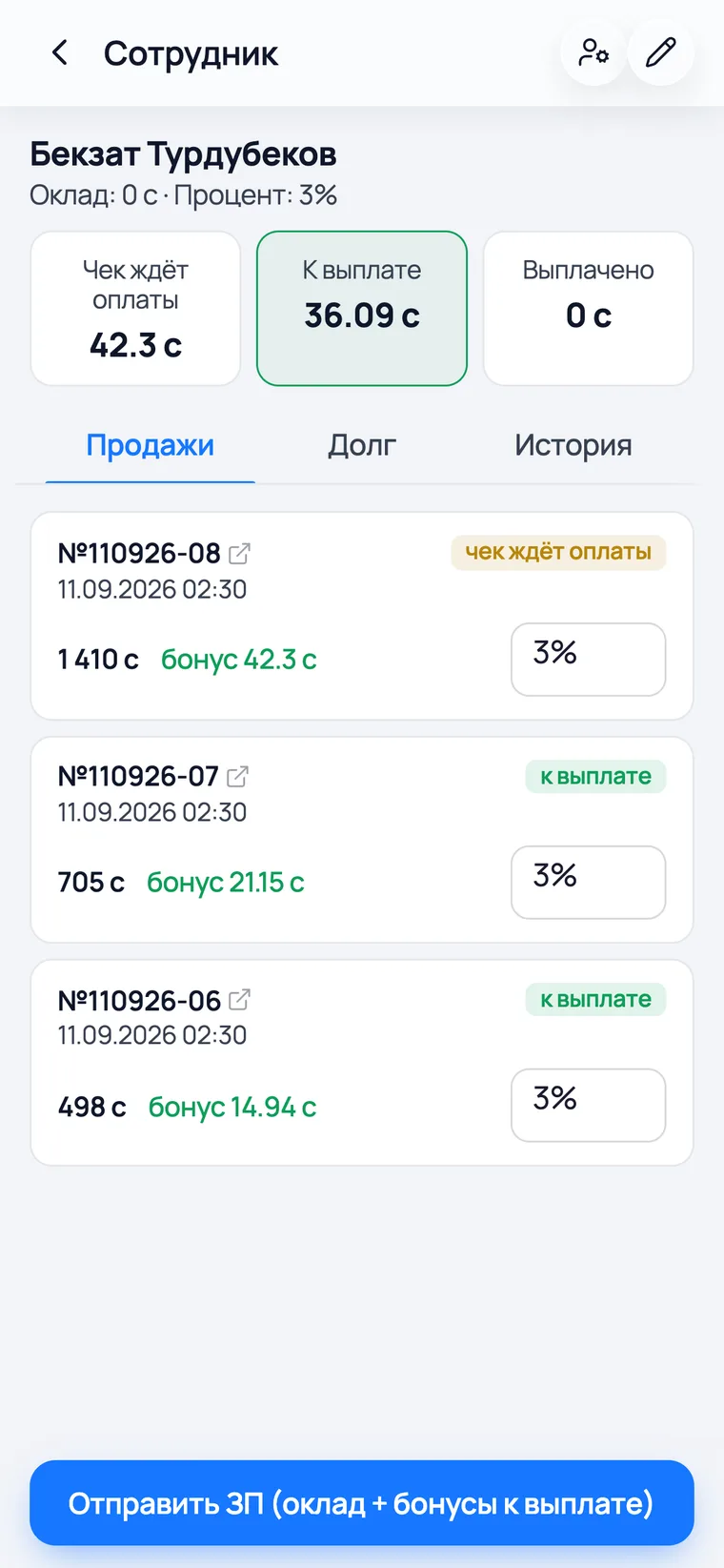
- 1Receipt awaiting payment — the bonus is already earned, but the customer has not settled up. Bekzat's is 42.3 som.
- 2To pay — money you can hand over right now: 36.09 som.
- 3Paid out — how much this person has been given in total so far.
- 4Each sale shows its state on the right. Receipt No. 110926-08 for 1,410 som was sold on credit, so the 42.3 som bonus is marked 'receipt awaiting payment' and will not go into a payout.
- 5The Sales tab lists all this person's receipts with the amount, the percentage and the bonus. Next to it are the Loan and History tabs.
- The bonus is only counted on paid receipts. Sold a lot but collected no money and 'to pay' stays small — that is not a mistake: until the customer pays, there is nothing to pay a percentage from.
- When the customer clears the debt, the receipt moves from 'awaiting payment' to 'to pay' on its own. Nothing to press.
- You can correct the percentage of an individual sale right in this list — but only while its bonus has not been paid out.
What the salesperson sees
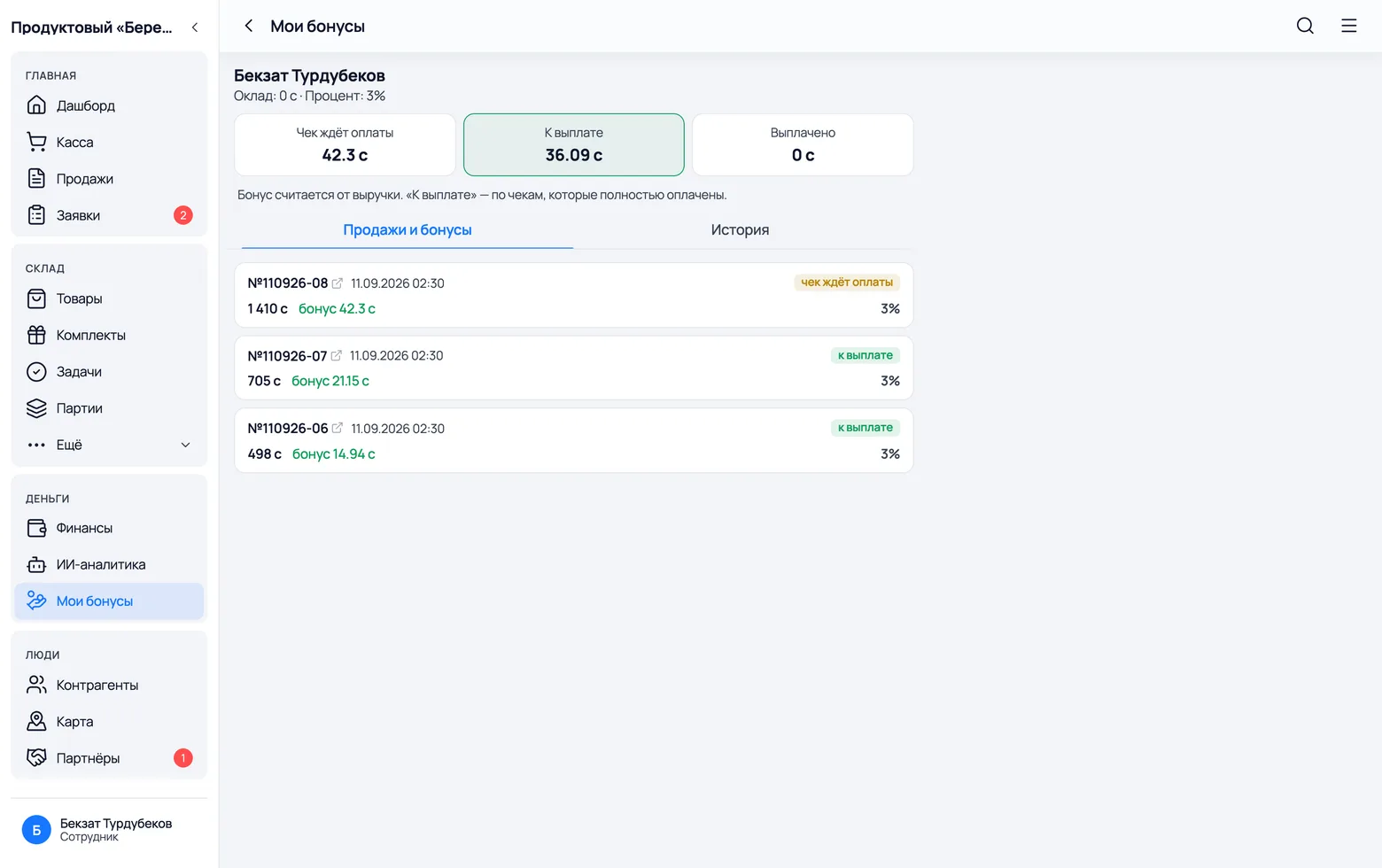
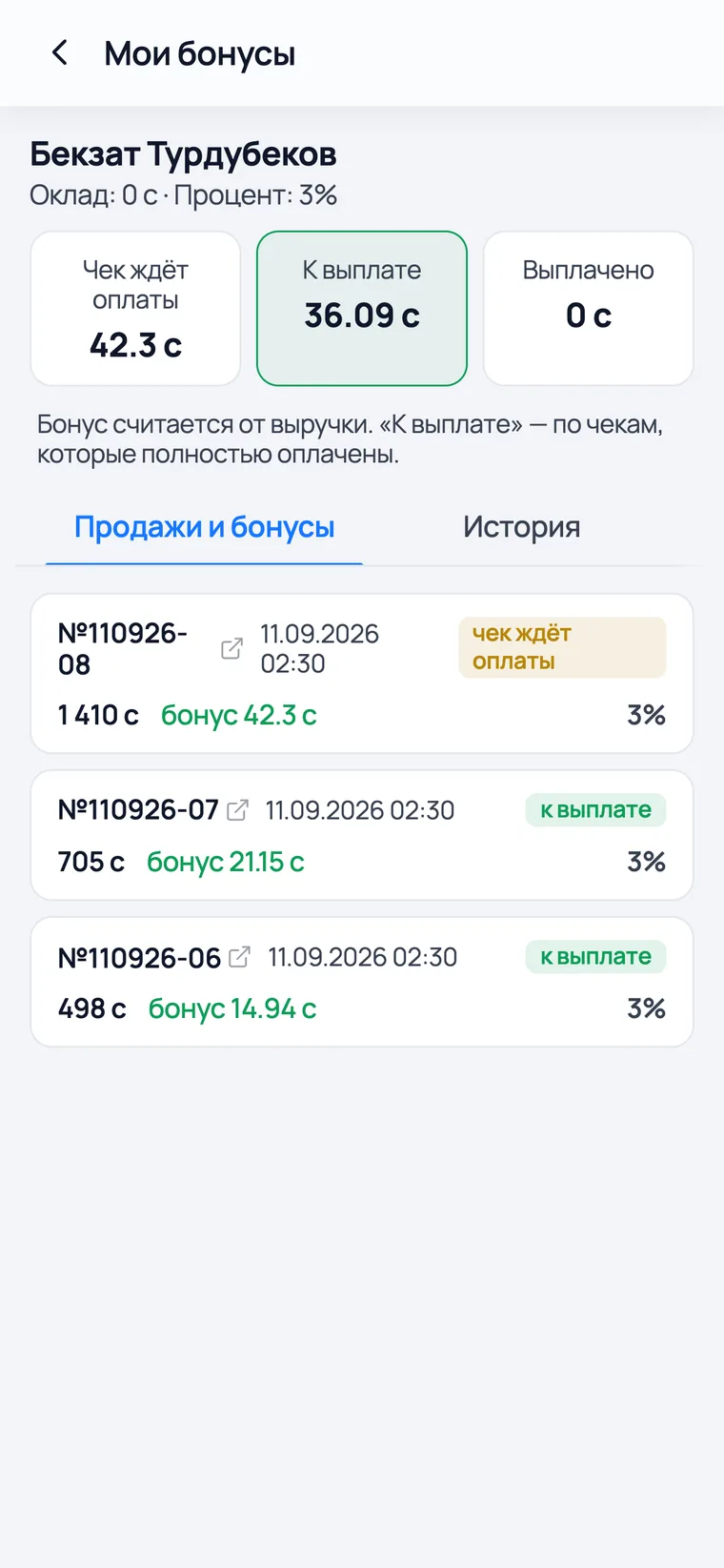
The salesperson does not have to take your word for it: the same calculation sits in their own app — only for themselves, and with nothing they can change.
 1
2
3
4
1
2
3
4
 5
5
- 1The employee gets their own My bonuses item in the menu. The owner has no such item — he sees the same thing in Staff.
- 2The same three numbers you see on his card: awaiting payment, to pay, paid out. There is nothing left to argue about — the figures are identical.
- 3Sales and bonuses — his receipts with the percentage and the bonus amount for each.
- 4History — what he was paid and when: base pay, bonuses, one-off bonuses.
- 5On a phone it is the same screen — the seller checks it between customers.
- The screen is read-only: the employee changes neither the percentage nor the amounts.
- He does not see anyone else's sales here — only his own.
Paying out
Once a month, or more often
Sending pay: base pay, bonuses and a one-off bonus
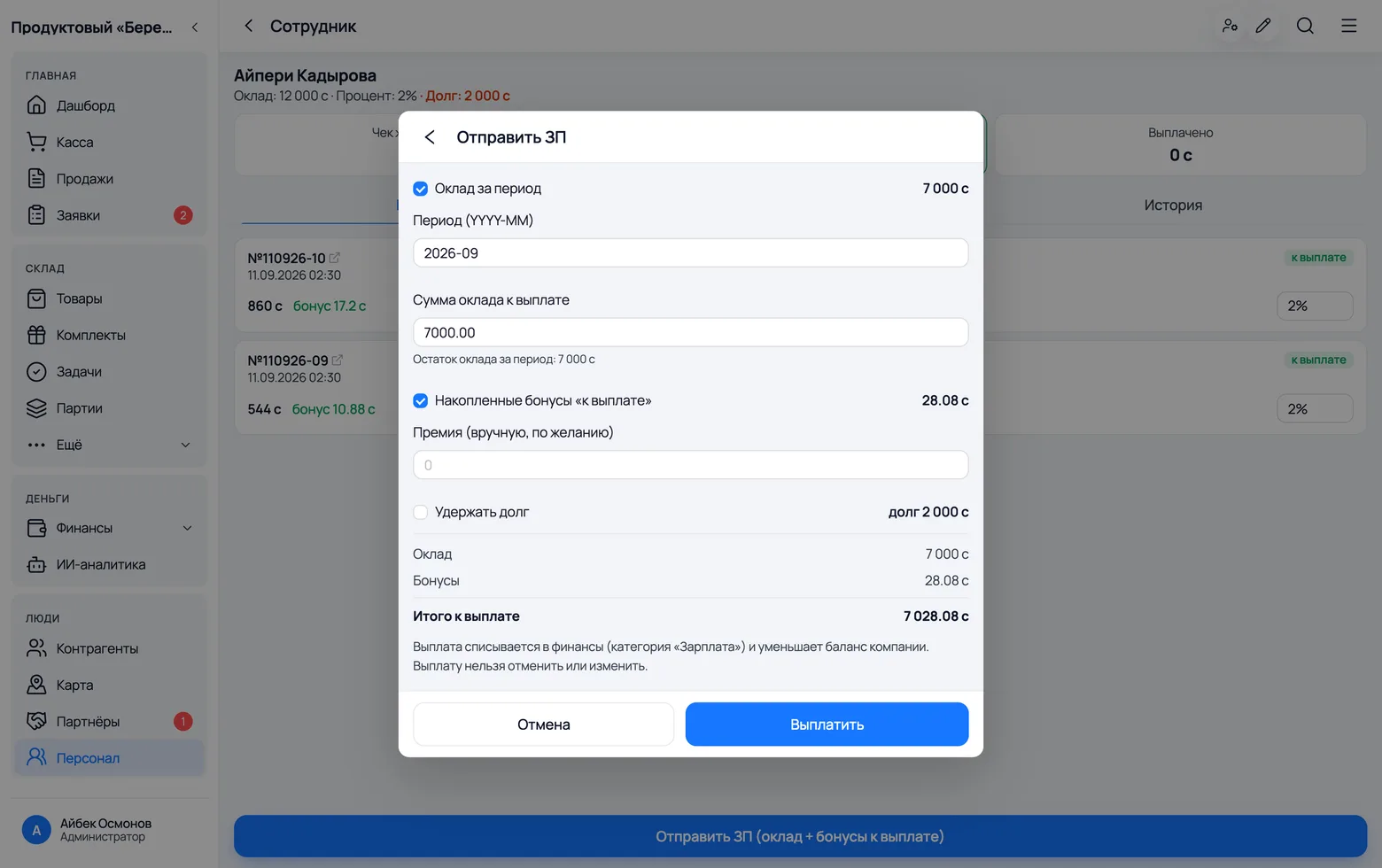
One button closes the whole payout: the fixed monthly pay, the accumulated bonuses and a one-off bonus — as a single record and a single expense.
 1
2
3
4
5
6
1
2
3
4
5
6
 7
7
- 1At the bottom of the employee card there is a blue Send pay (base pay + bonuses due) button.
- 2Base pay for the period — the tick adds the fixed part to the payout. On the right is the amount still owed for that month: Aiperi's base pay is 12,000, an advance of 5,000 has already been paid, so 7,000 som is left.
- 3Period (YYYY-MM) — which month you are paying for: 2026-09 is September 2026. Below, the amount can be reduced — that is how you pay an advance or half a month.
- 4Accumulated bonuses due — 28.08 som from Aiperi's paid receipts. Untick it if you are handing over only the base pay right now.
- 5One-off bonus (manual, optional) — a one-time amount from you: for coming in on a day off, for saving a sale. It is not tied to sales at all.
- 6At the bottom you see the breakdown and the Total to pay. Check the amount and press Pay out.
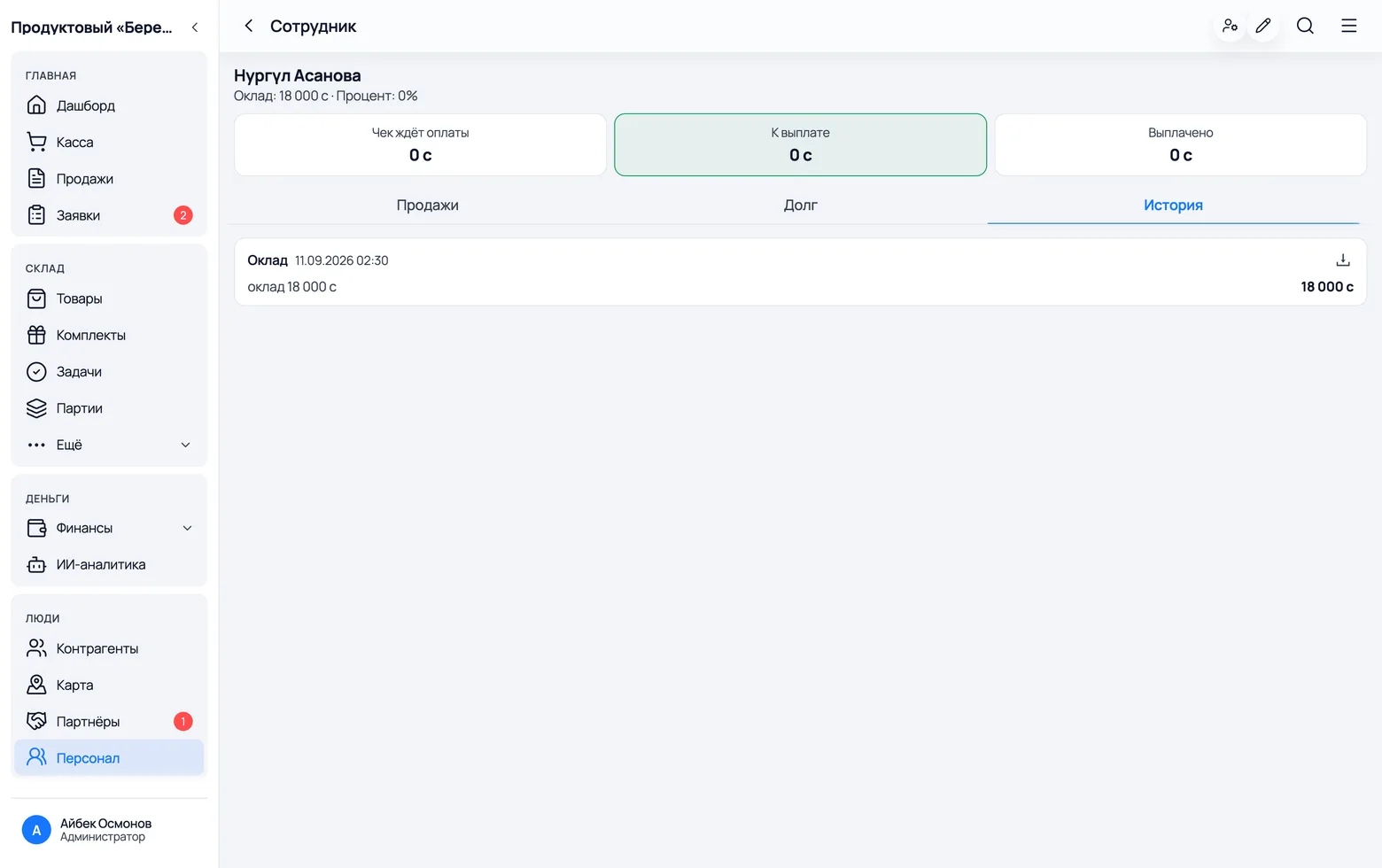
- 7The History tab on the card lists every payout to this person. Nurgul has one: 'Base pay — 18,000 som'. The arrow on the right exports the payout to Excel, so you can hand it to the person.
- If the person owes money, a Deduct loan tick appears in the window with the amount beside it — 2,000 som for Aiperi. With it, they take home less and the loan closes without a separate money movement.
- A payout cannot be cancelled or edited. If you get the amount wrong, the only fixes are a new record or a conversation with the person. So check the total before you press.
- A payout cannot be backdated either: the history always shows the date you pressed the button. Which month it covers is what the 'Period' field says.
- The base pay for one month will not go out twice: the app remembers how much has been paid and offers only the remainder. Once it is all paid, the line 'Base pay for 2026-09 has been paid in full' appears under the amount.
- As soon as bonuses are paid, their receipts move from 'to pay' to 'paid out' and are never paid a second time.
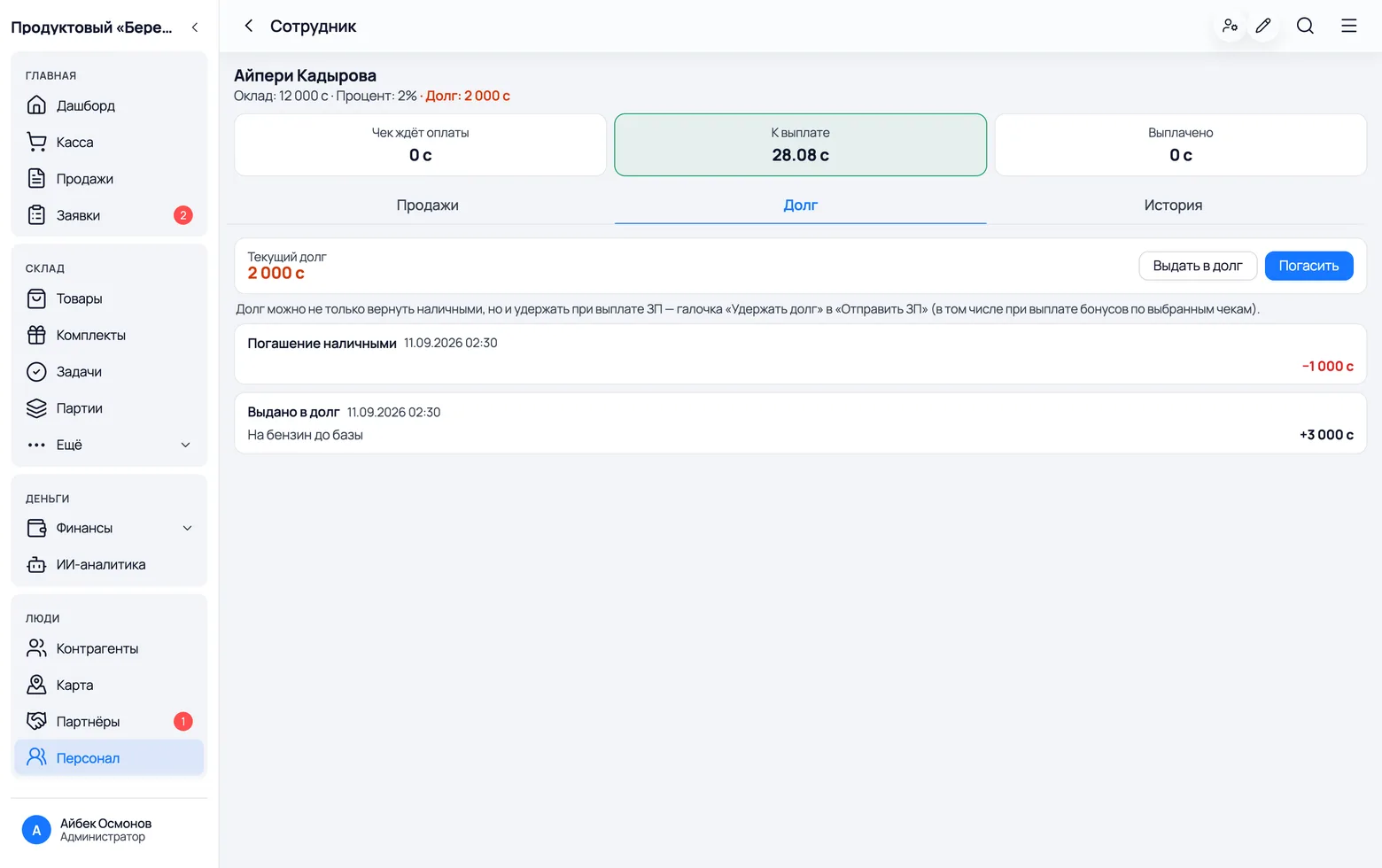
An employee took money from the till
'Until payday', for petrol, for something urgent — that is not pay but a loan the employee owes you. It has its own tab, and it can be closed by deducting it from the next payout.
 1
2
3
1
2
3
- 1On the employee's card there is a Loan tab.
- 2Current loan — how much the person owes the company right now. Below is the log: what was given out and what came back.
- 3Give a loan — enter the amount and what it is for. The money leaves the till, and a 'Loan to employee' expense appears in Finance.
- There are two ways to clear it. In cash — the Repay button on the same tab. Or by deduction: if there is a loan, a Deduct loan tick appears in the 'Send pay' window — the person receives less than was earned, and the loan closes without any money moving.
- An employee loan is not a customer debt. This is only cash the person took from your till; what customers owe on his receipts is a different question.
- Log entries cannot be edited or deleted: a loan can only be repaid. In the example Aiperi took 3,000 for petrol and returned 1,000 in cash — both lines are in the log, and the remaining 2,000 som is shown above.
Where the pay lands in your money
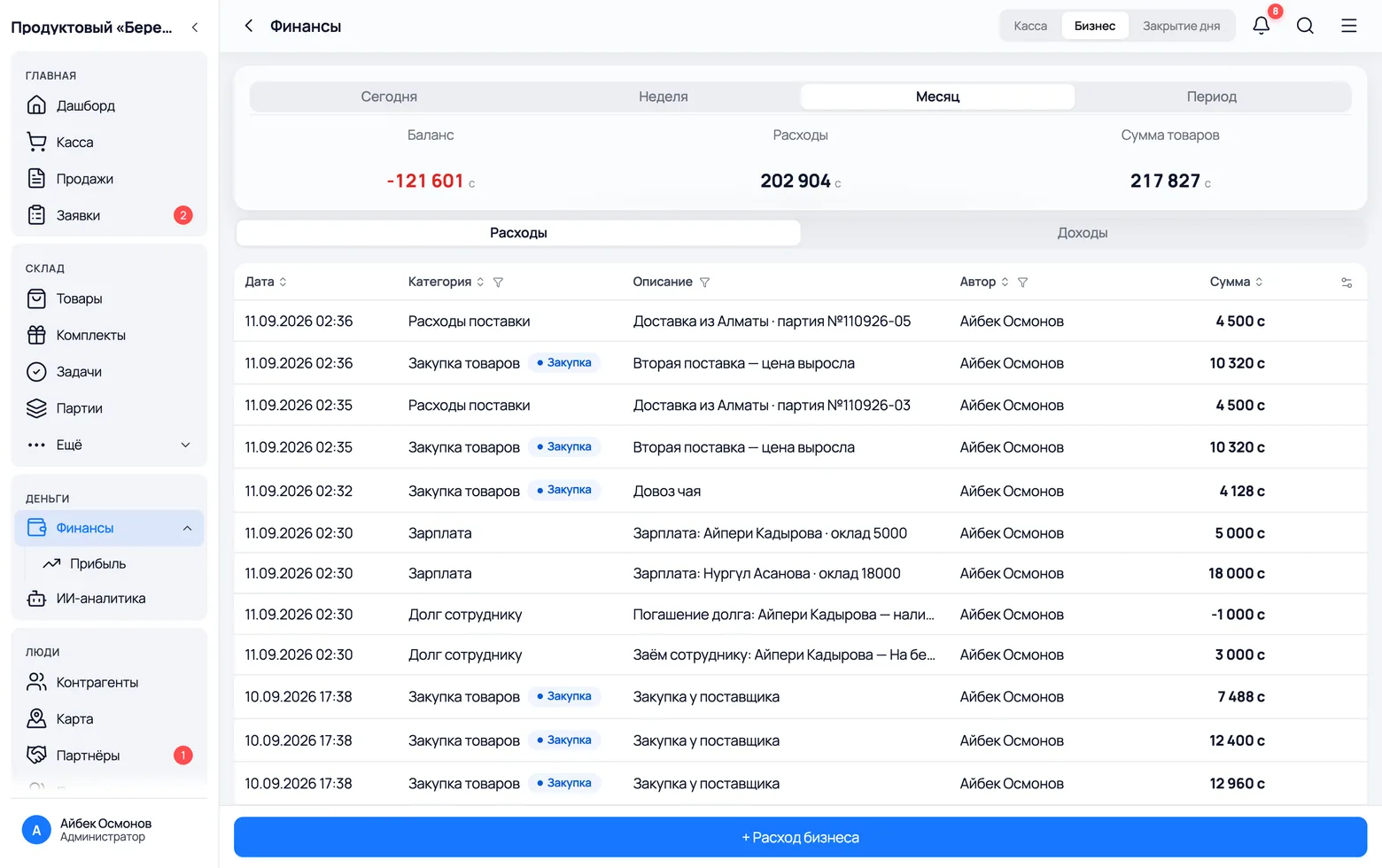
A payout is a business expense. It goes into Finance by itself and reduces the company balance — there is no need to record it separately.
 1
2
3
4
1
2
3
4
- 1Money → Finance.
- 2At the top is a switch: Till is about the cash in the drawer for the day, Business is about company expenses. Pay lives under Business.
- 3The Expenses tab — a line appears there with the 'Payroll' category and your note: to whom, how much base pay and how much in bonuses.
- 4Period: to see the payout, switch to Month — 'Today' shows only today's.
- Two categories appear: 'Payroll' for payouts and 'Loan to employee' for cash given out. When a loan is repaid or deducted from pay, its expense is reversed so the same amount is not counted twice.
- Base pay, bonuses and one-off bonuses all land in the single 'Payroll' category — there is no separate line for a bonus. The breakdown is on the employee's card, in the History tab.
- Deleting this line in Finance is not the same as cancelling the payout: it stays on the employee's card. A payout cannot be cancelled.
- The app does not calculate taxes or contributions: this is a 'Payroll' expense for exactly the amount you handed over.