Fast stock-taking: your whole warehouse in the app in one evening
Nobody wants to type in five hundred items one by one — and nobody has to. Products and their stock go in from an Excel file, while a dozen items are faster to type straight into a table in the app. Both routes put the goods on the shelf through the same arrival. Every screen is real, captured in the working app.
From a file
A hundred items and up
Open the import and pick a route
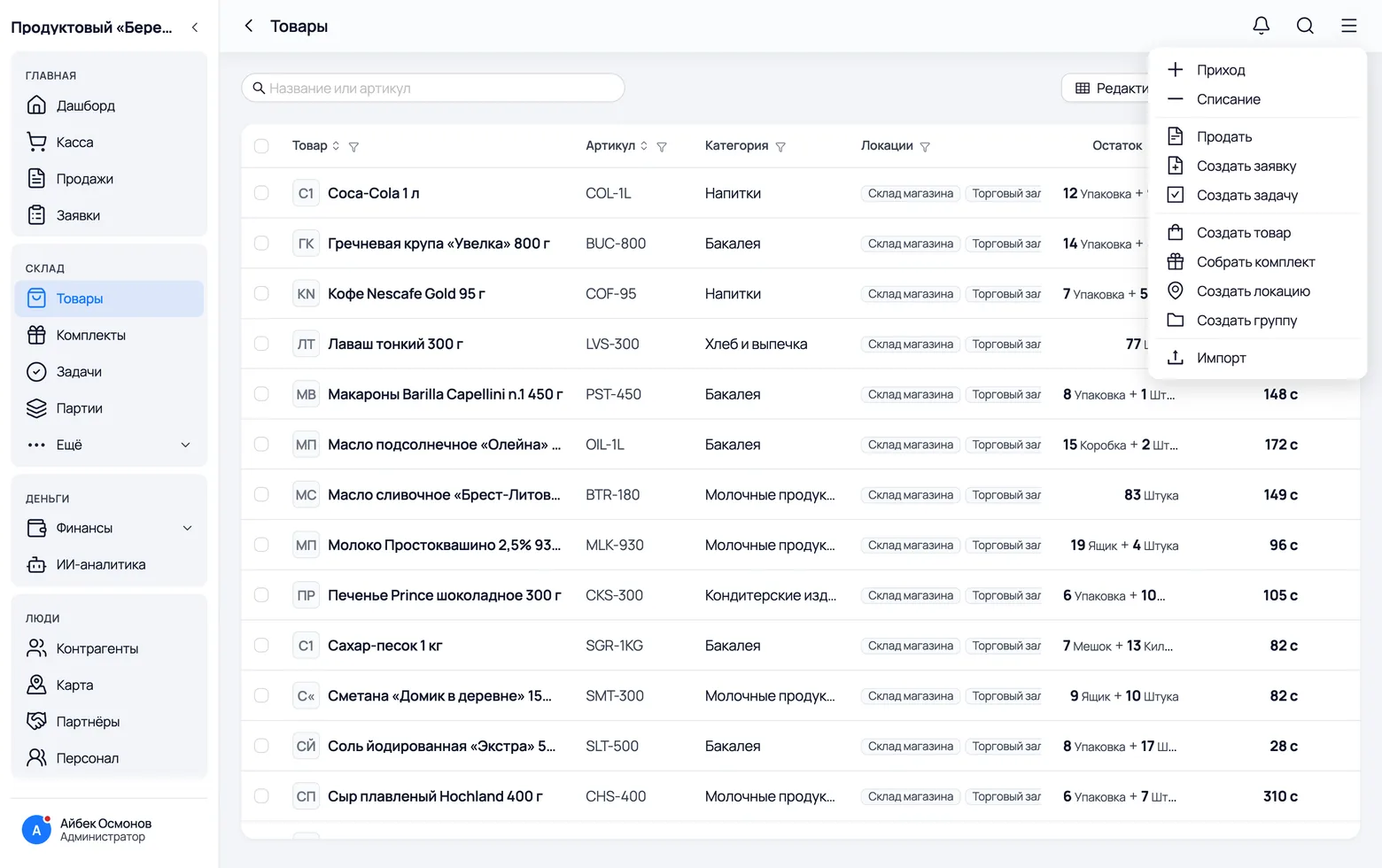
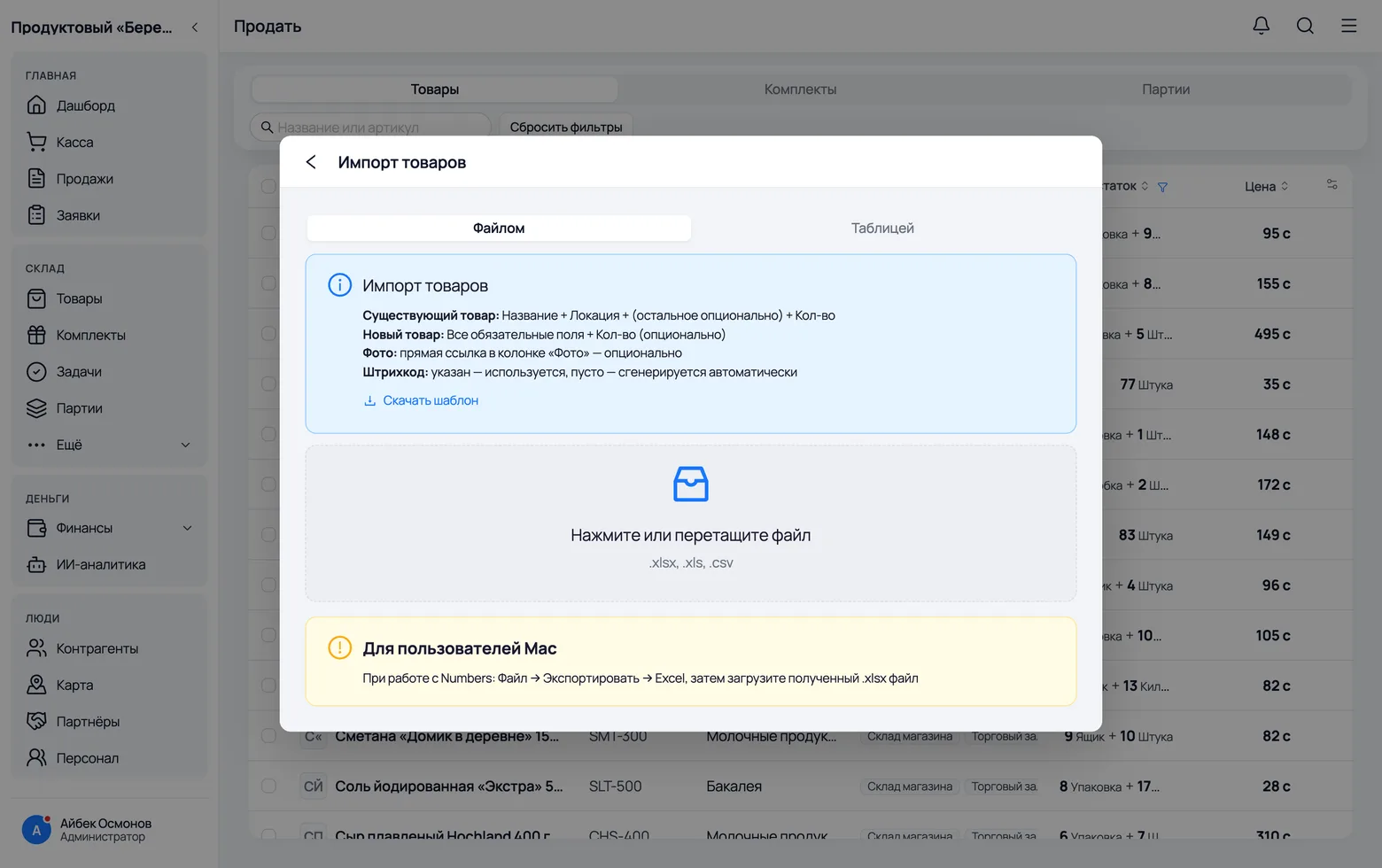
The import sits in the header menu on the Products screen and only the owner can open it: product cards and cost prices are created there. Inside there are two routes to the same result — from a file and in a table. Use the file for what is already typed in Excel or came from your supplier; the table is faster when there are fewer than twenty items and no file at all.
 1
1
 2
3
4
5
2
3
4
5
- 1Warehouse → Products, the menu button in the top right corner, the last item — Import. An employee does not have this item at all.
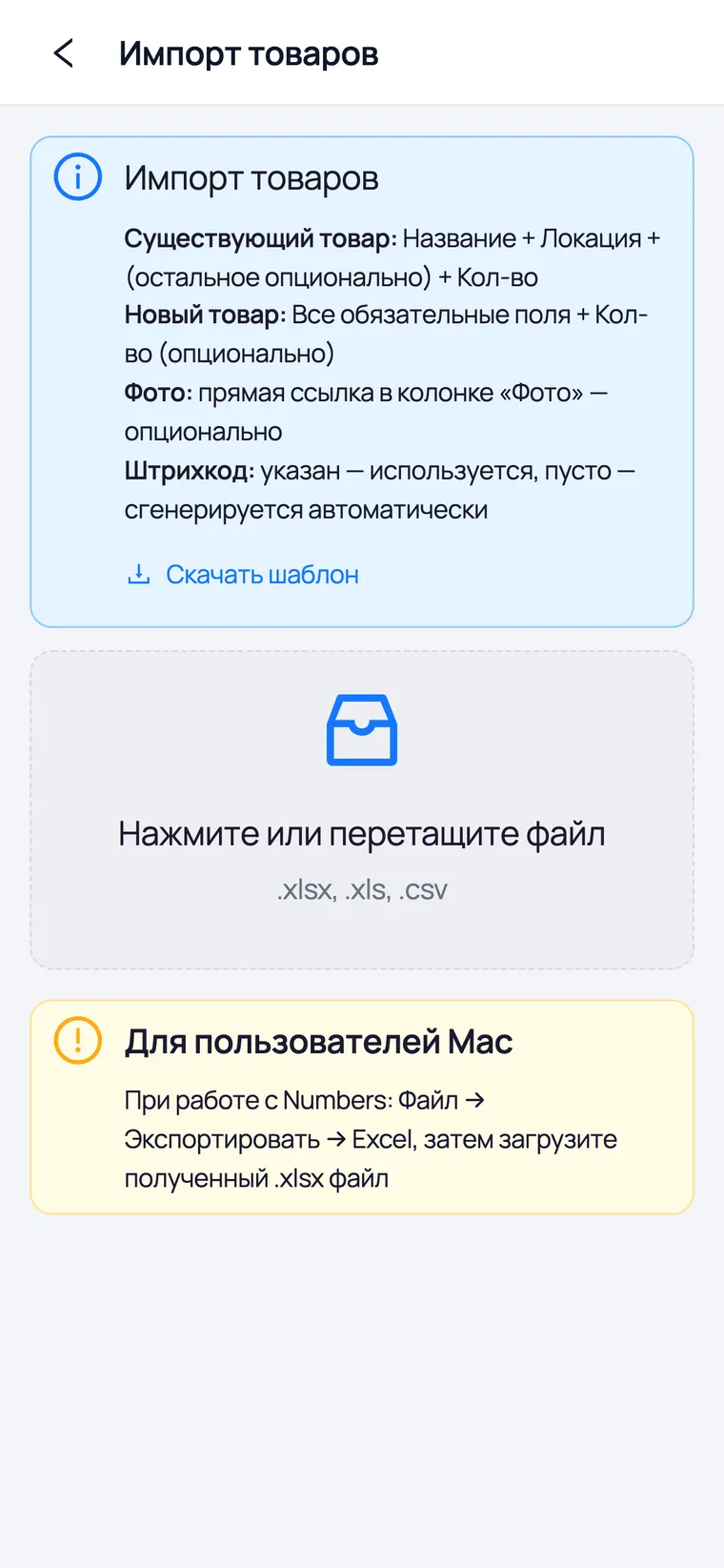
- 2From a file — a whole Excel sheet: hundreds of rows in one go. This is how you set up a warehouse from scratch and how you take in a large delivery.
- 3In a table — you type the rows right here, with catalogue search. Computer only: a row needs the width for seven fields at once.
- 4Download the template — always start here, even if you already have your own file: the column headers have to match.
- 5Drag the filled file into this area or click and pick it. Formats: .xlsx, .xls, .csv.
- The note at the top of the window reminds you of the main thing: an existing product needs only Name, Location and Quantity; a new one needs every required field.
Take the right template: blank or filled with your products
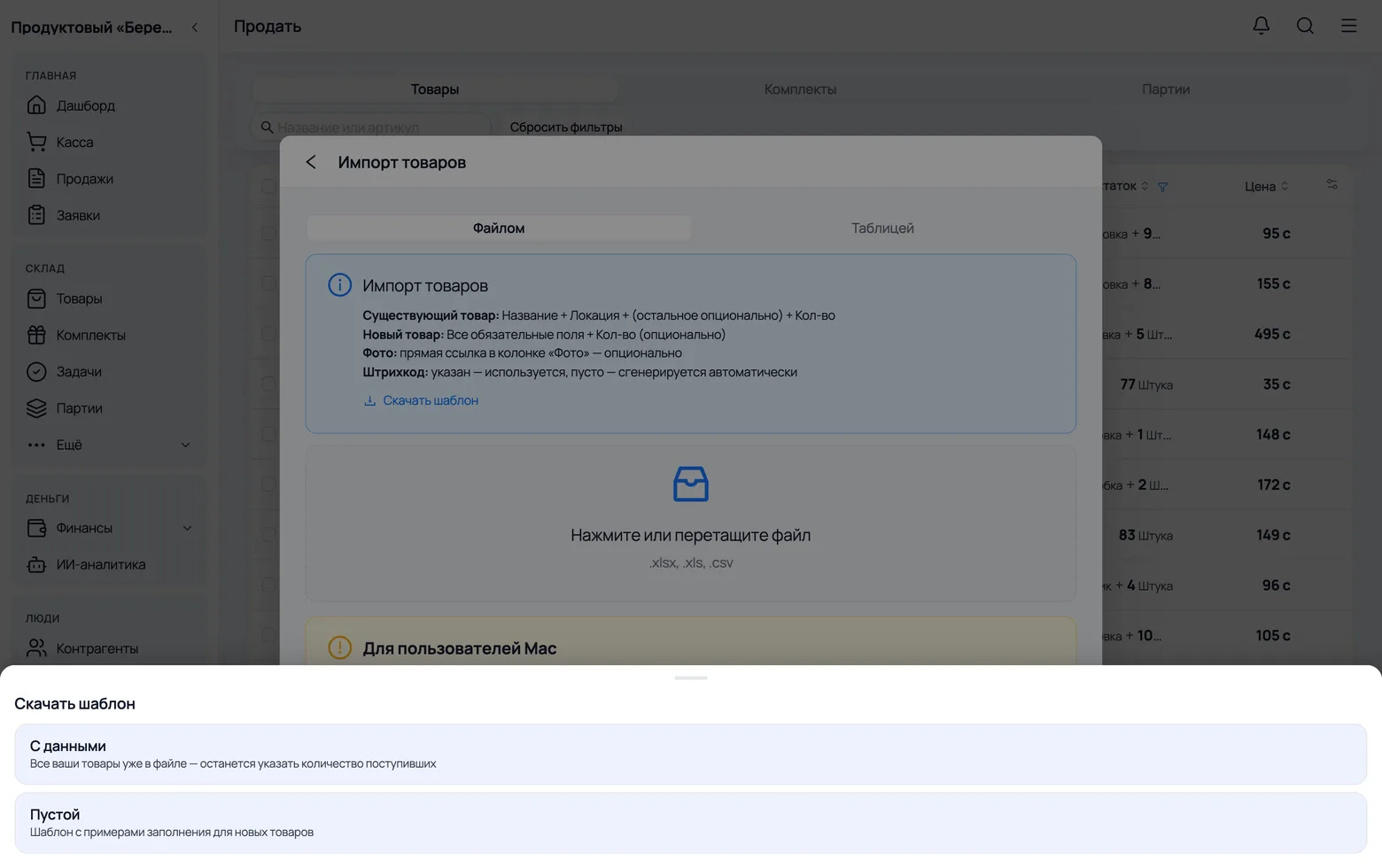
There are two templates, and choosing between them means choosing the scenario. Take the blank one when there are no products in the app yet. Take the one with data when your catalogue already exists and you only need to mark what arrived and how much: all your products are already in the file, you just fill in the quantity.
 1
2
1
2
- 1With data — an export of all your products with their prices and units. The 'Quantity' column is empty: fill it in only for what arrived; the import skips the other rows.
- 2Blank — three example rows that show how to fill it in. Delete the examples before uploading.
- The file has three sheets. Products — what gets imported. Reference — what already exists in your company (locations, units, categories), so you can copy a name without leaving the file. Instructions — the filling rules.
- Columns are recognised by their header, not by their order. You can delete one you do not need and reorder the rest. The only thing you must not change is the header text itself.
- There are no dropdowns or input restrictions in the file — that is deliberate. Write what you need: a category is created on the fly, 'pc' is a perfectly good base unit, and quantities can be fractional. Whatever does not match the database, the app shows you on the preview and lets you fix it.
- Units are written as a chain from large to small:
Box(10) - Pack(50) - Piece. The last one is the base unit, and stock is kept in it. Instead of the chain you can write the name of a ready template from the 'Reference' sheet. - Prices and the low-stock limit are given per default unit, not per base unit: if the 'Default unit' column says 'Box', then the price is per box. Exactly as in the product card.
- The barcode can be left empty — the app generates one. For a product that already exists, an empty cell changes nothing.
Check what the app understood
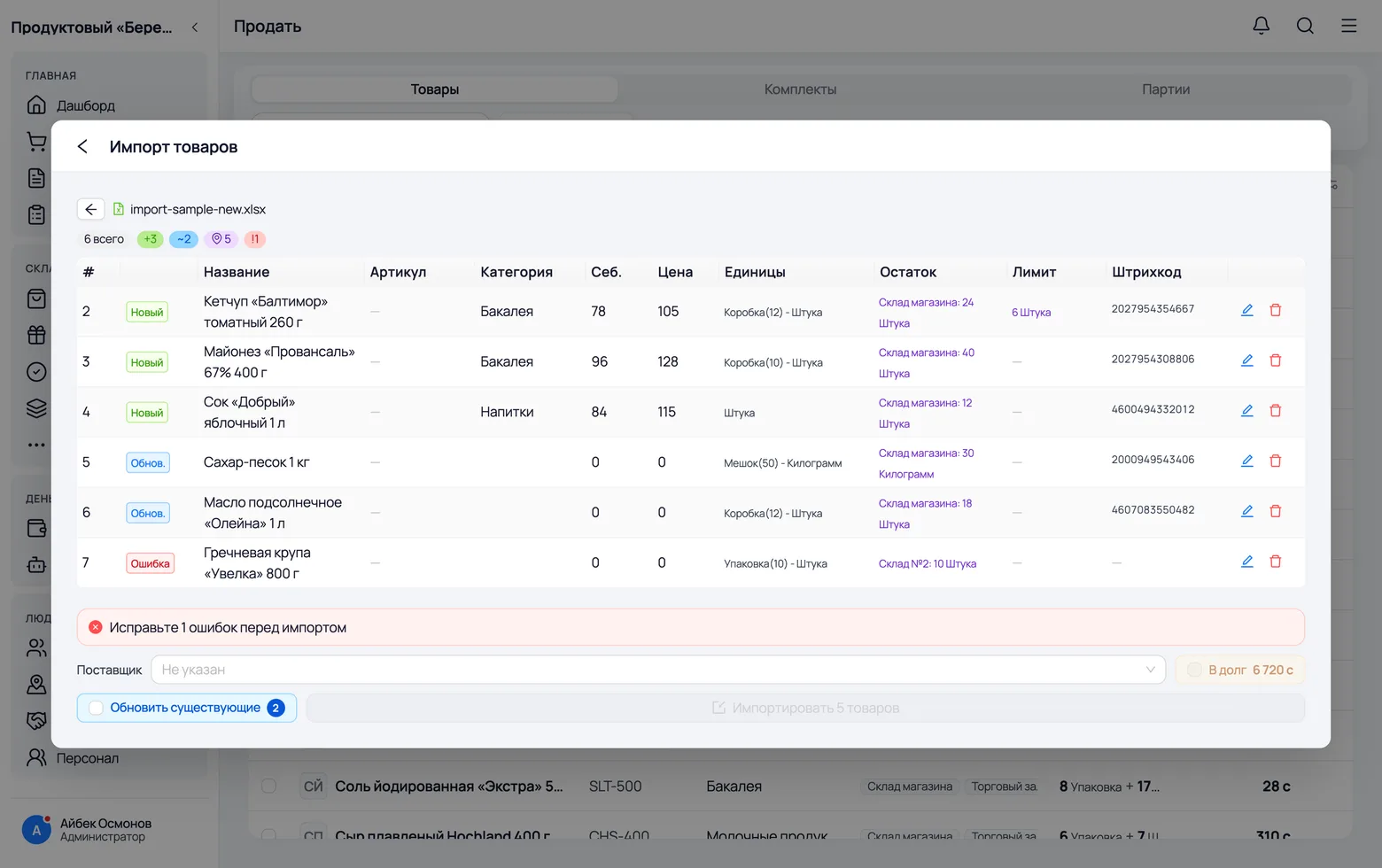
The file is not uploaded straight away: first you are shown how it was parsed. This is the only place where a mistake is visible before it turns into stock on a shelf — and it is fixed right here, without touching the file again.
 1
2
3
4
1
2
3
4
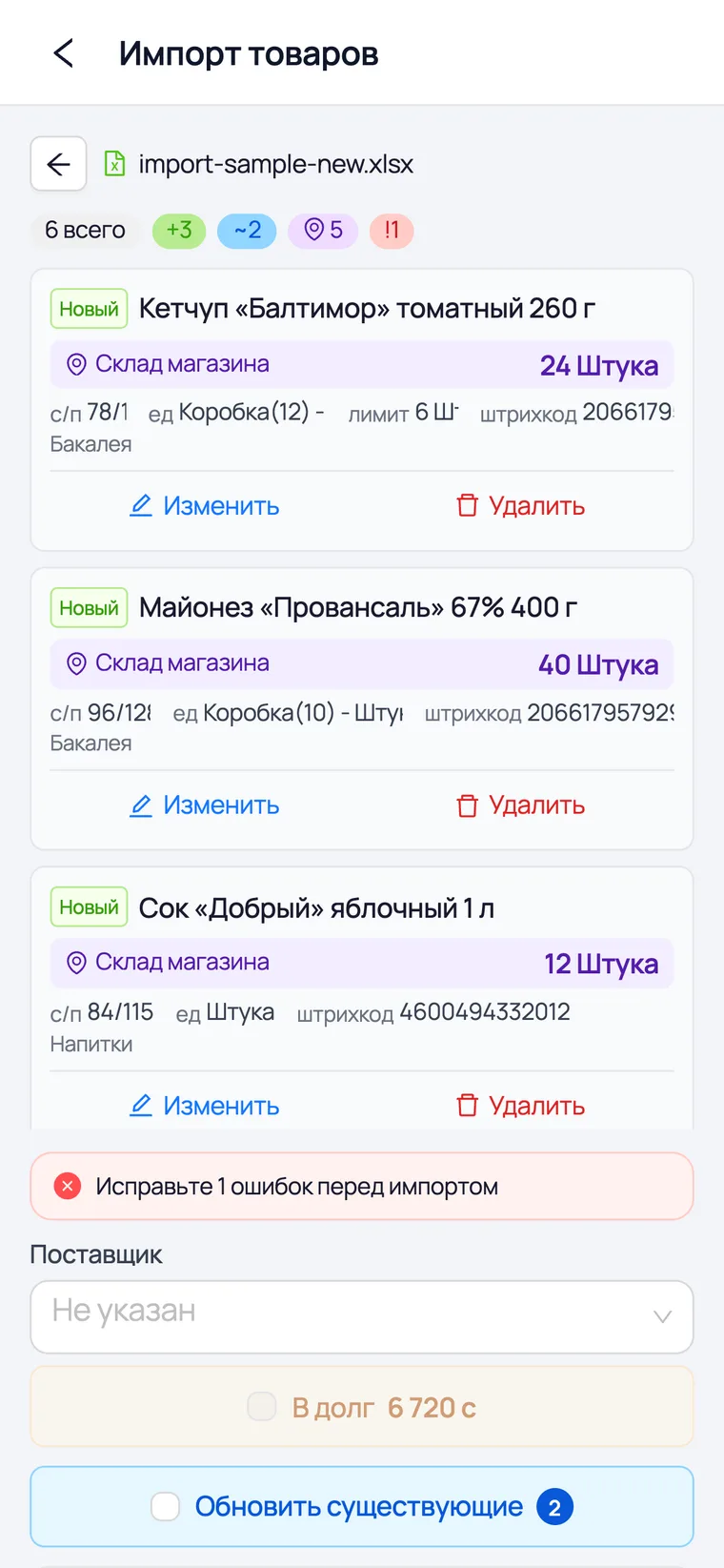
- 1The counters at the top are the whole parse in one line: total rows, how many are new, how many are updates, how many bring stock and how many are errors. They show at a glance whether you uploaded the right thing.
- 2New — there is no such product in the app, so a card will be created. Check these rows first: a typo in the name creates a duplicate instead of an arrival on the existing product.
- 3Upd. — the product was found by name. Its card changes only if you tick 'Update existing' on the next step; the stock arrives either way.
- 4Error — the import will not take this row. Hover the tag to read why: most often it is 'Location not found' (the name in the file does not match the one you created) or a wrong unit format.
- The zeros in the prices of an 'Upd.' row are empty cells in the file, not 'the price will become zero'. The import ignores an empty price: only the ones actually given are updated. That is exactly why a row for an existing product needs no more than a name, a location and a quantity.
- You fix a row right here — with the pencil at the end of the row — and remove an extra one with the bin. While even one error is left, the import button stays disabled: that is the protection against half a file being uploaded.
Name the supplier and upload
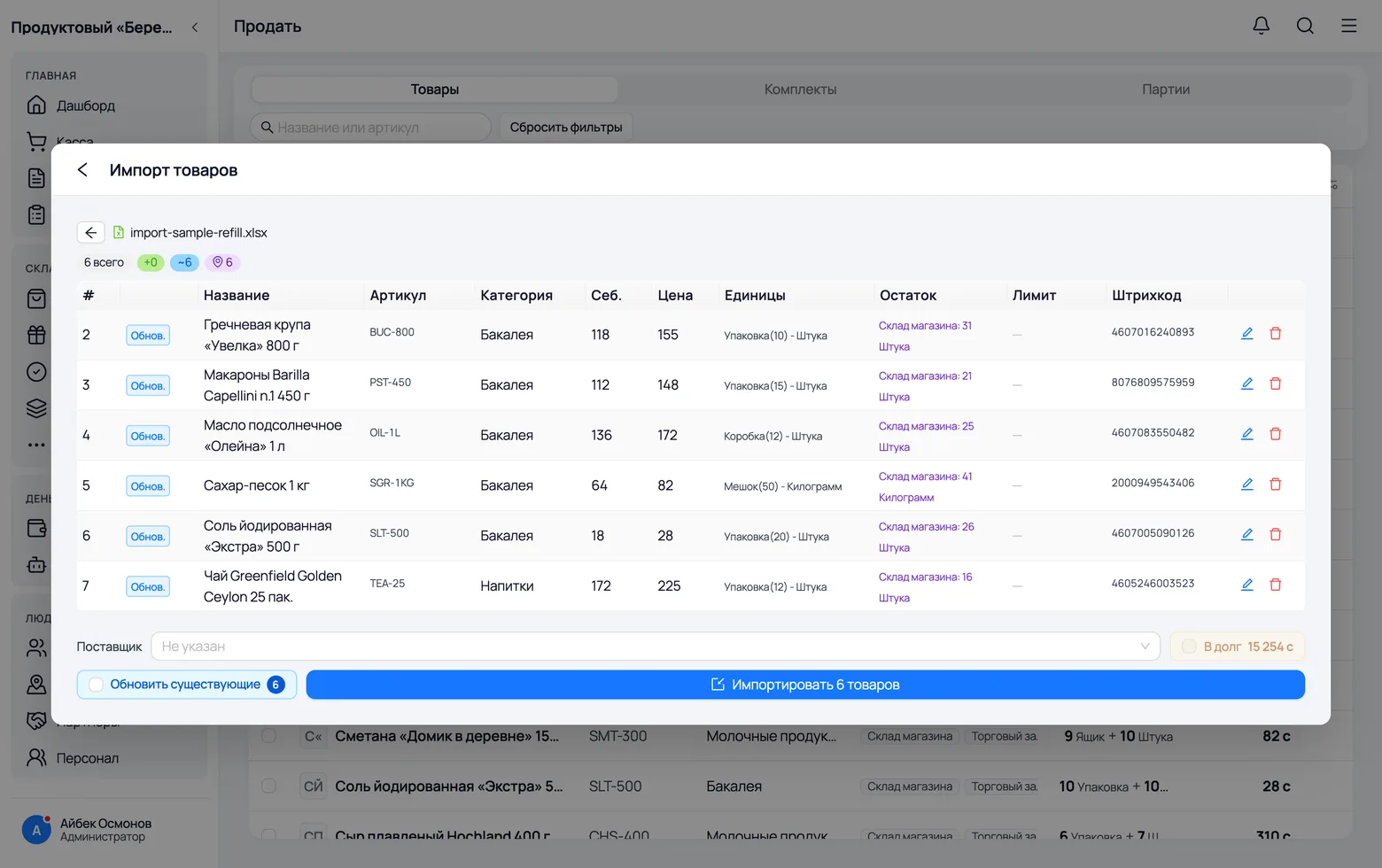
Below the table there are three settings, and each of them changes not the stock but the money and the cards. The stock arrives either way; the question is whose goods these are, whether they are paid for, and whether we touch what already exists.
 1
2
3
4
1
2
3
4
 5
5
- 1The supplier is attached both to the delivery as a whole and to every batch created — later the product card shows where a particular lot came from. If you brought the goods in yourself, leave the field empty.
- 2On credit creates an arrival receipt for the supplier for exactly the cost of the delivery — the sum is shown next to the checkbox so you mark the debt knowing the number. Without a chosen supplier the box cannot be ticked: there is nobody to owe.
- 3Update existing — permission to overwrite the cards of the products found with the data from the file: prices, category, units. Without the tick only their stock changes. It appears only if the file has such rows.
- 4Import N products — the number on the button counts only what will actually go through: rows with errors are not included. A large file takes minutes; there is no need to close the window.
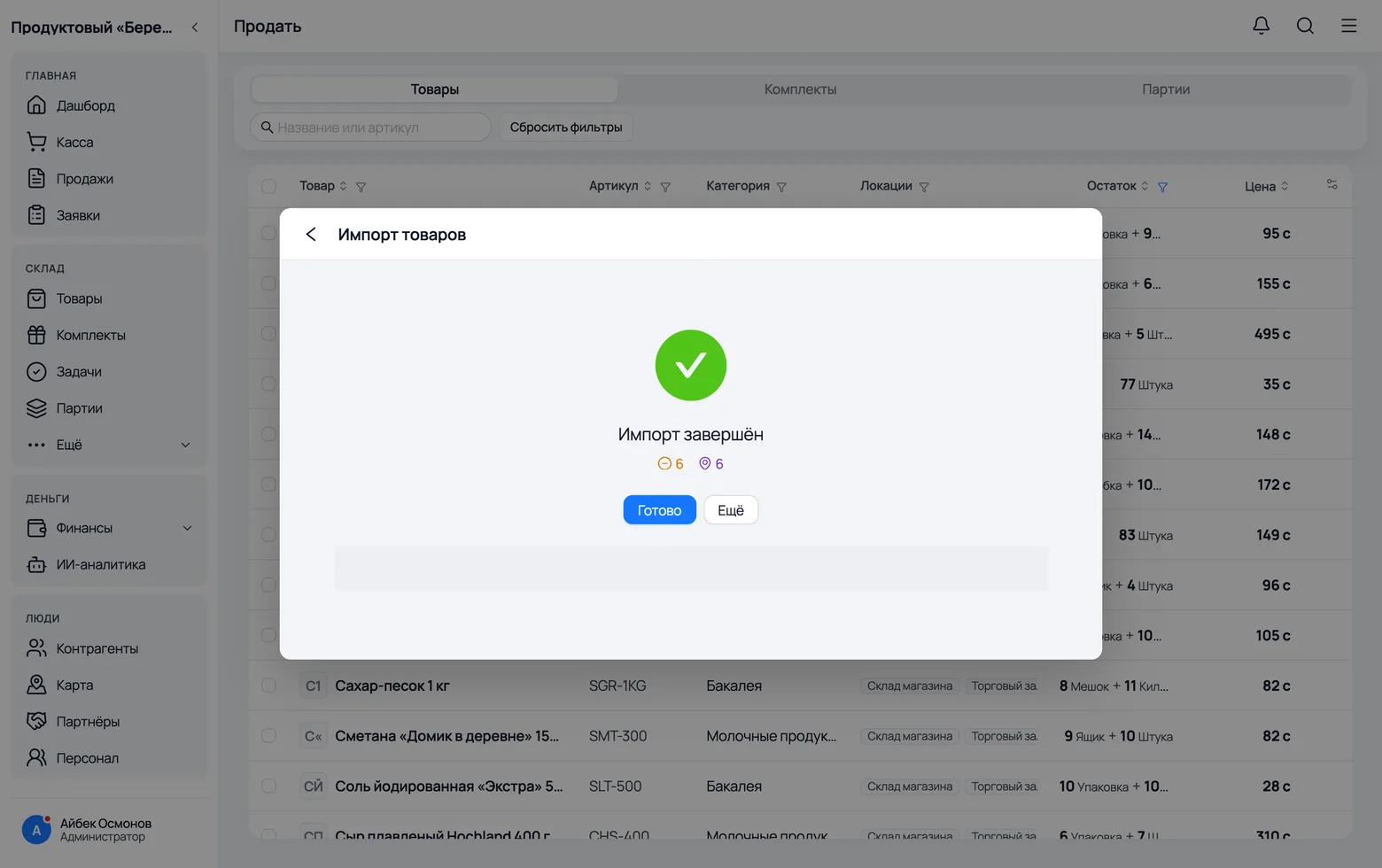
- 5The report shows what happened: products created, cards updated, batches created, photos uploaded, debt recorded. Rows with errors are listed with their number — fix them in the file and upload them separately.
In a table
When there are about ten items
Type the delivery into a table
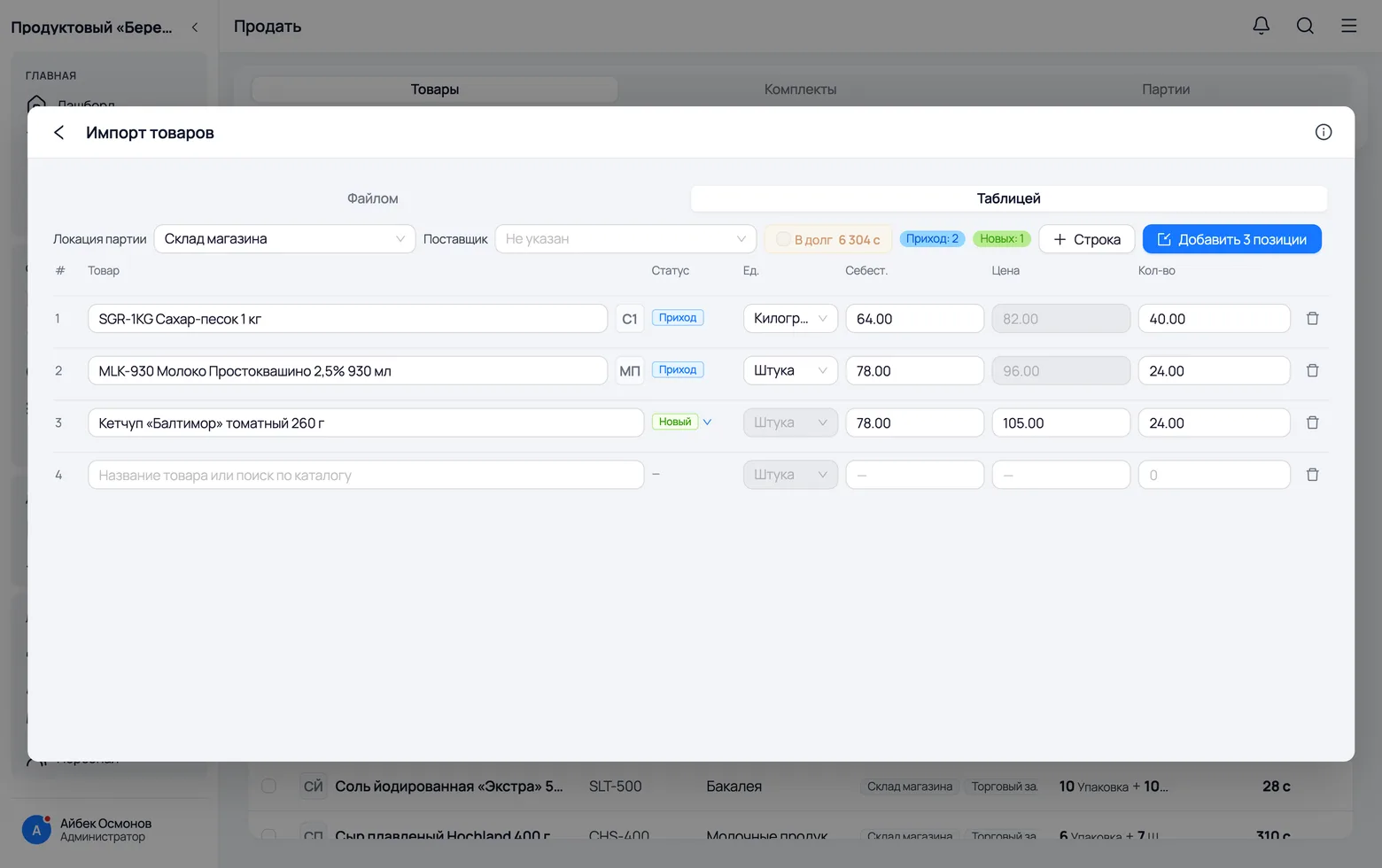
When there are a dozen items and no file, there is no point going to Excel. The table does the same job: a row with a product from the catalogue goes in as an arrival on the existing card, and a row with your own name creates the product together with its batch. The location and supplier are set once at the top — they describe the whole delivery, not a single row.
 1
2
3
4
5
1
2
3
4
5
- 1The batch location is required: without it the submit button stays disabled. This is where all the rows land at once.
- 2The supplier and the 'On credit' tick work exactly as in the file import: the cost of the batch is shown next to them, and without a supplier there is no debt to record.
- 3In the product field, search the catalogue. Pick an existing one and the row is marked Arrival, with its selling price locked: it is taken from the card. Type a name that does not exist and the row becomes New.
- 4Row adds an empty row at the bottom. The counters next to it show how many arrivals and how many new cards the set holds.
- 5Add N items sends the whole set. A missing quantity is highlighted in the row itself — the submission will not go through with it.
Fill in the fields of a new card
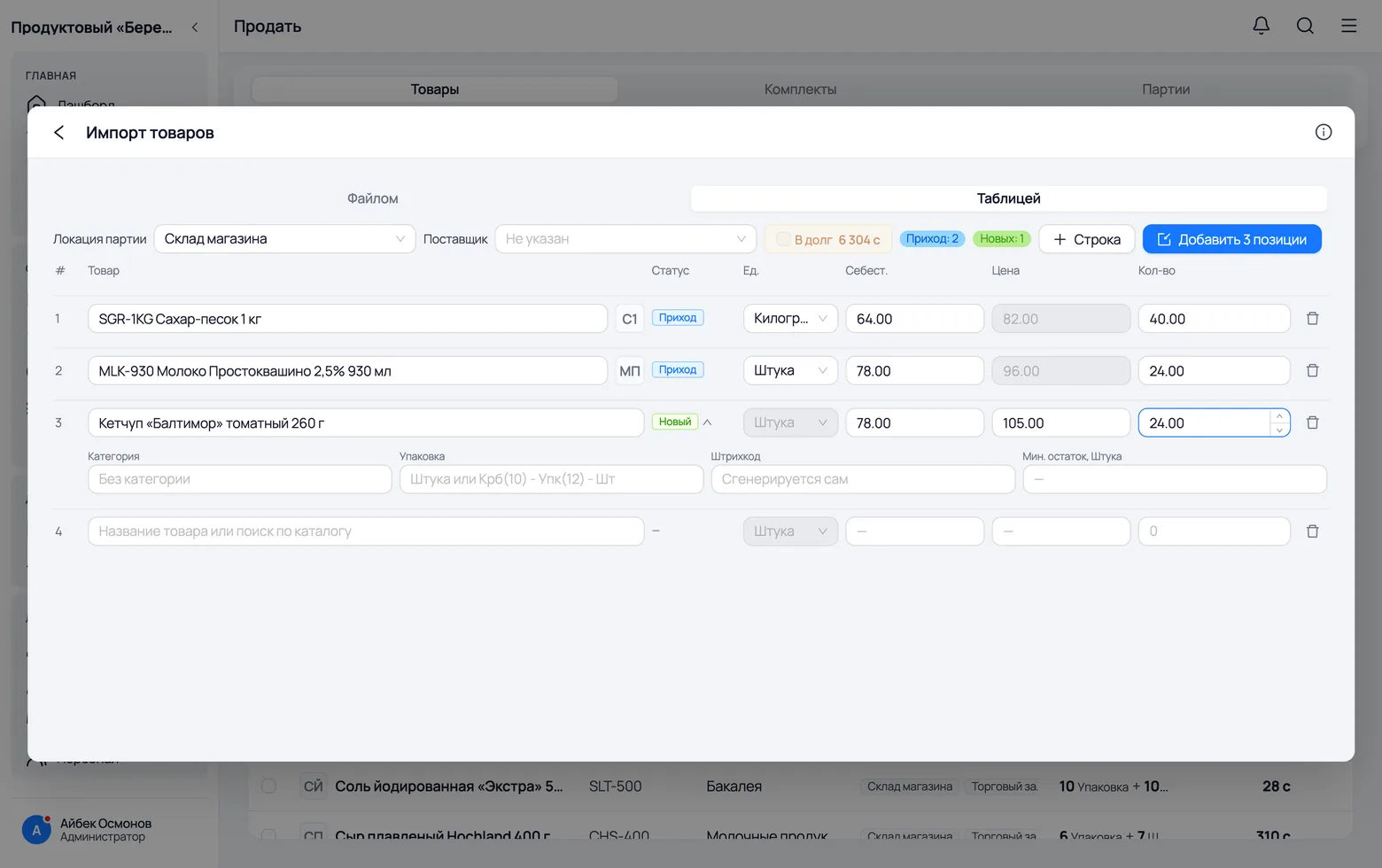
A row with your own name opens a second line straight away: the fields an arrival on an existing product does not have. It is open by default for a reason — otherwise you would never see that a new product can be given a category, packaging and a barcode at all. The arrow next to the word 'New' folds this line away so that a long list reads as a table rather than as cards.
 1
2
3
4
1
2
3
4
- 1Category — pick one from the list or type a new one: the app creates the missing one itself.
- 2Packaging — the name of a ready unit template or your own chain in the same format as in the file:
Box(10) - Pack(12) - Pc. Leave it as 'Piece' and the product is counted per piece. - 3The barcode can be left empty — one is generated. You fill it in when the code is already printed on the package and you need to keep it.
- 4Min. stock — the threshold below which the app starts reminding you that the product is running out. It is given per the same unit as the prices and the quantity — the field label says which.
- Cost and price are entered per the unit selected in the row: switch 'Unit' to box and the price is now per box, with the field label changing along with it.
- An arrival row does not have these fields, and that is not an omission: the table does not change the category or packaging of an existing product — the product card is there for that.
After the upload
Where it all landed and how to recount
Where it all landed: batches
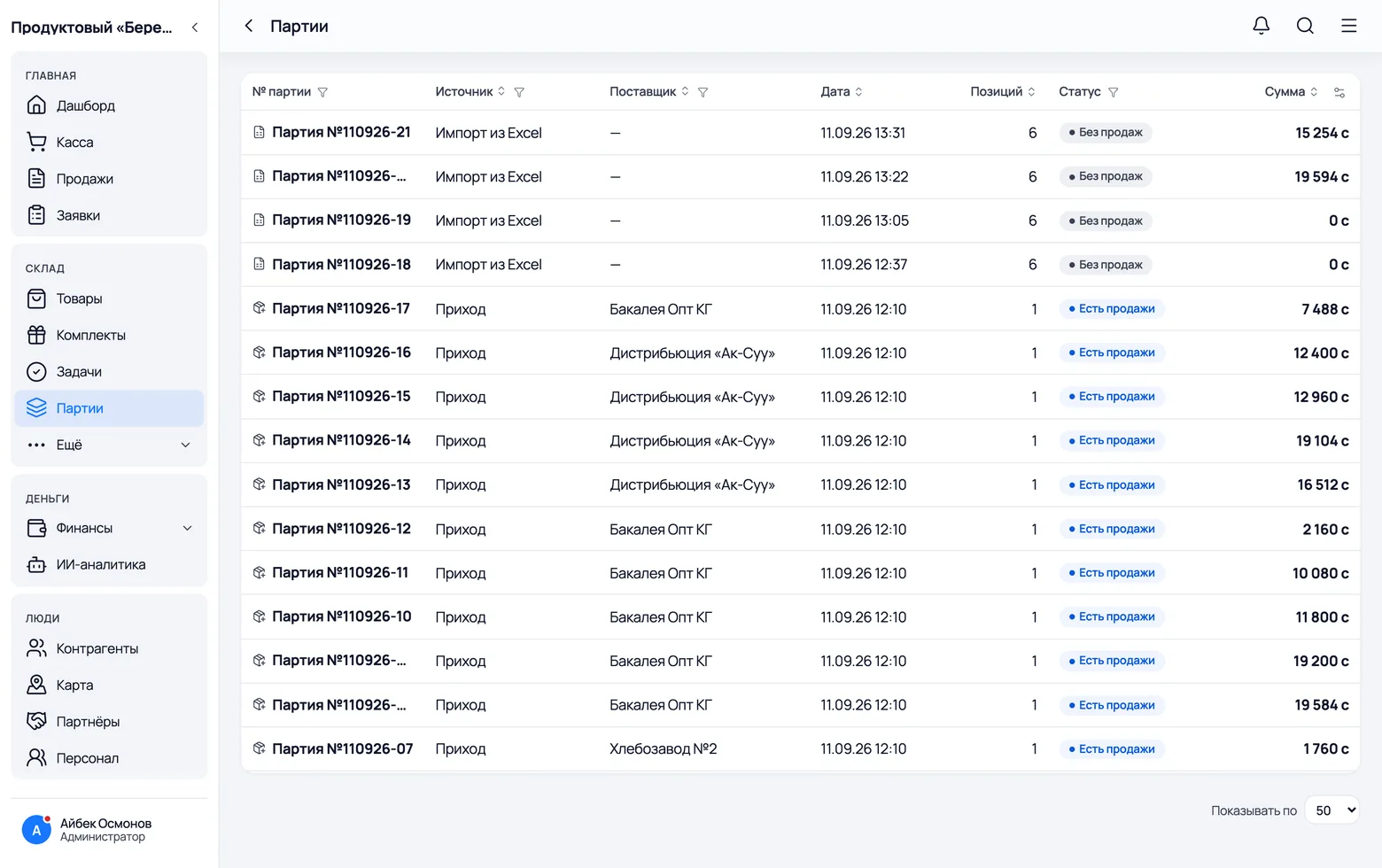
The import does not scatter goods around the warehouse anonymously: every upload is one delivery with its own number, date and supplier. Later it shows you the profit, it is where you look when stock is wrong, and it is what you delete as a whole if you uploaded the wrong thing.
 1
2
3
1
2
3
- 1Warehouse → Batches — a list of every delivery, including the ones the import created. Inside a card you see its contents, cost and what has already been sold from it.
- 2Source answers the question 'where did this stock come from': an import, a normal arrival or a receipt. If you uploaded the wrong file, this is where you find it.
- 3Status — 'No sales' or 'Has sales'. You can only delete a delivery in full while nothing from it has been sold or written off: otherwise receipts already issued would have to be rewritten.
- Deleting the whole delivery is easier than fixing products one by one: the batches it created and the stock movements go with it. The button works only for deliveries whose source is 'import' — an arrival or a receipt is cancelled where it was created.
- A delivery that has a debt to the supplier recorded against it cannot be deleted here either: first the arrival receipt is cancelled, and the debt goes with it.
- Shipping, customs and loading are added right here on the delivery card — Other expenses. They are not spread into the product cost, but they do make the delivery's profit honest.
A recount is not an import
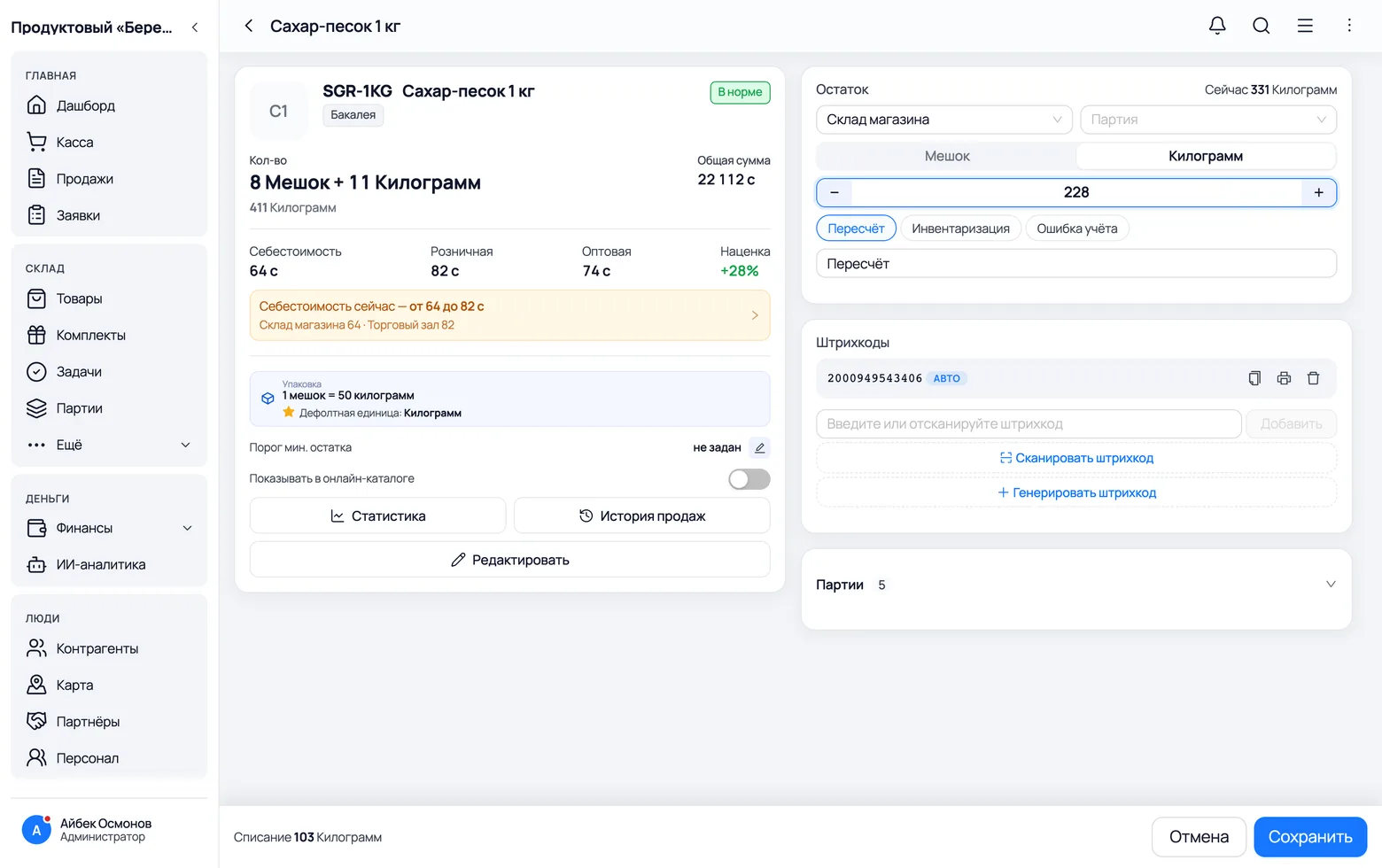
The most expensive mistake in this area: uploading a stock file a second time to 'update the quantity'. The import does not set the stock, it adds to it — every row is an arrival of goods into the warehouse. If after a recount the shelf does not match the app, the number is corrected in the product card.
 1
2
3
1
2
3
- 1Open the product card. In the Stock block pick the location and the unit, then type the number that is actually on the shelf, right over the current one.
- 2As soon as the number changes, a reason appears: Recount, Stock-take or Accounting error. Pick a ready one or write your own — the change cannot be saved without a reason.
- 3Save — the app works out the difference itself and records it as a stock movement. The history keeps who recounted, when, and by how much it diverged — unlike a number quietly changed.
- The correction is made per location and per batch: stock does not sit 'in the shop' in general but in a particular warehouse and a particular batch with its own cost. That is why you recount by storage place, not with a single number per product.