Shifts in the shop: who showed up, what they sold, and how they closed the till
A salesperson clocks in with one tap and closes the shift at the end of the day with a short report: sales, cash in the till, enquiries by channel. You get a monthly timesheet, cash discrepancies, and daily pay calculated per shift rather than per calendar day.
Setting up
Once, by the owner
Turning on staff shifts
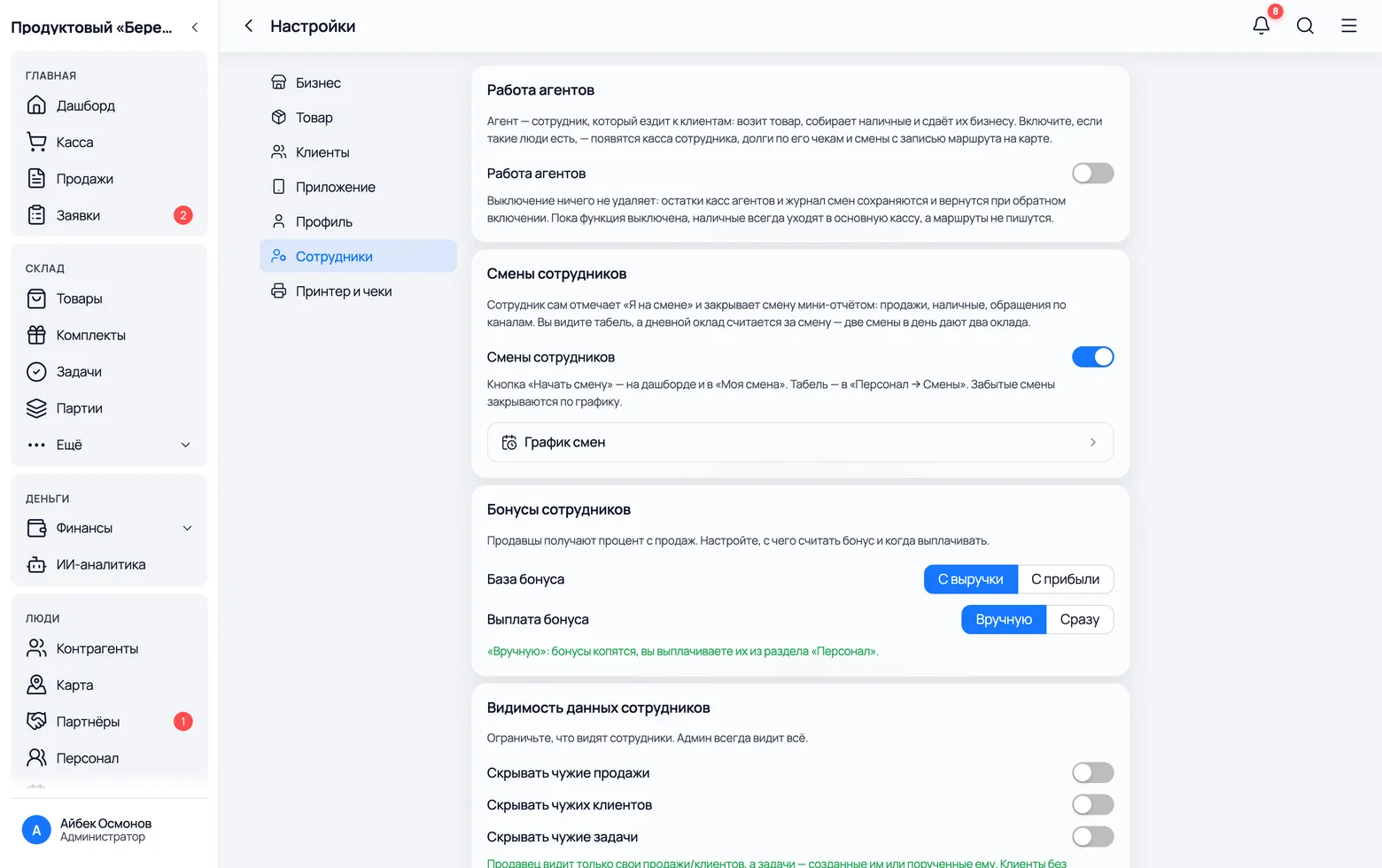
Shifts are off by default: this is a new work discipline, introduced by the owner rather than by an app update. While the switch is off, the salesperson has neither a 'Start shift' button nor a 'My shift' screen.
 1
2
1
2
 3
3
- 1Settings → Staff → Staff shifts. The switch gives every salesperson a 'Start shift' button and gives you the timesheet.
- 2Shift schedule is your shop's timetable. Fill it in straight away: it is what lets a shift pick itself at the start and close itself if someone forgets.
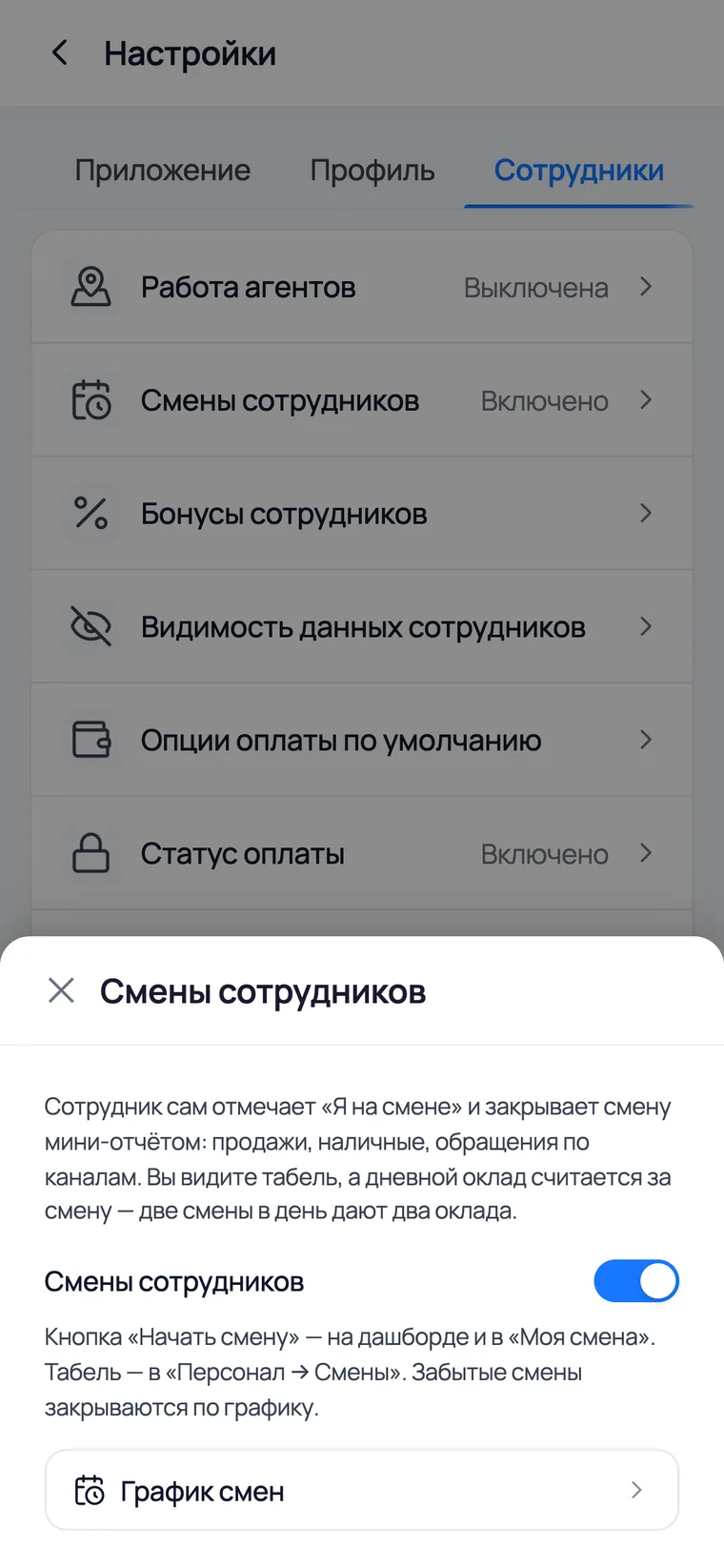
- 3It is the same on a phone: More → Settings → Staff, the 'Staff shifts' row.
- Switching it off closes open shifts and removes the screens, but deletes nothing: past months' timesheets and closing reports remain and come back when you switch it on again.
- You will not get an 'I'm on shift' button yourself: the owner showing up is not part of the timesheet. There is no need to open a shift for yourself.
The shift schedule: when a shift starts and when it ends
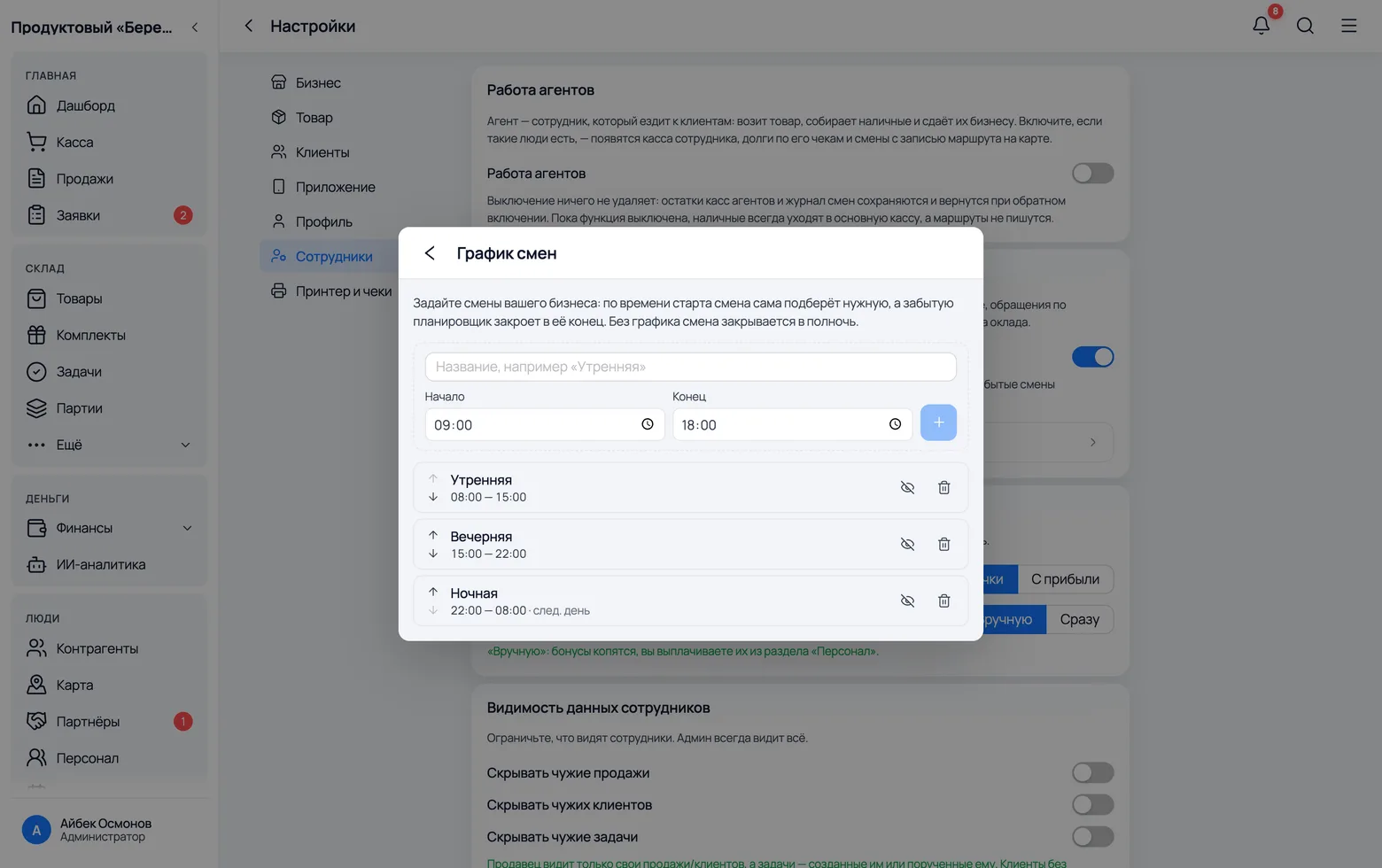
The schedule is a norm, not a ban. It decides two things: which shift a person falls into when they press 'Start', and when the app closes a shift that someone forgot to close.
 1
2
3
1
2
3
- 1Set the shifts up the way your shop actually works: 'Morning 08:00–15:00', 'Evening 15:00–22:00'. The names and times are yours — the app imposes nothing.
- 2The shift is picked by the start time: press at 14:40 and you land in the evening shift, because its start is closer than the end of the morning one. The 'came early' allowance is one hour.
- 3'Night 22:00–08:00' is a shift across midnight: an end earlier than the start means the next day. If the shop is open round the clock, cover all 24 hours with the schedule.
- A shift can be opened at an odd hour too — it will be 'unplanned' and will close at midnight. The schedule describes the norm; it does not forbid coming in.
- Closing a shift and starting again inside the same schedule window continues the same shift, not a second one. An extra tap does not turn into a second day's pay.
- A forgotten shift is closed by the app itself — at the planned end plus two hours — and you can see it in the timesheet: such a shift has no closing report.
The salesperson's day
Two taps: start and close
The salesperson clocks in with one tap
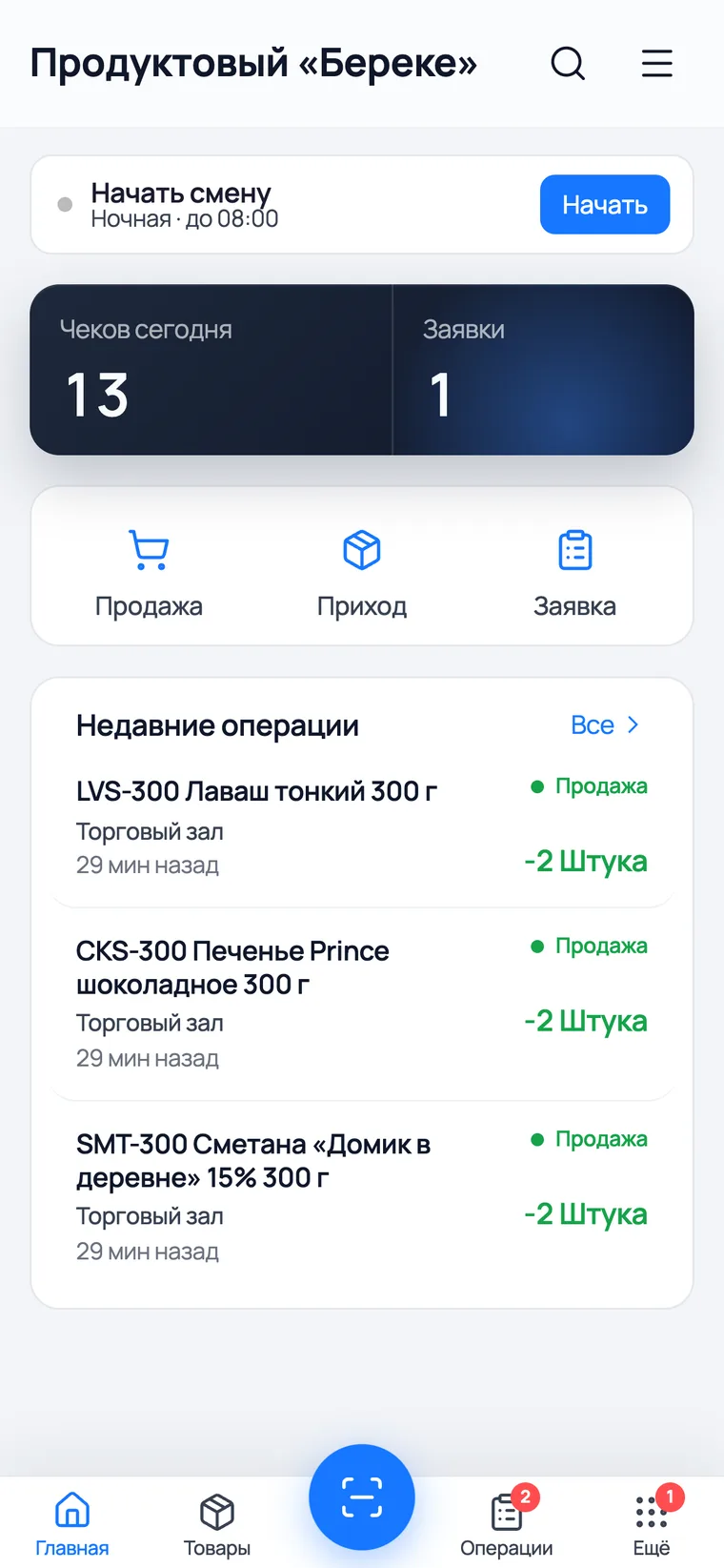
The bar sits on the home screen — no need to go into the menu. Under it you see which scheduled shift is starting and until when it runs.
 1
2
1
2
- 1The salesperson opens the app and the 'Start shift' bar is already on the home screen. Below it: the shift name from the schedule and the time it runs until.
- 2Start — the shift is running. From then on the salesperson works as usual: the till, sales, incoming goods. Nothing extra is required.
- A cashier gets shifts the same way: they have only a few menu items, and 'My shift' is one of them.
- Pressing again breaks nothing: if a shift is already running, the app simply returns the same one.
'My shift': the timer and your own shifts for the month
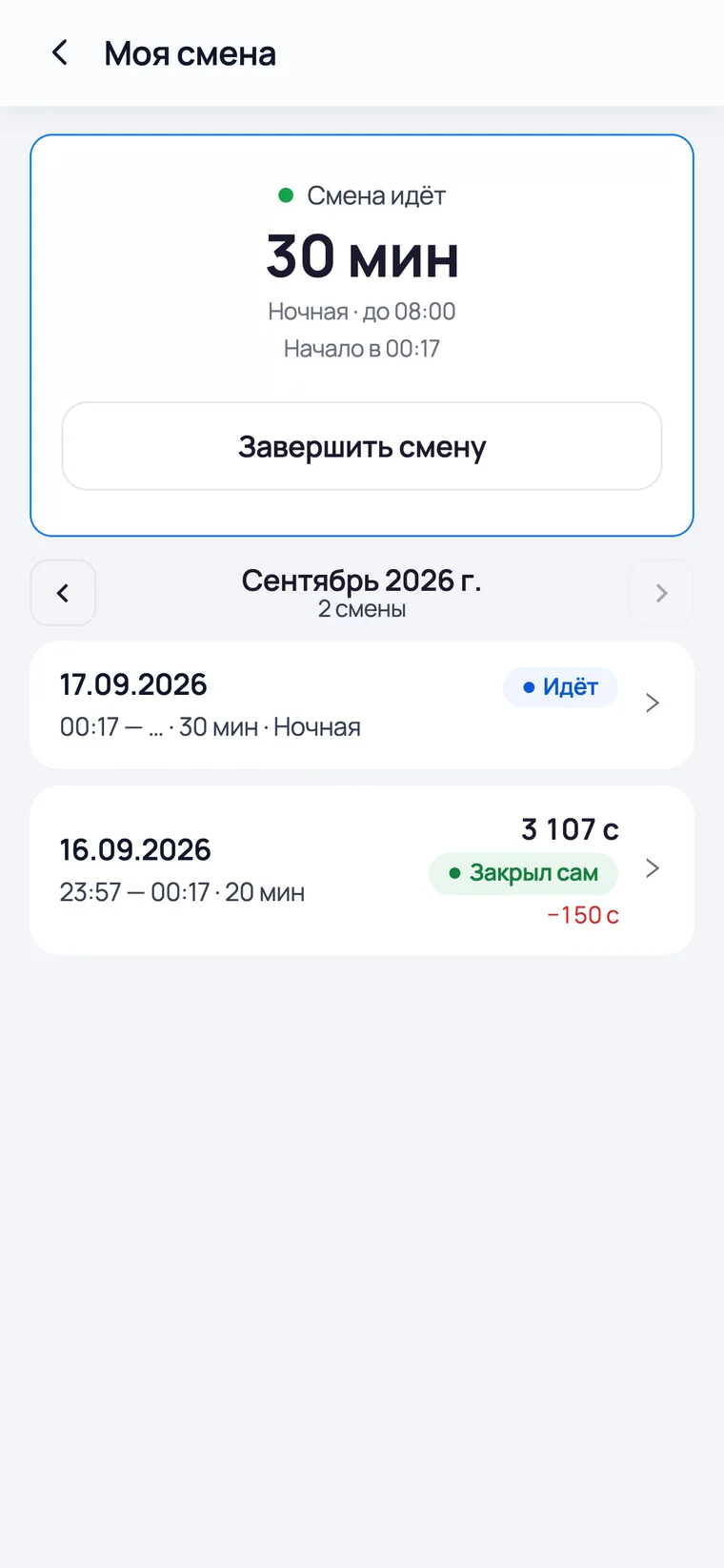
The screen answers two questions for the salesperson: how long they have been on shift and how many times they came in this month. Below are their own shifts with revenue and the cash discrepancy.
 1
2
3
1
2
3
- 1Shift running and the timer show how long the person has been at work. Below it says which scheduled shift this is and when it started.
- 2Finish shift opens the short report. It is the only button that closes the day, and it is worth agreeing on it explicitly.
- 3Below are their own shifts for the month. The running one is marked 'Running', closed ones show revenue and the cash discrepancy; the arrows page through previous months.
- The red figure to the right of a shift is the cash discrepancy: how much was missing or extra when the till was counted. Zero is not shown at all.
- A salesperson's shift is visible to them and to the owner. Other people's shifts are not shown on this screen — only your own.
Closing a shift: the till check and enquiries
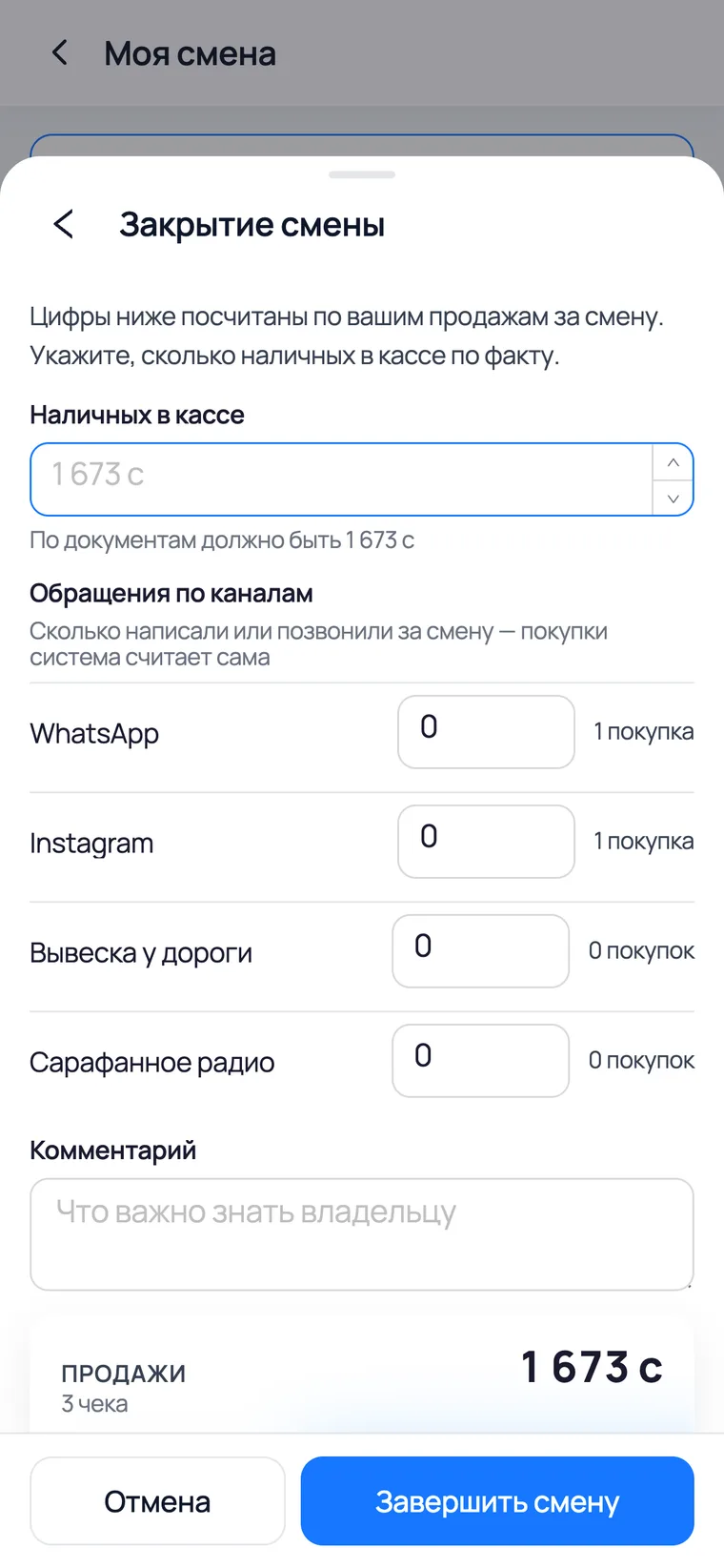
This form is why shifts are closed in retail at all. The app counts the shift's sales itself; the salesperson enters one number — how much cash is actually in the drawer. The difference is worked out by the app.
 1
2
3
4
1
2
3
4
- 1Cash in the till — how much money is actually in the drawer. Below the field it says how much there should be by the documents; the difference is worked out automatically.
- 2Enquiries by channel — how many people wrote or called. The block appears only when source tracking is on; purchases per channel are counted by the app itself.
- 3Comment — whatever the owner needs to know: you broke a note, gave change from your own pocket, the card terminal failed. One line saves a conversation the next day.
- 4Finish shift — the figures are frozen as a snapshot. If a receipt is cancelled tomorrow, the shift report does not move: it answers 'how the day was closed', not 'how things stand now'.
- You do not have to count the cash — the field is optional. The report then simply has no discrepancy line.
- The report includes the sales of this particular salesperson within the shift window, not the whole outlet's till: they answer for their own day, not someone else's.
What the owner sees
At the end of the day and the month
The monthly timesheet: who came in and how often
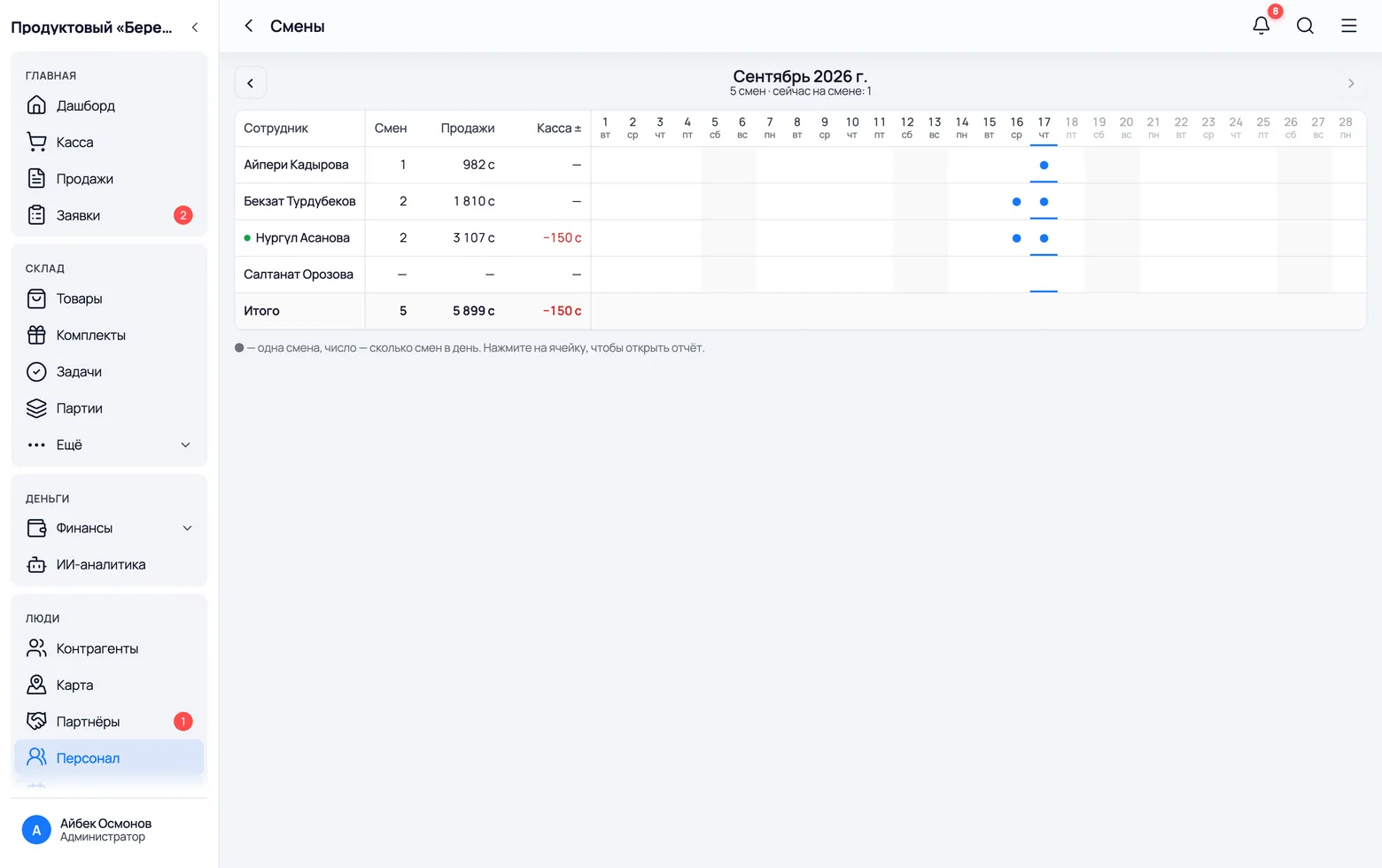
Rows are people, columns are days of the month. A dot means one shift, a number means how many there were that day. Next to the name is the total: shifts, sales and the cash discrepancy.
 1
2
3
1
2
3
 4
4
- 1Staff → Shifts. The list shows every employee, including those who did not come in once this month: 'who did not show up' is also an answer.
- 2Till ± is the sum of that person's discrepancies for the month. One random discrepancy is life; one repeating shift after shift is a reason to talk.
- 3Total is the whole month: how many shifts everyone worked, how much was sold and how much the till was off overall.
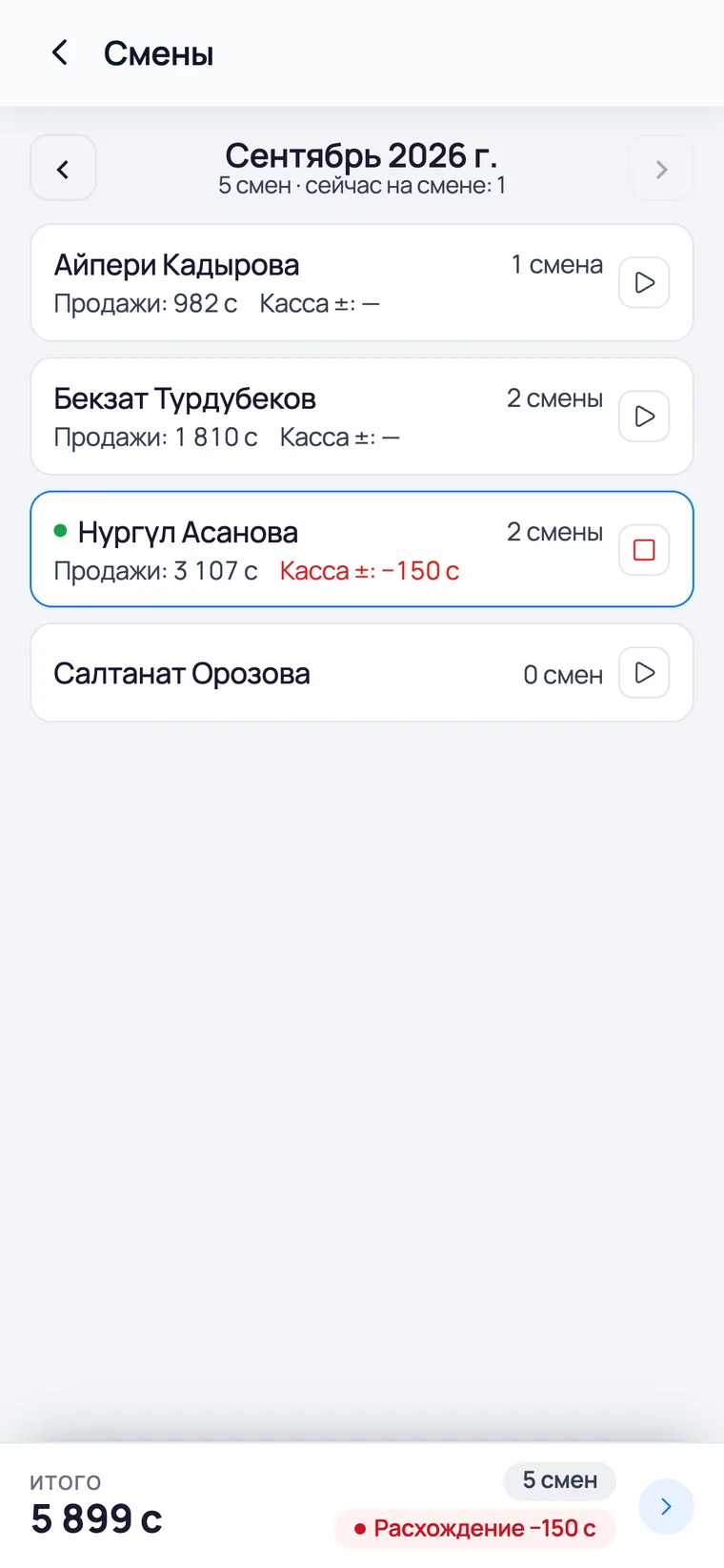
- 4There is no matrix on a phone — each employee is a card, and 'Total' is pinned to the bottom of the screen. Tap it to see the whole month, including enquiries by channel.
- A green dot by a name means the person is on shift right now. The count of those is shown at the top of the screen.
- A shift belongs to the day it started. A night shift that ended in the morning sits in yesterday's column.
The report of a closed shift
Click a shift and you see the whole day: sales, cash and card, debts, the till check, enquiries by channel with conversion, and the salesperson's comment.
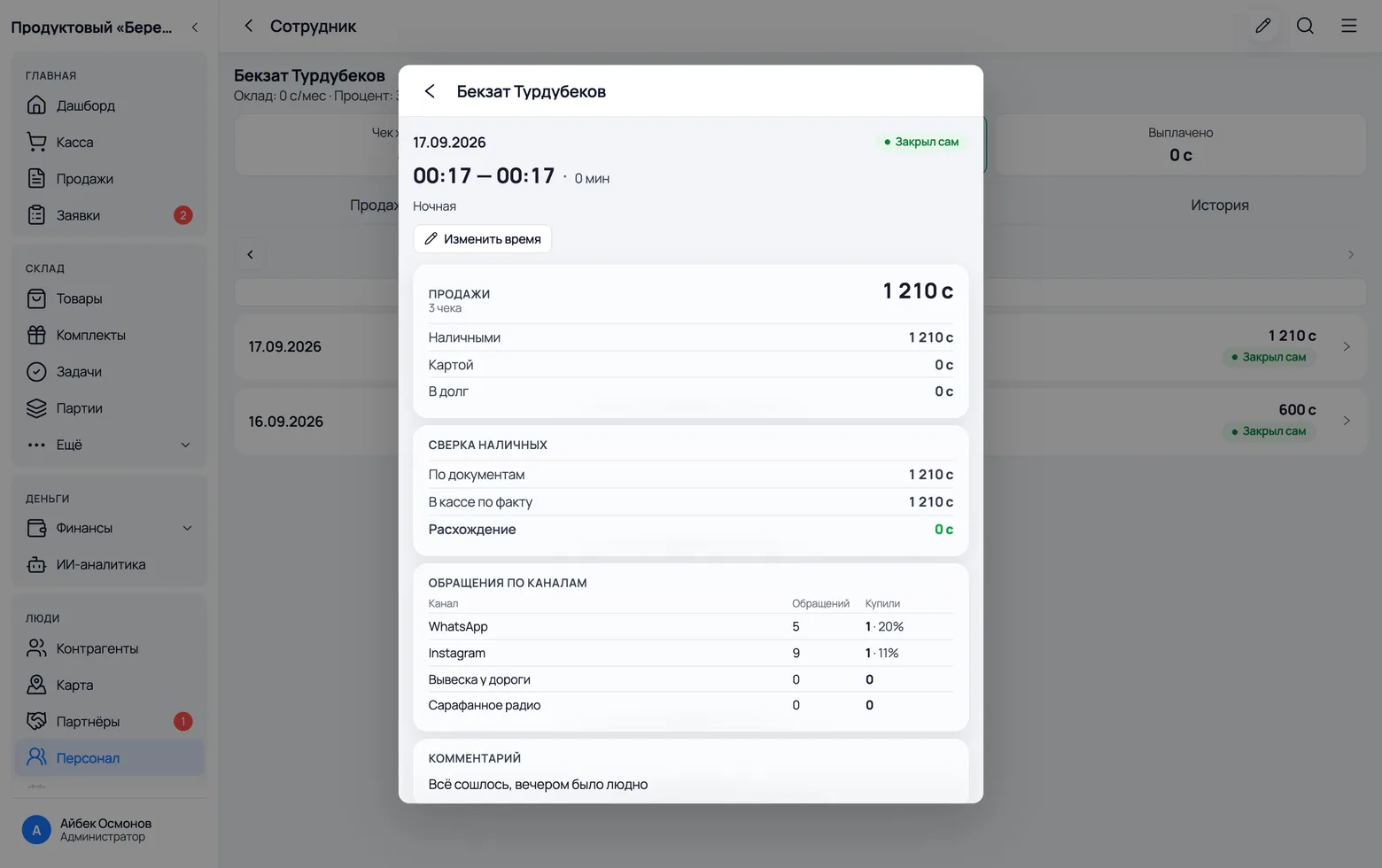 1
2
1
2
- 1The 'Shifts' tab on an employee's card: all their shifts for the month in a row. The label 'Closed by self' tells an honestly closed shift from one the scheduler finished off.
- 2Open shift is a button for you: if the salesperson forgot to clock in, you can open the shift for them. You can also correct the times, and the correction goes into the log.
- A shift closed automatically has no report — and that is a working signal: the person left without counting the till.
- Correcting the times does not recalculate the report: it was taken at the moment of closing and stays what the person saw with their own eyes.
Daily pay is calculated per shift
Before shifts, daily pay was counted by the calendar: whether the person came in or not. With shifts it is counted per appearance — and two shifts in one day mean two days' pay.
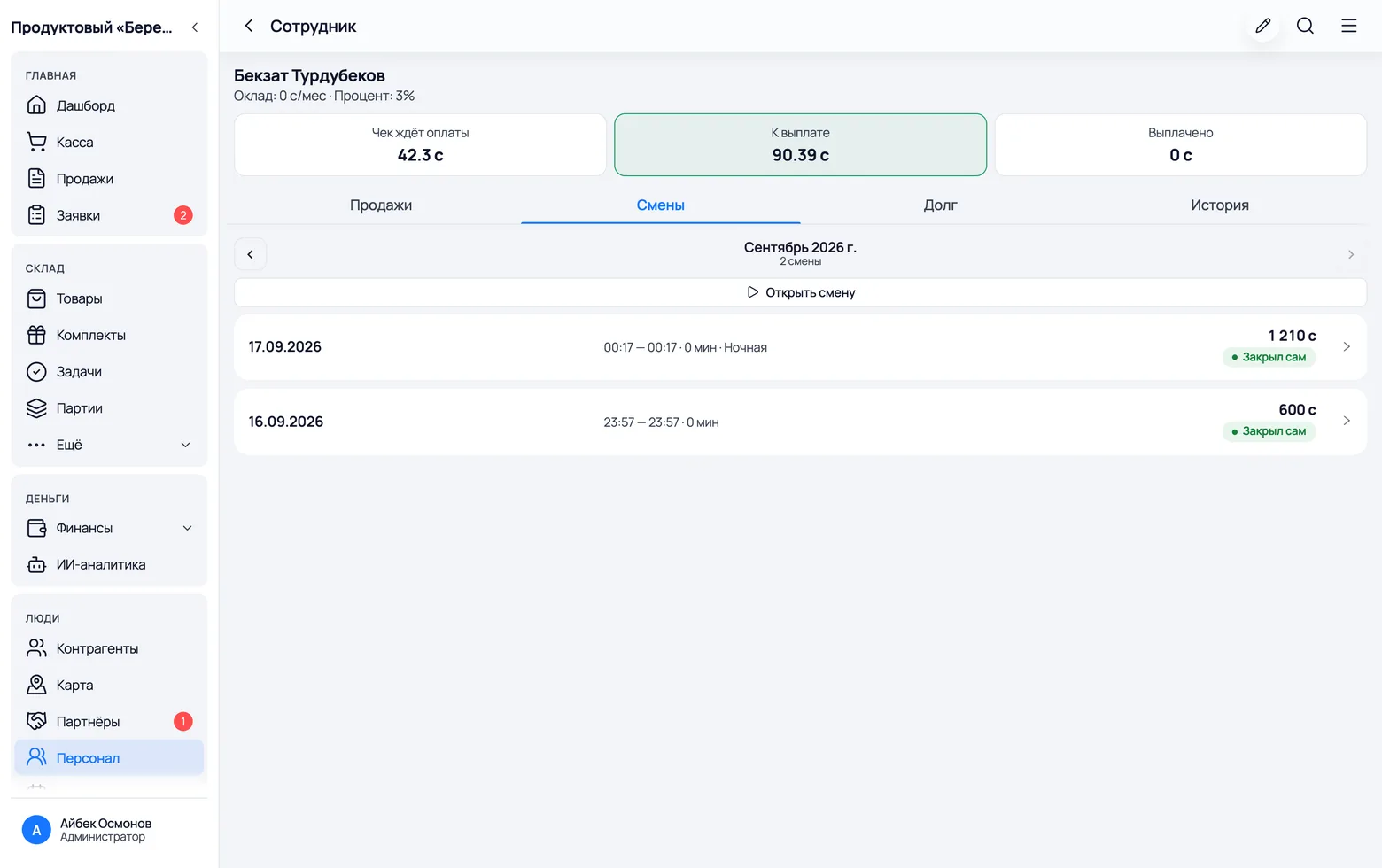 1
1
- 1On the employee card the pay is labelled 'som/shift' if they are on daily pay and shifts are on. The payout dialog shows how many shifts fell into the period.
- Days before the switch was turned on are still counted the old way, by calendar: otherwise switching it on retroactively would zero out payroll you had already calculated.
- Monthly and yearly salaries are untouched by shifts: there you pay for a period, not for showing up.