The online catalogue and the buyer cabinet: two doors to your goods
A shop window on a link — for anyone who opens it: they browse, fill a basket and leave a phone number. The cabinet is for the regular buyer: your prices, their debt, their receipts. We cover both doors and what happens on your side.
Two doors
Read this once
Two doors: the shop window and the cabinet
Your goods have two entrances for a buyer, and mixing them up is costly. The shop window is a link anyone can open — no sign-in, no app. The cabinet is a personal entrance for a buyer you have approved: they see their own receipts and their own debt. The goods behind both doors are the same — yours.
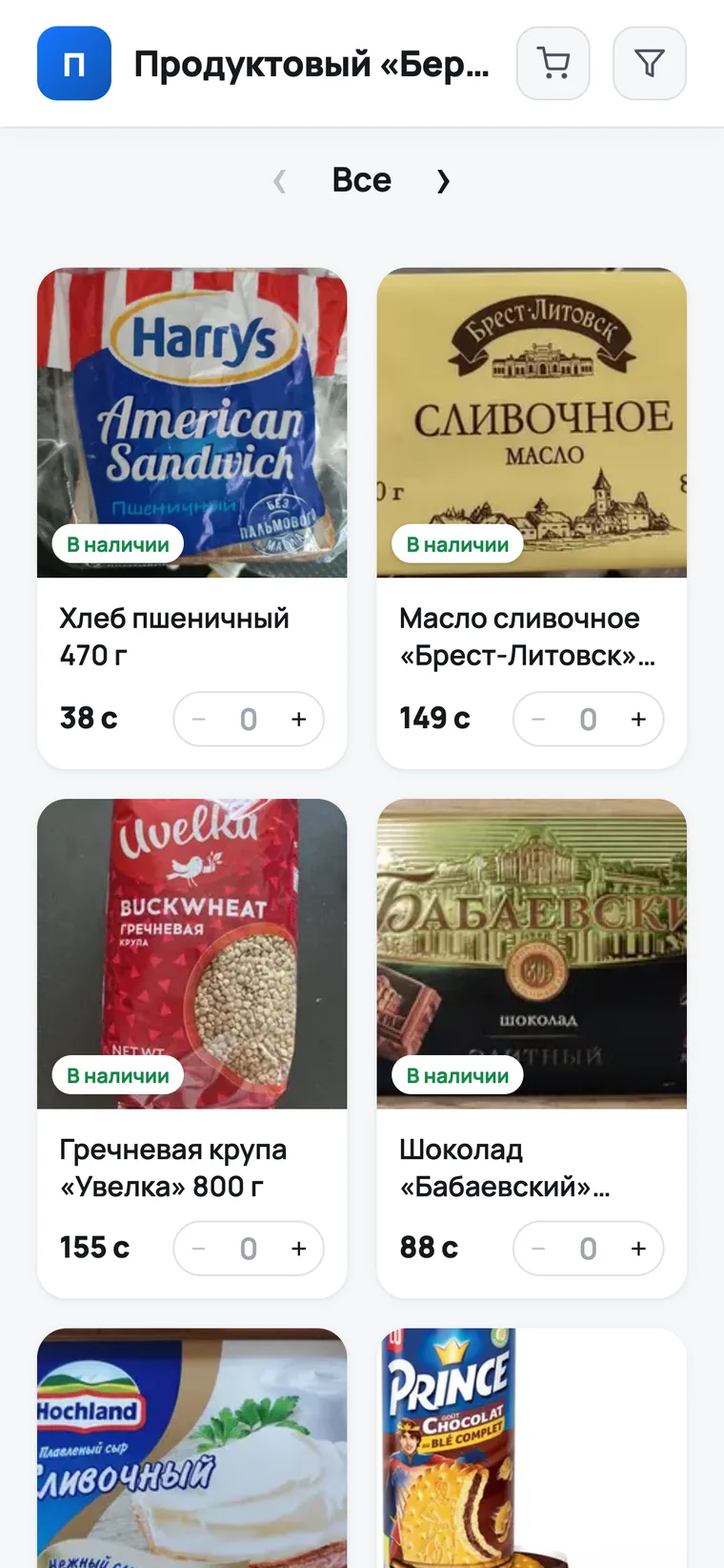
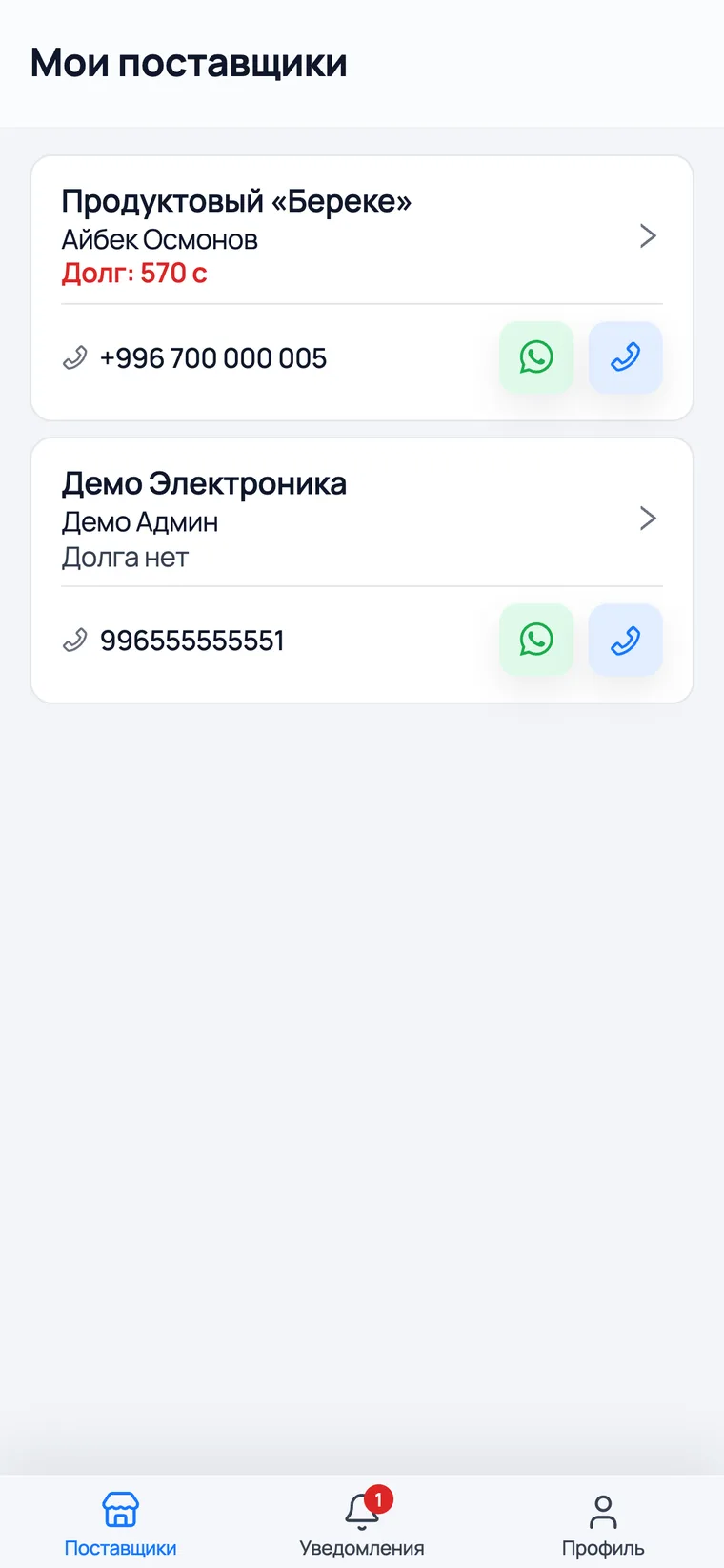
- The shop window lives at
store.wms-kg.com/your-address. Send it on WhatsApp or put it in your Instagram bio: the buyer opens it, fills a basket and leaves a name and a phone number. No sign-up at all. - The cabinet is inside the WMS KG app. The buyer installs it, signs in with their own number and sees your catalogue, their orders, their receipts and their debt. You are the one who approves the connection.
- Both bring you an order into the Orders section. Nothing leaves the warehouse until you complete it: until then the goods are free and anyone can buy them.
- Do not confuse this with the By photo button on the Sales and Orders screens: that is your own internal picker for building a receipt at the counter. A buyer never sees that screen.
Turning the catalogue on
Three steps, in order
Switch the catalogue on and give it an address
The catalogue is your shop's page on the internet. You do not need a website built: flip the switch, pick an address — the link is ready.
 1
2
3
4
1
2
3
4
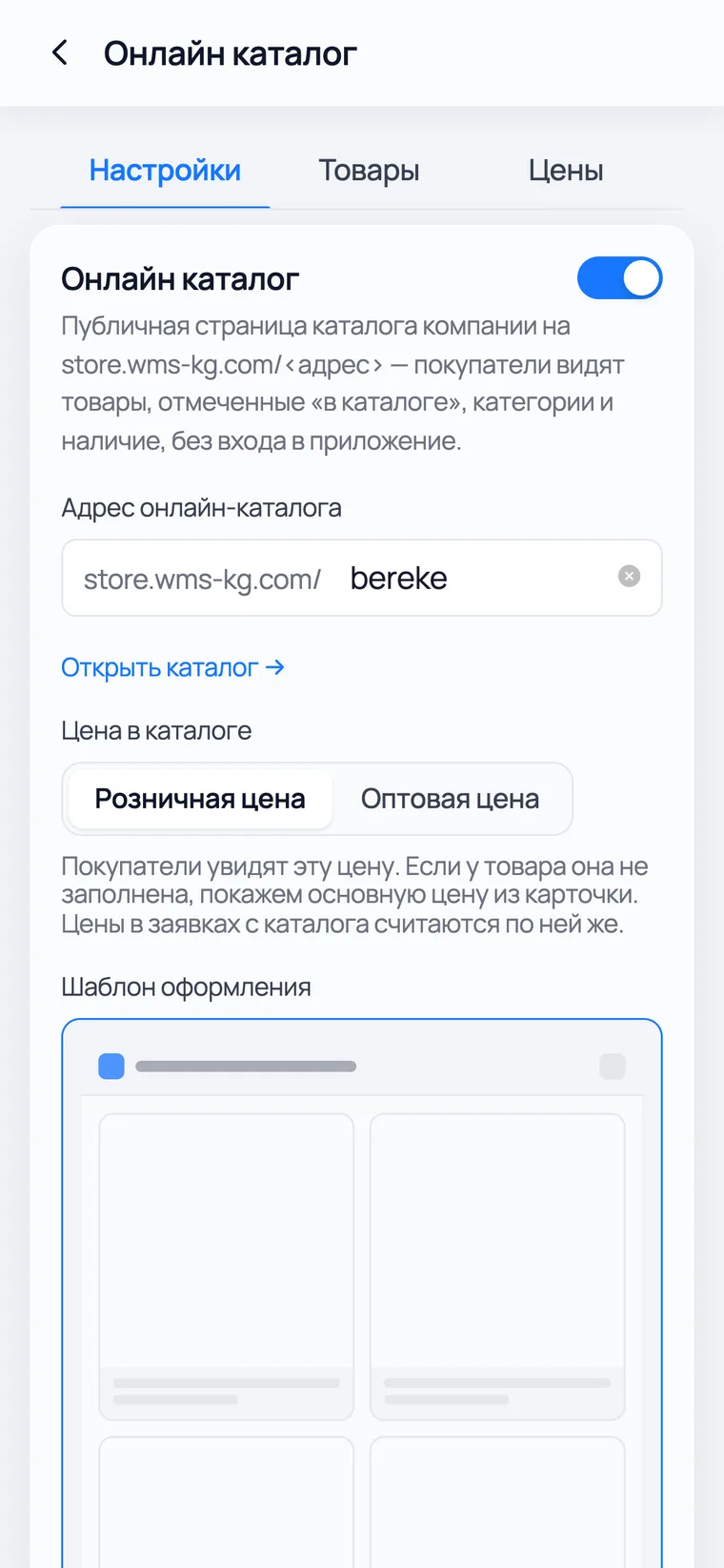
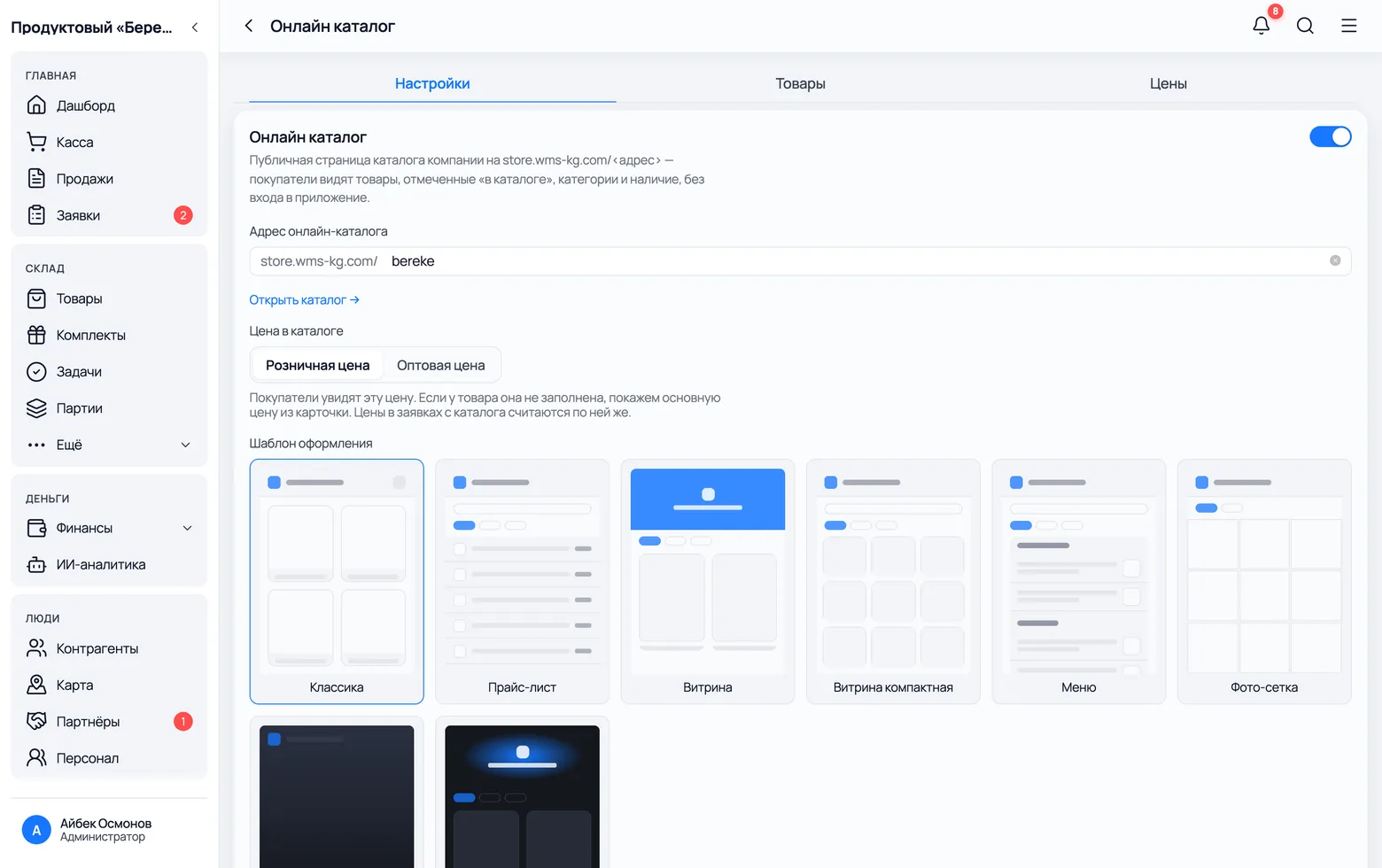
- 1In the menu: Online catalogue. The switch to the right of the heading turns the page on. While it is off, the link opens for nobody.
- 2Catalogue address — whatever comes after
store.wms-kg.com/. Latin letters and digits, no spaces:bereke,beles-market. - 3Open catalogue → shows your page exactly as a buyer will see it. Check after every change — it takes a second.
- 4Catalogue price — which of the product's two prices to show: retail or wholesale. Orders from the catalogue are counted at that same price.
- You can change the address, but the old link stops working at once — and people already have it. Change it before you hand it out.
- If the product has no price of the chosen kind (wholesale is selected but empty), we show the main price from the product card. Nothing is left blank.
- Only an admin can change catalogue settings. Switching it off erases nothing: the address, the design and the marked products all stay and come back when you switch it on again.
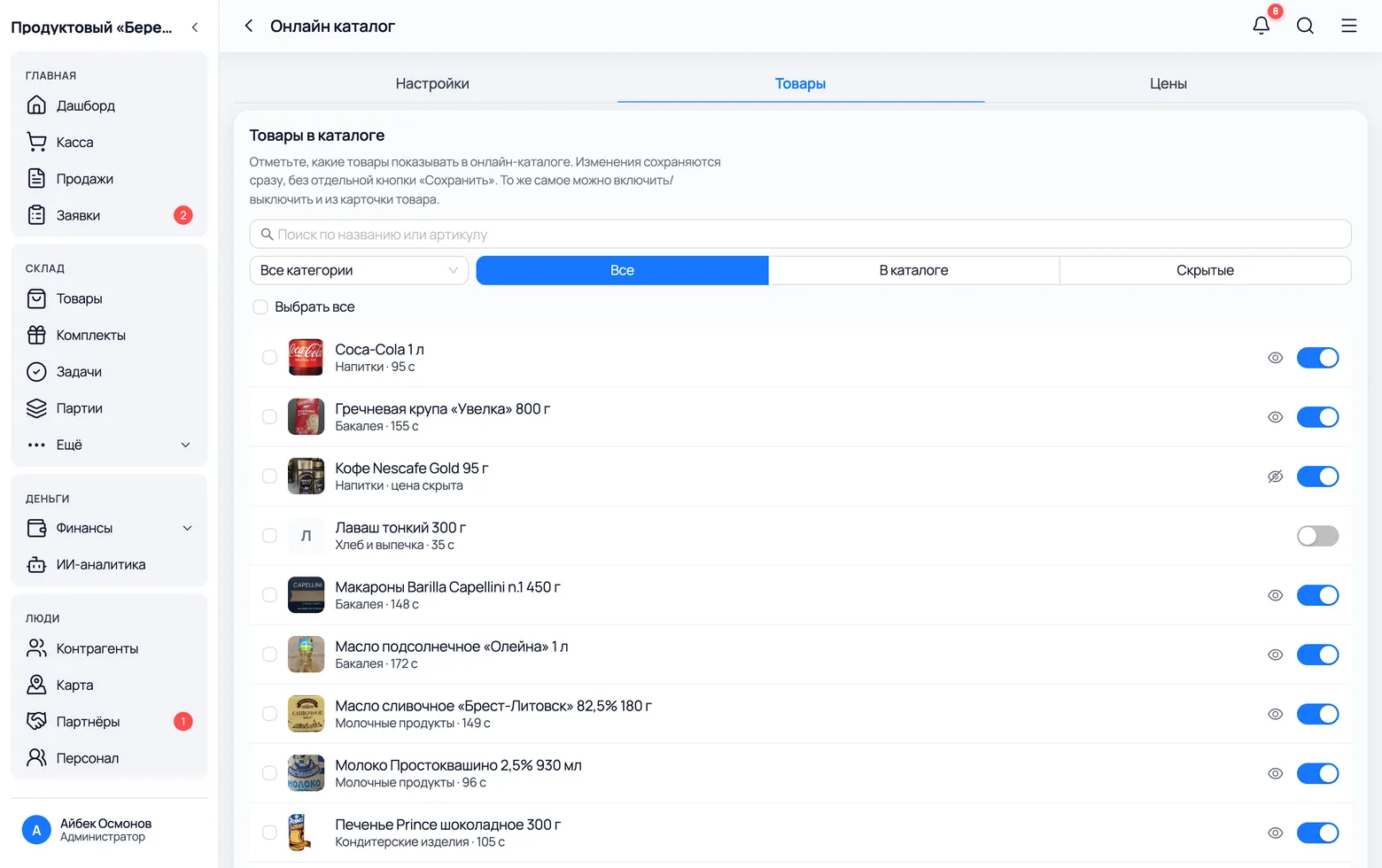
Mark which products to show
A new product does not enter the catalogue by itself — and that is deliberate: your product list also holds things outsiders have no business seeing. Until you mark something, the page is empty. That is not a fault.
 1
2
3
4
1
2
3
4
- 1The Products tab on the same screen. It is your usual product list with one extra question for each row: show it or not.
- 2The All · In catalogue · Hidden switch answers the question 'what does a buyer see right now'.
- 3Tick the rows you want — Select all ticks everything currently listed. A panel appears at the bottom with Add to catalogue and Remove.
- 4Hidden lists everything the window does not show. Look here after you add new products: that is exactly where they land.
- 'Remove' takes the product off the page only. In your product list, your stock and your sales it stays exactly as it was — this is neither archiving nor deleting.
- Each row has a 'Hide the price on the window' icon: the product is visible, but instead of a price it says 'Price on request'. Use it when the price is negotiable.
- A buyer only sees 'In stock' or 'Out of stock'. Exactly how many you hold never leaves the building.
- A product without a photo shows up as an empty square. Start with the ones that already have pictures — you can shoot the rest later.
Choose how the catalogue looks
Eight ready-made looks for the same goods. One click to choose, and the buyer sees the change straight away — nothing has to be rebuilt.
1
2
3
- 1Design template — a row of sample cards. The chosen one is highlighted; to change it, click another.
- 2Classic — categories on top, square cards with a photo and a price. The all-purpose option, and the usual place to start.
- 3Photo grid — square shots with no captions and the price over the picture: for people already selling from Instagram. Next to it is Price list — dense rows without images, for catalogues with hundreds of items.
- Further down the same screen: the main colour, the logo, an 'About us' text, phone, WhatsApp, Telegram, Instagram and address. An empty field simply draws no button in the catalogue.
- You can switch template at any time and break nothing: colour, logo and contacts are shared by all templates, so switching back and forth loses nothing.
- 'Showcase' and 'Photo grid' live on pictures. If not every product has one, take 'Classic' or 'Price list', where an empty square is less obvious.
The walk-in buyer
What they see and what they do
What the buyer sees when they open the link
The page opens on a phone with no sign-in, no sign-up and no app. Look at it from a phone too — that is how it is opened nine times out of ten.
1
2
3
4
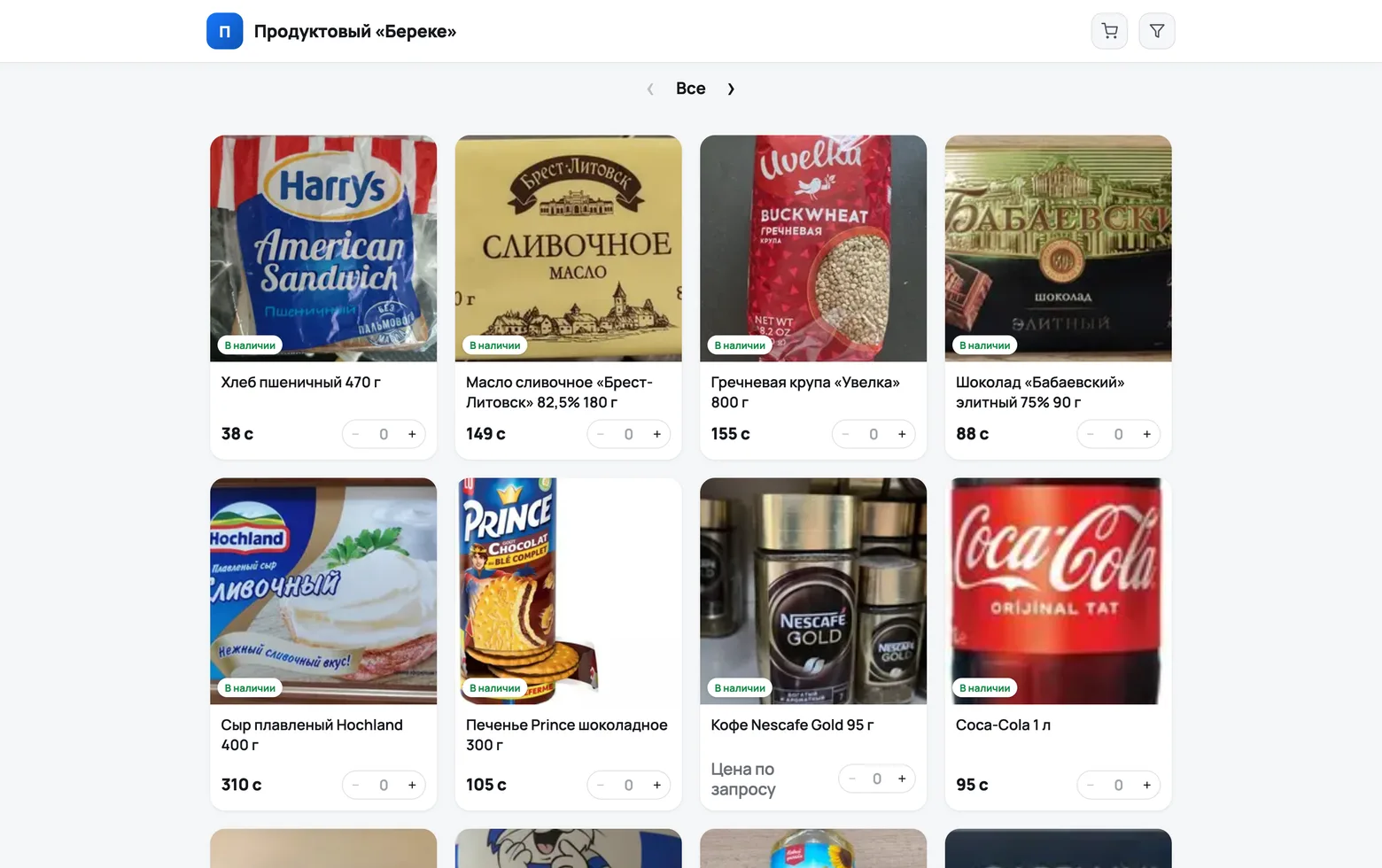
- 1The filter icon opens the categories. The names are the ones from your own list: the buyer browses as they would in a shop, shelf by shelf.
- 2Every picture carries In stock or 'Out of stock'. That is everything the buyer learns about your stock levels.
- 3The basket sits in the header with a counter. The buyer adds items straight from the list with '−' and '+', without opening the product card.
- 4At the end of the list: All your purchases — in the app, an invitation to install WMS KG. That is the road from the window into the cabinet, and it shows up by itself.
- The page asks nothing of a person until they decide to order: no name, no number, no sign-in.
- A product whose price you hid sits in the same list, labelled 'Price on request'. It can be ordered just the same — you name the sum when you call.
- Every category and every product has its own link — you can send a buyer the exact item instead of the whole catalogue.
- If the page is empty, you have not marked any products. Go back to the step 'Mark which products to show'.
An order from the window: no sign-up
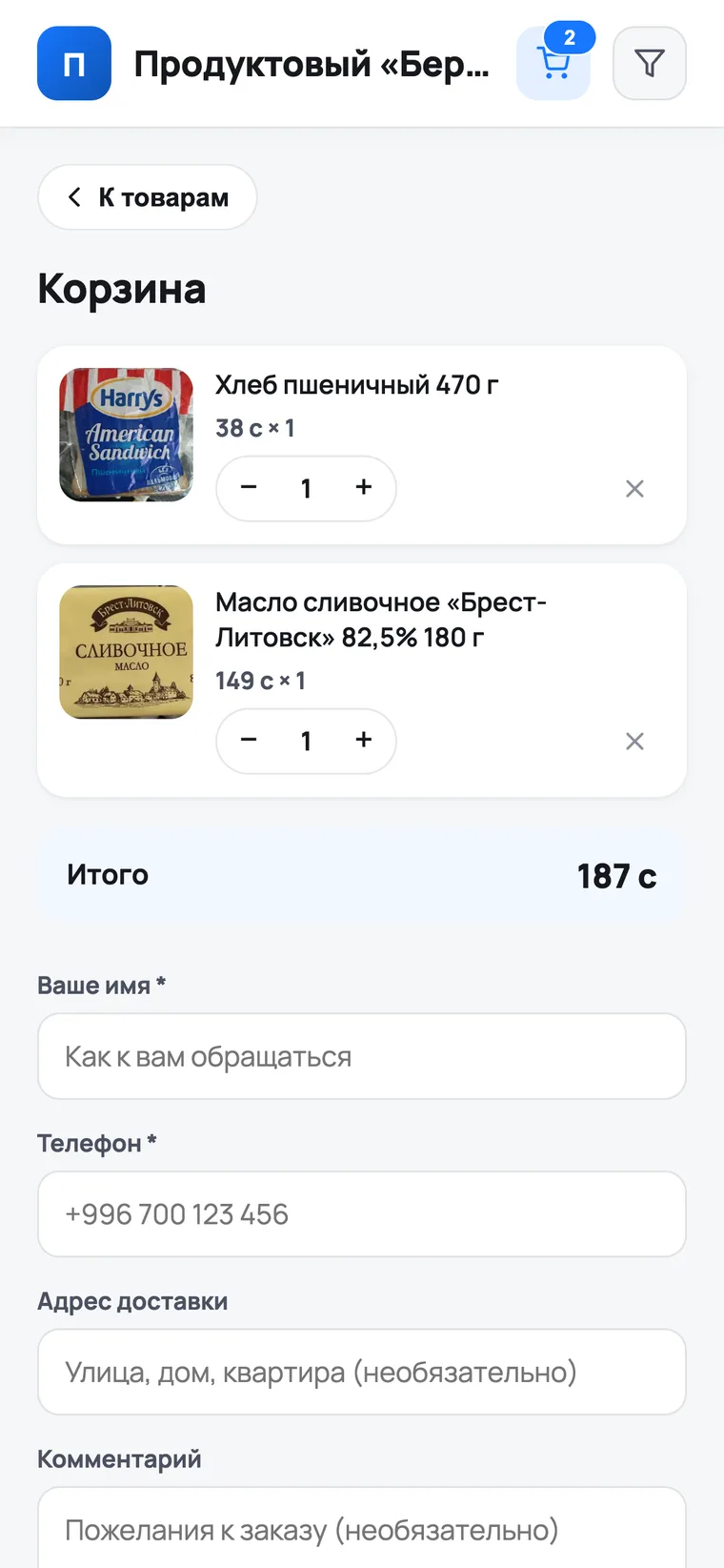
The buyer fills a basket and leaves a name and a phone number. This is an order, not a payment: money, delivery and timing you agree yourselves, as usual.
 1
2
3
4
5
1
2
3
4
5
- 1The basket lists what has been picked. Quantities change with '−' and '+', extras go with the cross. Below the list is the total at your prices.
- 2The cross removes an item entirely; '−' and '+' change the quantity. Mistakes here are harmless: the order has not been sent yet.
- 3Your name is required. This is the name you will see on the order in place of a customer.
- 4Phone is the second required field. This is the number you will call back on; you will have no other contact.
- 5Delivery address and comment are optional: some buyers collect the order themselves. Below is the Send order button; after it the buyer sees 'Order sent!', and you get a new order plus a notification on your phone.
- If the basket holds a 'price on request' item, the total is incomplete — it says so right under the sum, and you name the final figure.
- An order reserves nothing. The goods stay free until you close the order with a receipt — if they sold on the floor first, they sold.
- The window takes no online payment. You settle up as usual: cash, transfer, or whatever you agree.
- The system will not accept a burst of orders from one device — that is protection against pranks. It never gets in an honest buyer's way.
The order has arrived: what to do with it
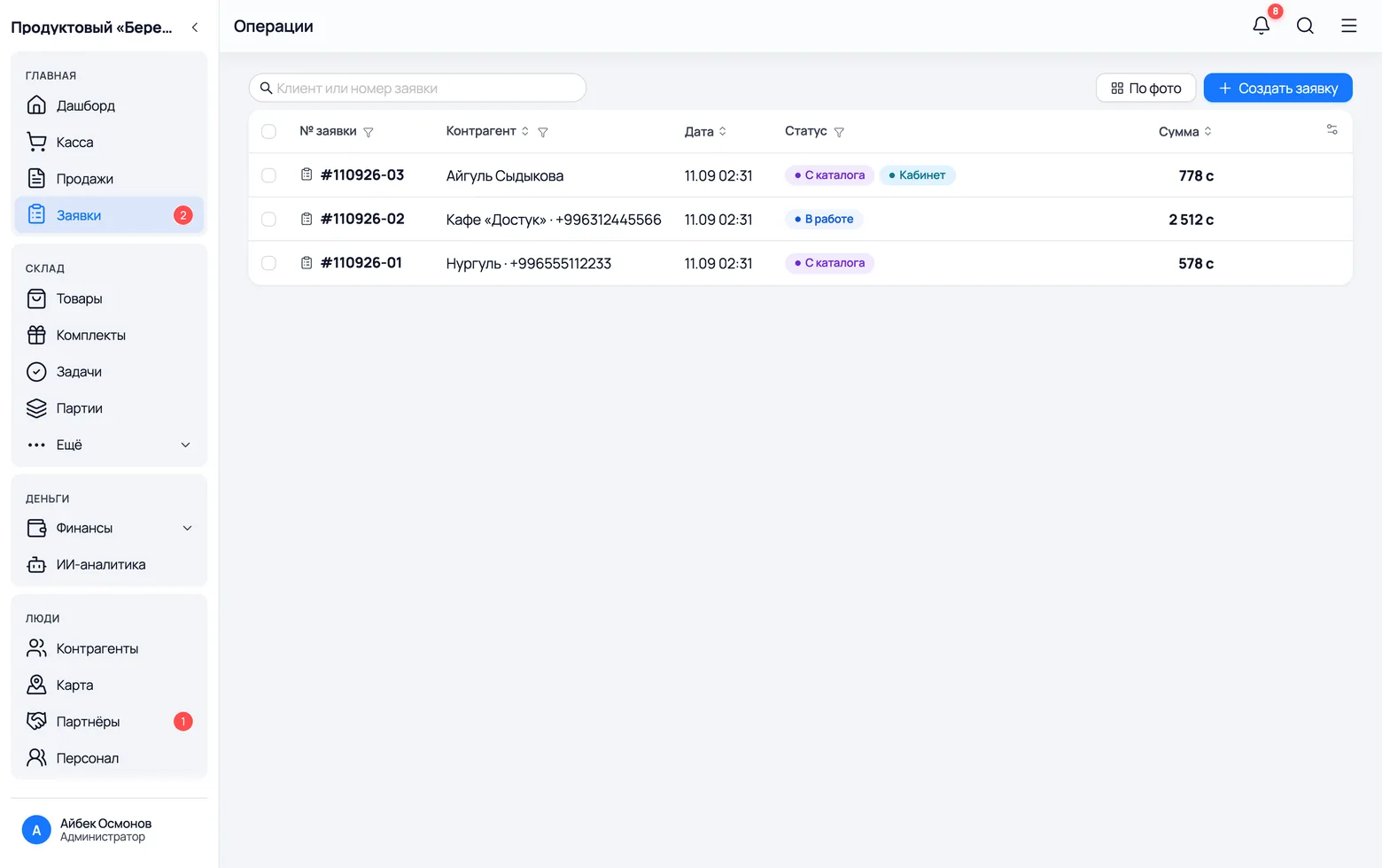
Orders from the window land in the same Orders section as the ones you entered by hand. They are easy to tell apart, and the Accept button creates the customer for you.
 1
2
3
1
2
3
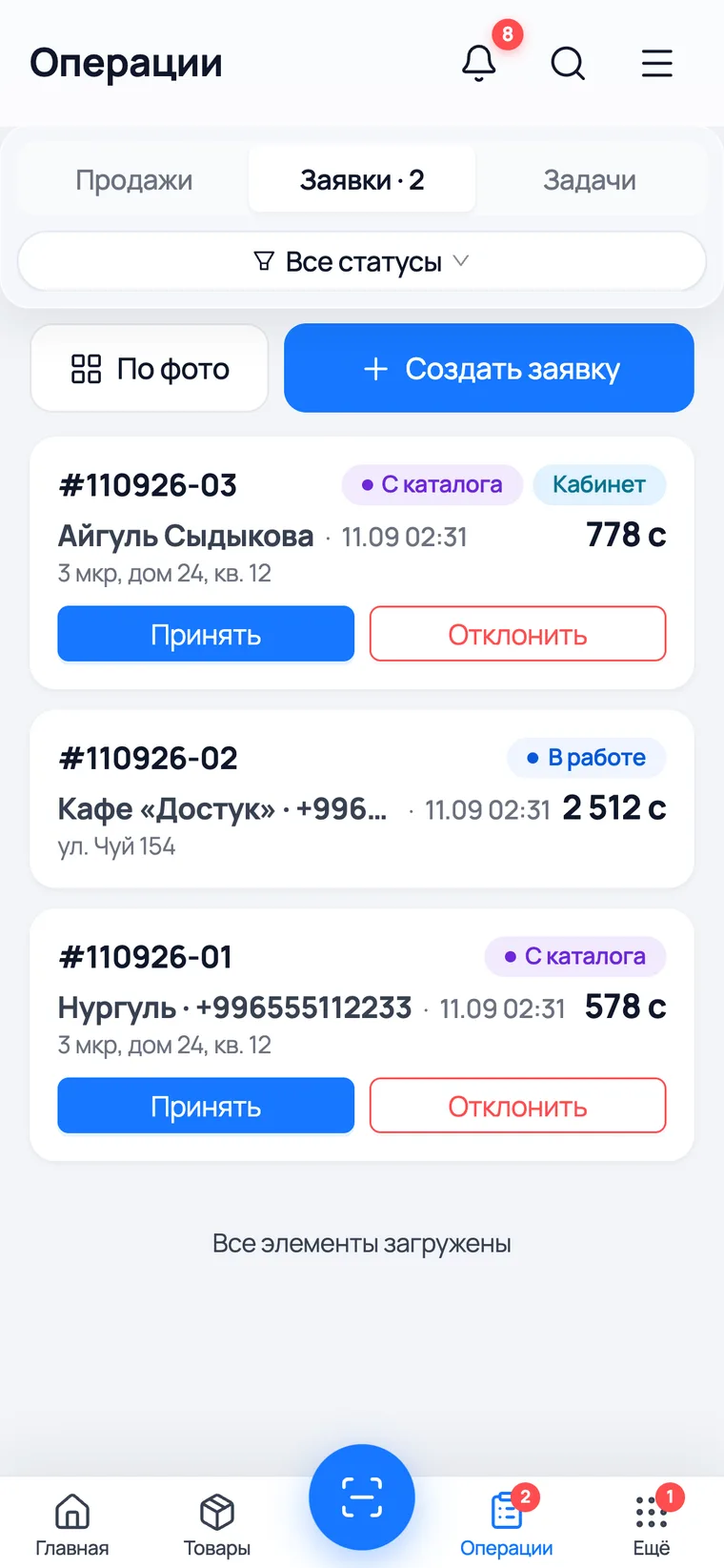
- 1A new order is marked From catalogue. In place of a customer it carries the name and phone the person typed in themselves: they have no customer card yet.
- 2Accept moves the order to 'In progress' and turns the buyer into a customer: the app looks for them among yours by phone and name, and creates a new card if it finds none.
- 3Reject deletes the order for good. That is what pranks and duplicates sent twice deserve.
- Every company administrator gets a notification about a new order — the phone pings even with the app closed.
- Nothing leaves the warehouse on sending or on accepting. Stock moves when you complete the order and a receipt appears.
- Whoever accepts the order becomes its author and the owner of the new customer — later that trail shows who handled whose order.
The regular buyer
The cabinet: connecting and working
Connect a regular buyer
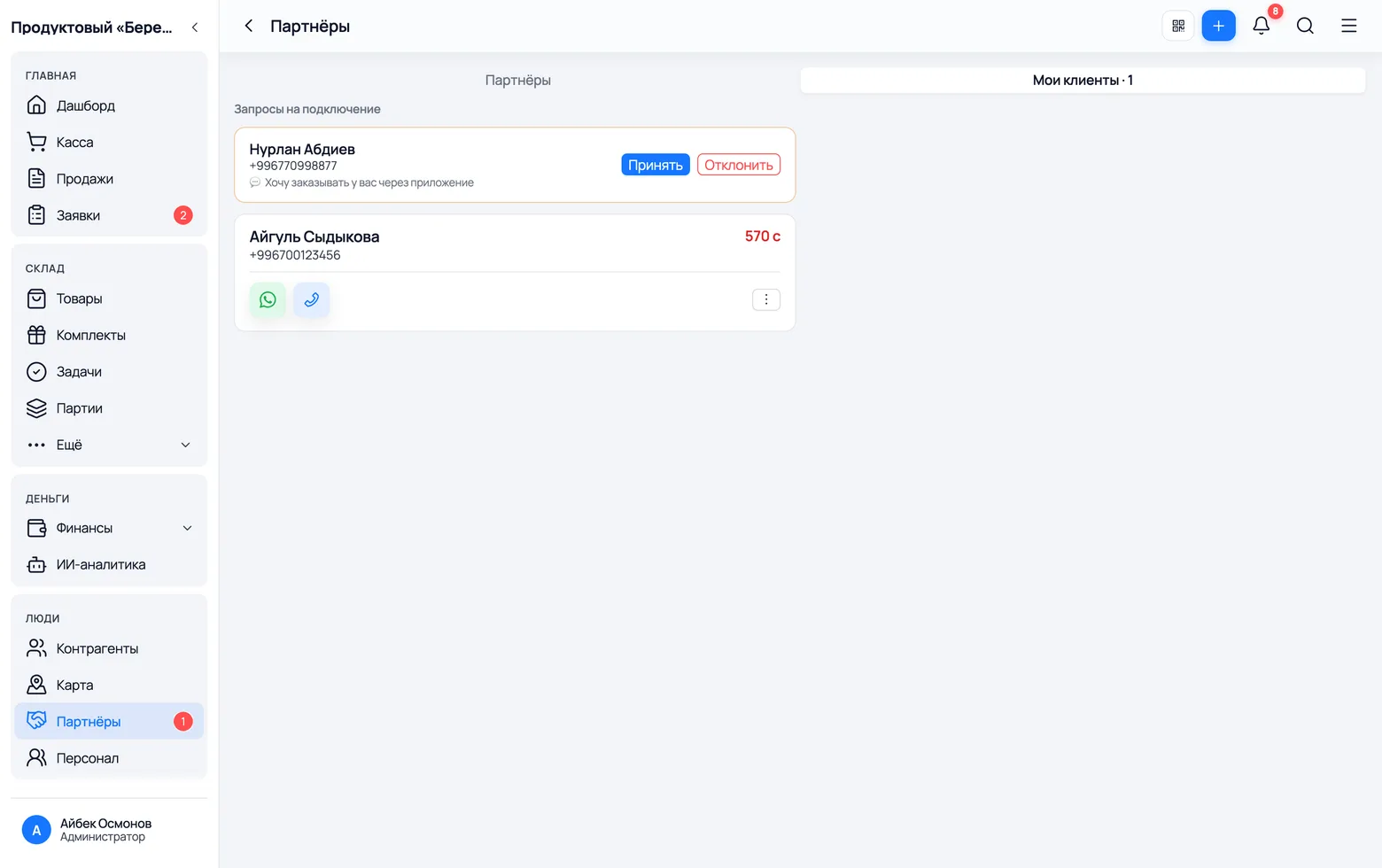
The cabinet does not open to everyone: the buyer asks to connect using your code, and you approve. Only then do they see your catalogue, their receipts and their debt.
 1
2
3
4
1
2
3
4
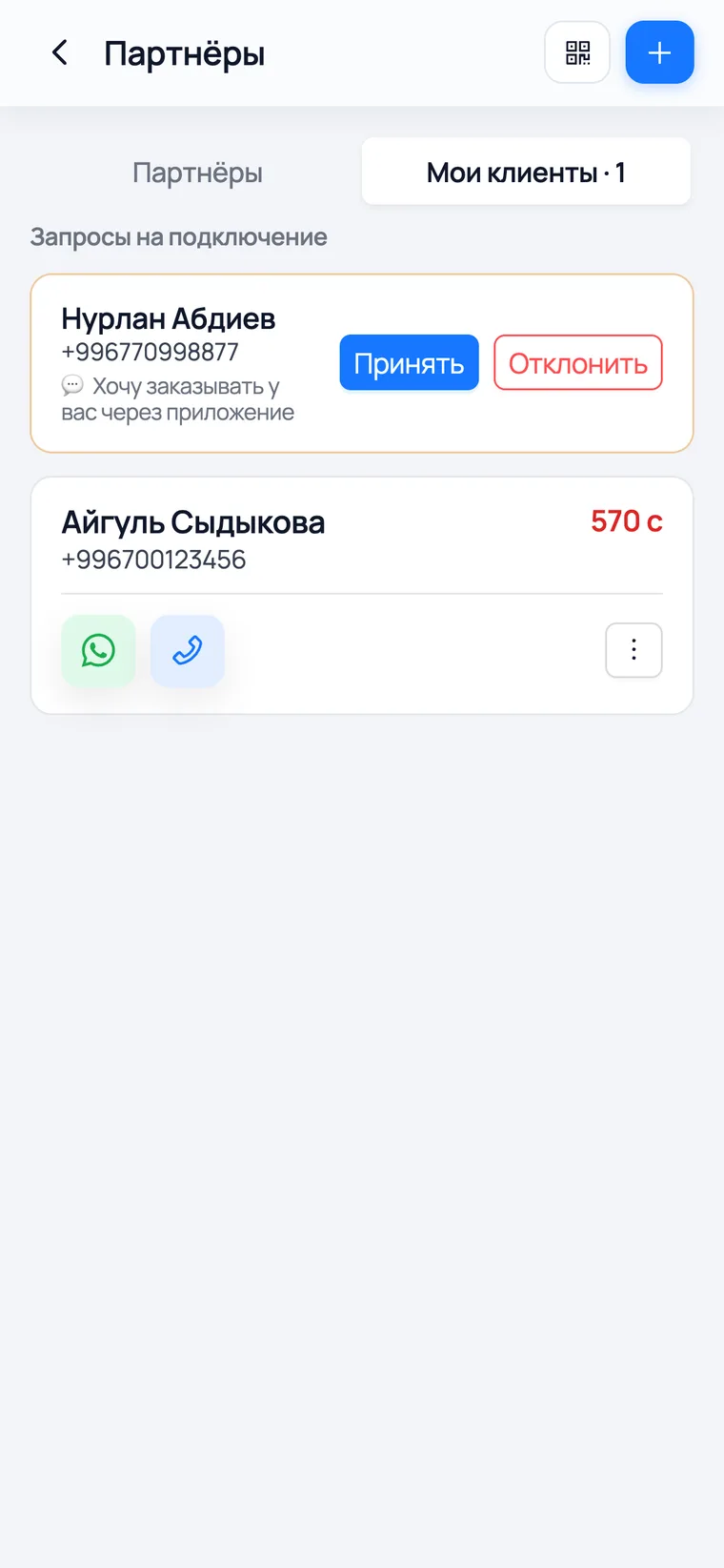
- 1The Partners menu → the My customers tab. Here are both the connection requests and the buyers already connected, with their debt.
- 2The square-code button holds your company's invitation code. Read it out to the buyer or send it as a picture; it is the same code you use for partners.
- 3The buyer installed the app, signed in as a buyer and entered the code — their request appears here along with the message they wrote.
- 4Accept — then choose which customer card to link them to (or create a new one). That link is the whole point: with it the buyer sees their receipts and their debt.
- Until you accept the request, the buyer sees neither catalogue nor prices: their screen says the connection is pending.
- You can reject or disconnect at any time. Receipts, debt and history stay with you exactly as they were — access is switched off, not data.
- One buyer can be connected to several suppliers at once — in their app they simply appear as a list.
The buyer builds the order themselves
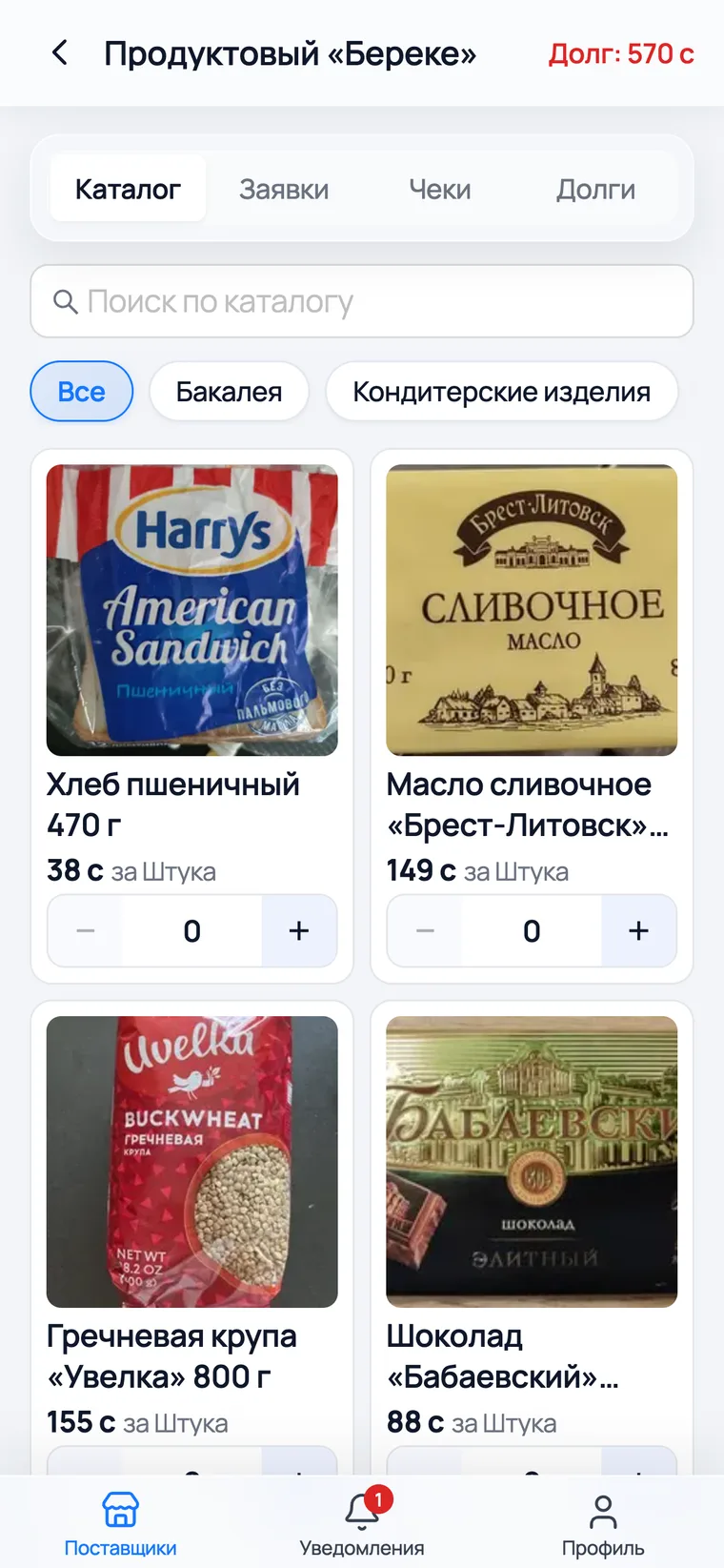
In the cabinet the buyer sees your catalogue at their own prices and builds the order themselves, with no call and no chat. It reaches you in the same place as all the others.
 1
2
3
4
1
2
3
4
- 1Four tabs — Catalogue · Orders · Receipts · Debts. That is everything the buyer knows about working with you, and all of it is their own.
- 2Search the catalogue and the category chips are the same as yours. An out-of-stock item is marked 'Out of stock' and cannot be added.
- 3With '−' and '+' the buyer sets quantities straight in the list and sends the order. An unfinished one is parked as a draft and picked up later.
- 4On your side the order appears in Orders with a Cabinet tag — and already under the customer's name, not an unknown phone number: you know this buyer.
- Prices in the cabinet are the ones you chose for the catalogue. If you set up a personal price list for that buyer (the Prices tab in catalogue settings), they see theirs.
- An order from the cabinet reserves nothing either, and it turns into a receipt only on your side — the buyer just sends it.
- Until you accept it, the buyer can edit or cancel the order themselves. After that, no longer.
The buyer sees their own debt
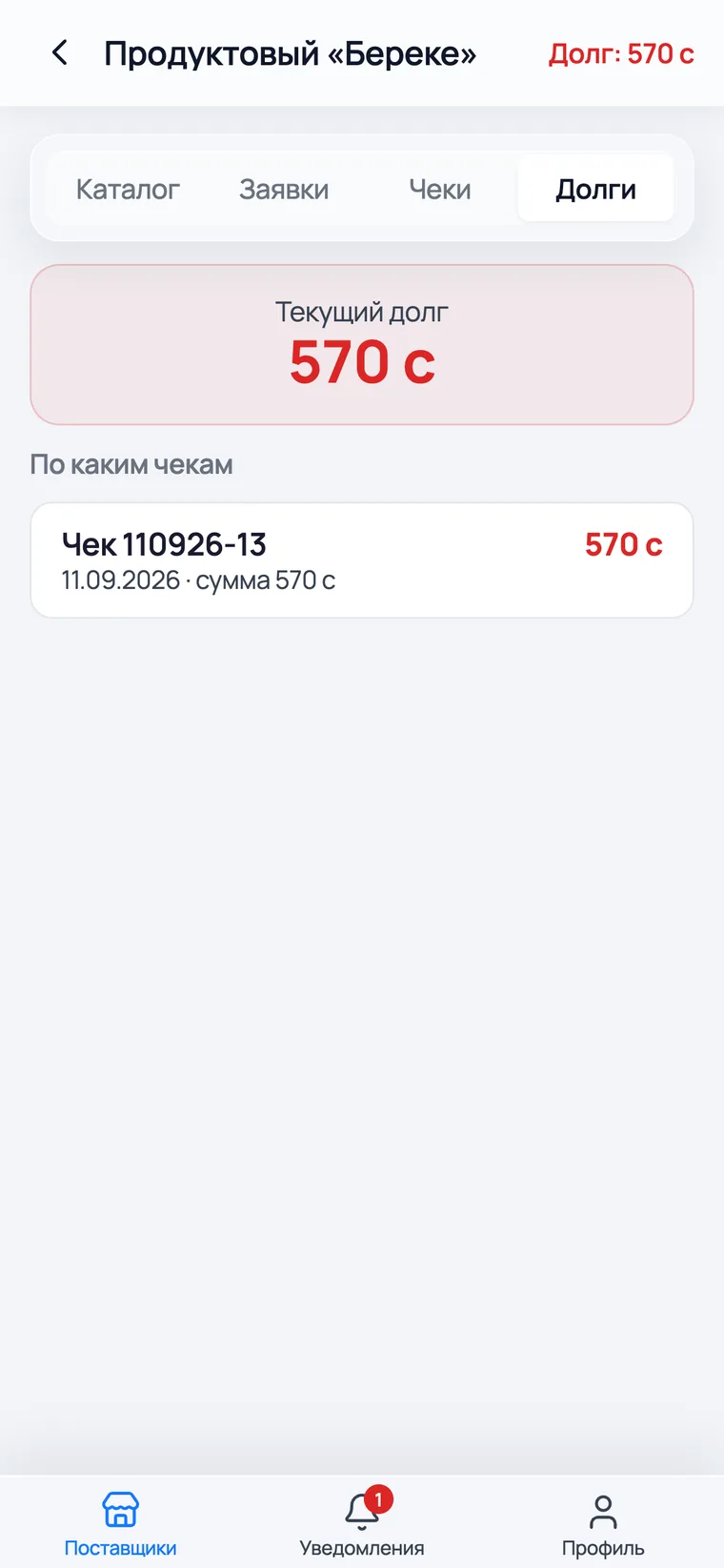
The worst part of credit is arguing about the amount. In the cabinet the buyer opens their receipts and sees the same figure you do. There is nothing left to argue about.
 1
2
1
2
- 1Current debt — the total across every unpaid and partly paid receipt you have issued to them.
- 2Below are the receipts themselves: number, date and amount. A settled receipt leaves the list, and the payment history stays underneath.
- The figure comes from your receipts, not from a separate ledger. Mark a payment on your side and the buyer's number changes.
- If you switch on the debt reminder (Settings → Business), once a week, on the day and hour you choose, the buyer gets a notification. No phone call needed.
- The cabinet takes no money. It is a reconciliation and a reminder, not a till: you still settle in person or by transfer.
New items and arrivals — straight to the buyer's phone
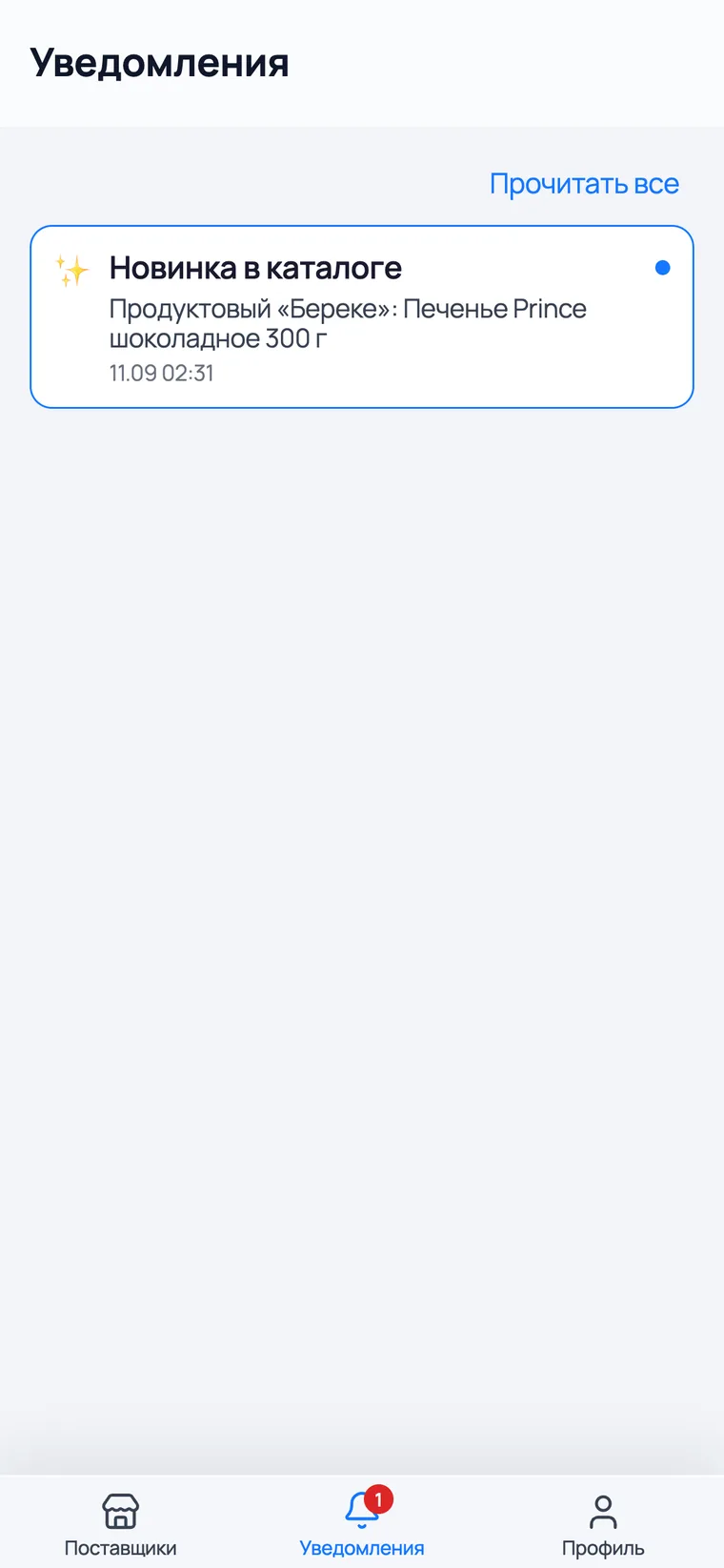
A buyer does not open your catalogue every day. So they are told about a new item or a fresh delivery — briefly, and where they will actually see it.
 1
2
1
2
- 1Notifications is its own tab at the bottom of the buyer's app: your new items, arrivals and news about the app itself.
- 2A new-item card carries your company's name and the product. A tap opens it right inside your catalogue.
- You send the announcement yourself: on the Products tab tick a product and press Tell customers. Nothing goes out on its own — otherwise every import would bury buyers in a hundred messages.
- The app reports arrivals by itself if you switch that on in Settings → Business. A digest goes out no more than once every few hours, and never at night.
- If an item is out of stock, the buyer presses 'Notify me when it arrives' and gets a message the moment it does. They will not have to ask you.
- The buyer can unsubscribe: their profile has a switch for each supplier separately. Their own orders and their own debt are not affected.