Building supplies: from a bucket of paint to a crew's tab
A step-by-step guide built on a real example — the Usta store: paints and enamels, expanding foam, dry mixes, fasteners and painting tools. Foam by the can and by the box, sacks in the yard warehouse, special prices for work crews, selling on credit "until Friday", haggling without losing money, and the new Home screen that tells you how business is going in five seconds. Every screen is real, captured in the working app on a computer and on a phone.
Getting in
Once
Signing in to the app
Everyone in the shop gets their own login: you, the salesperson on the floor and the cashier. Spend the five minutes setting staff up: afterwards every receipt shows who rang it up, and the "I never sold that foam" argument ends before it starts.
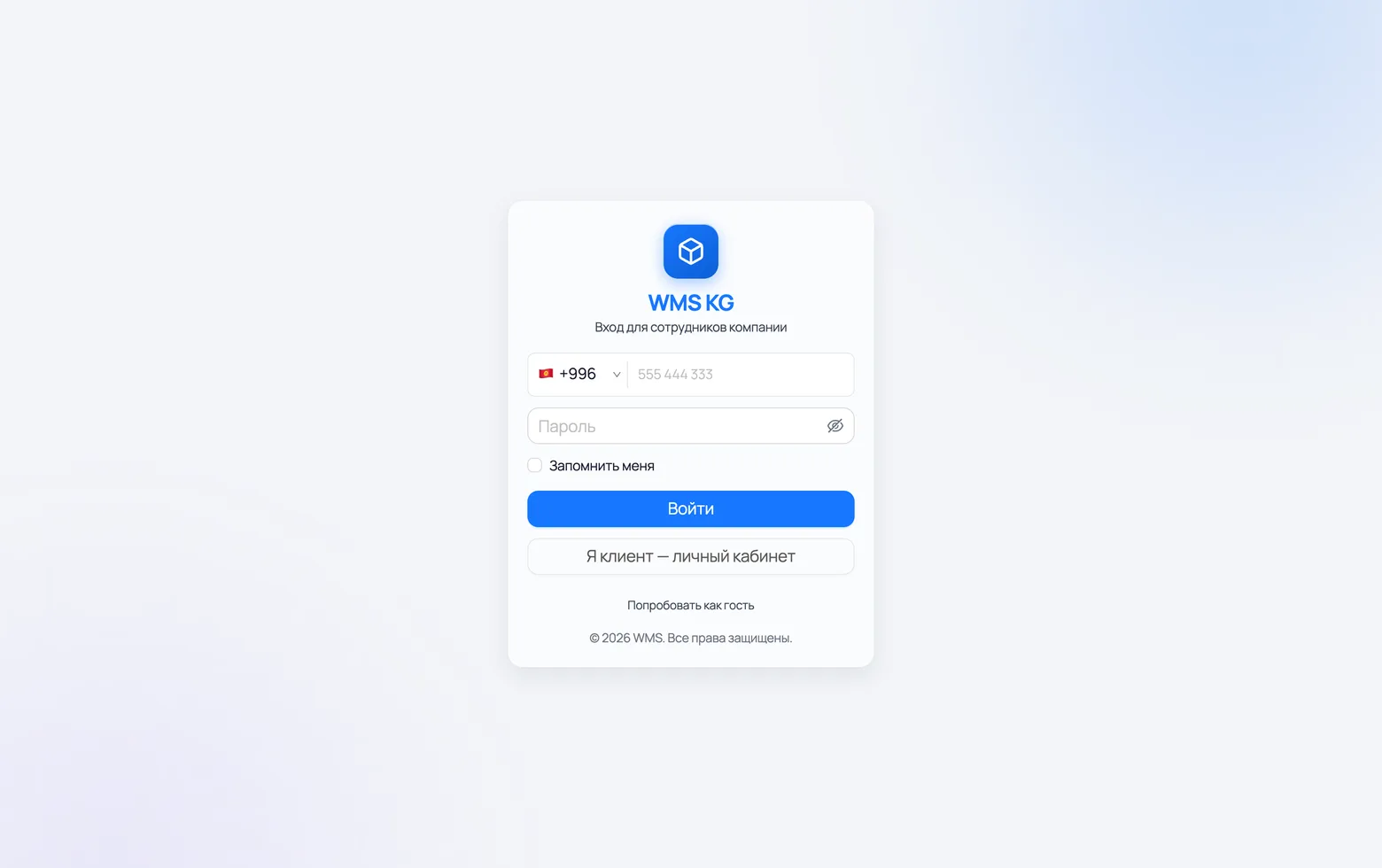 1
2
3
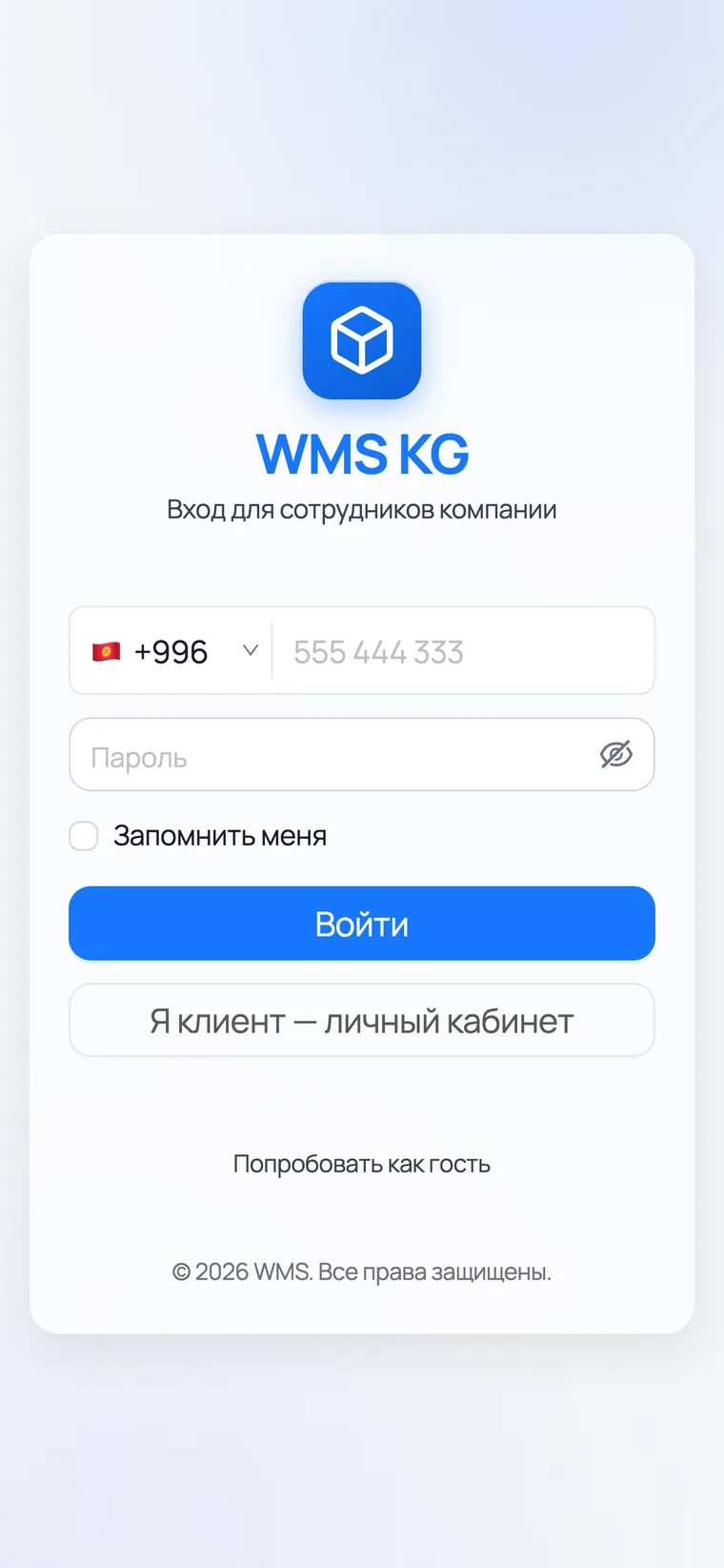
- 1The phone number the shop is registered on. The +996 code is already there — type the 9 digits.
- 2Password. The 'Remember me' tick keeps you signed in on this device.
- 3Sign in — and you land on Home. The next part is about it, and it is worth it.
Home — the shop's control panel
Five seconds in the morning instead of an hour with a notebook
Home: how the shop is doing, in five seconds
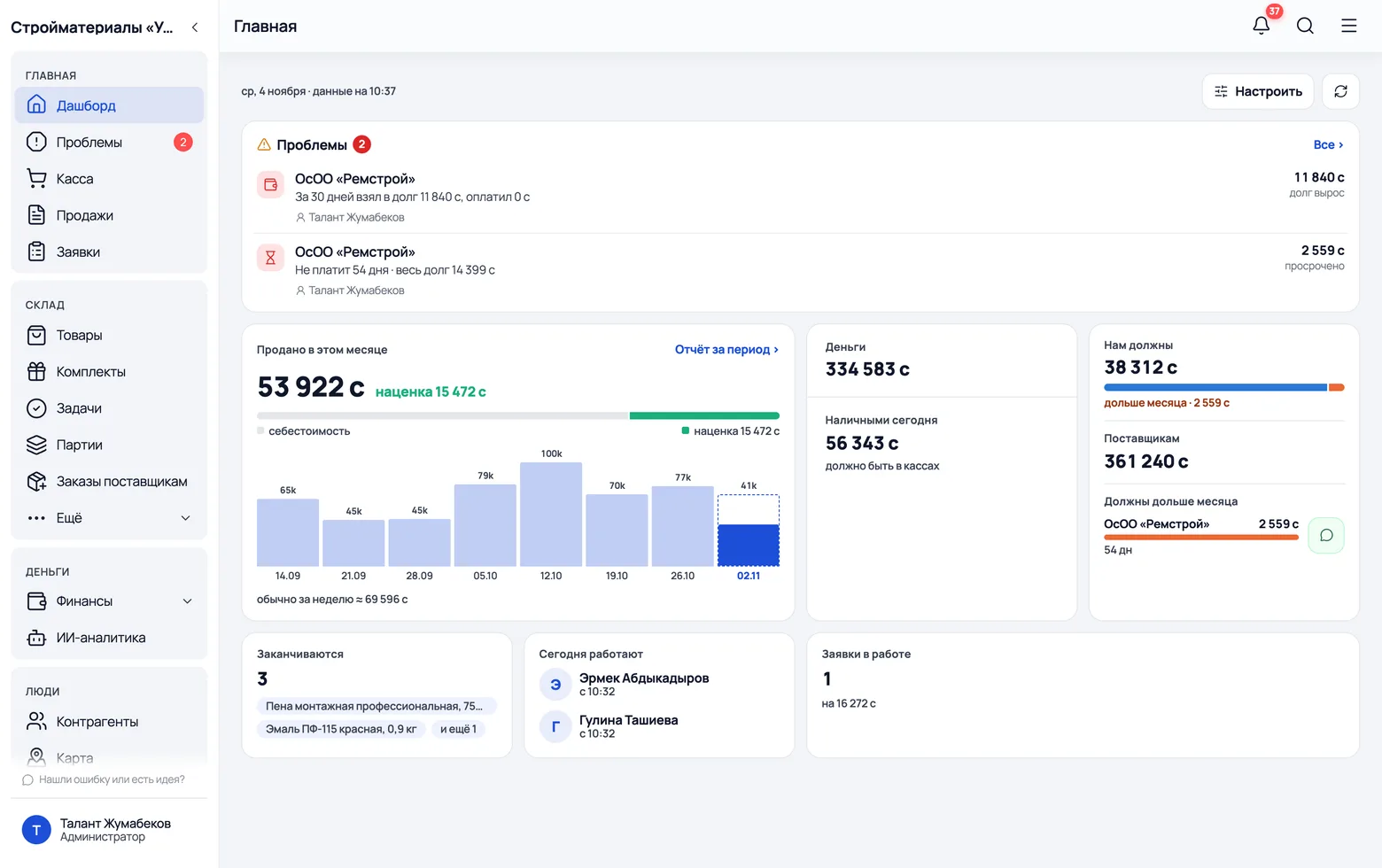
An owner used to start the morning with a notebook, a call to the salesperson and a recount of the till. Now they open Home. There are no "bare numbers" here — every figure sits next to what is normal for your shop, and red marks only what needs your hand: who has not paid for a while, what is running out, how much money should be in the till.
 1
2
3
4
5
6
- 1Problems — what the app found on its own. Remstroy took almost 12,000 on credit this month and has not paid a single som, and an old receipt has been open for 54 days. You did not search for anything — it told you whom to call.
- 2Sold — the total and the markup, meaning what you earned on top of the purchase cost. The bars are weeks: the dark dashed one is the current week, still in progress. The 'usually per week' line tells you whether it is a good week without a calculator.
- 3Money — everything the business has, plus cash today: what should be in the till by this minute. If it does not match the stack in the drawer, sort it out now, not in a month.
- 4Owed to us / To suppliers — both debts side by side. The orange tail of the bar is debt older than a month, with the names below. The green button next to it sends the debtor a polite WhatsApp reminder.
- 5Running out — goods below the minimum you set. Foam, red enamel, finishing putty — tomorrow the crew will come in for exactly those.
- 6Working today — which staff came in and when they started. Tap any block to open the detailed screen.
The same Home — in your pocket
A building supplies owner rarely sits in the office: one day at a supplier's depot, the next at a client's site. On the phone Home is the same, the blocks just stack vertically. Scroll top to bottom and you know everything the salesperson would have told you on a call. Only you did not have to call.
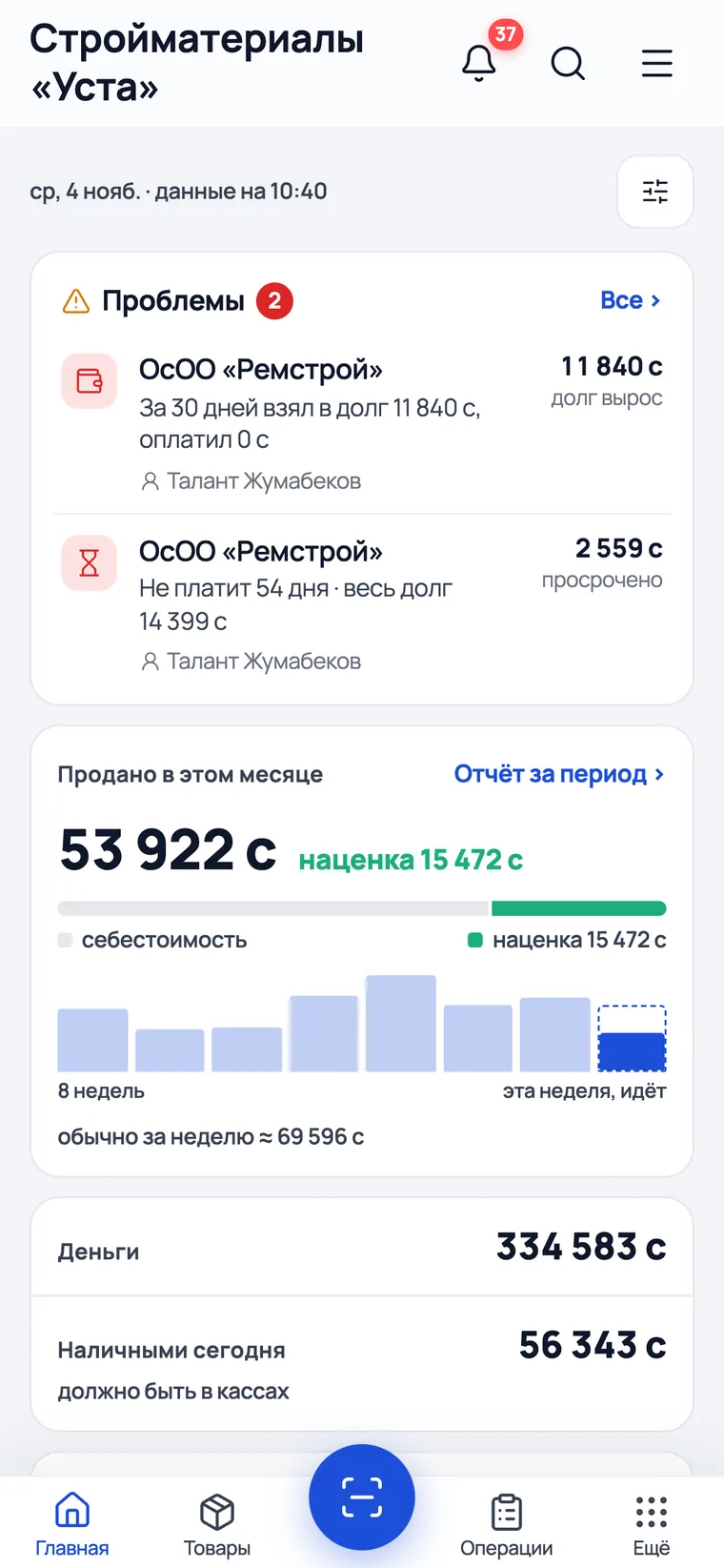
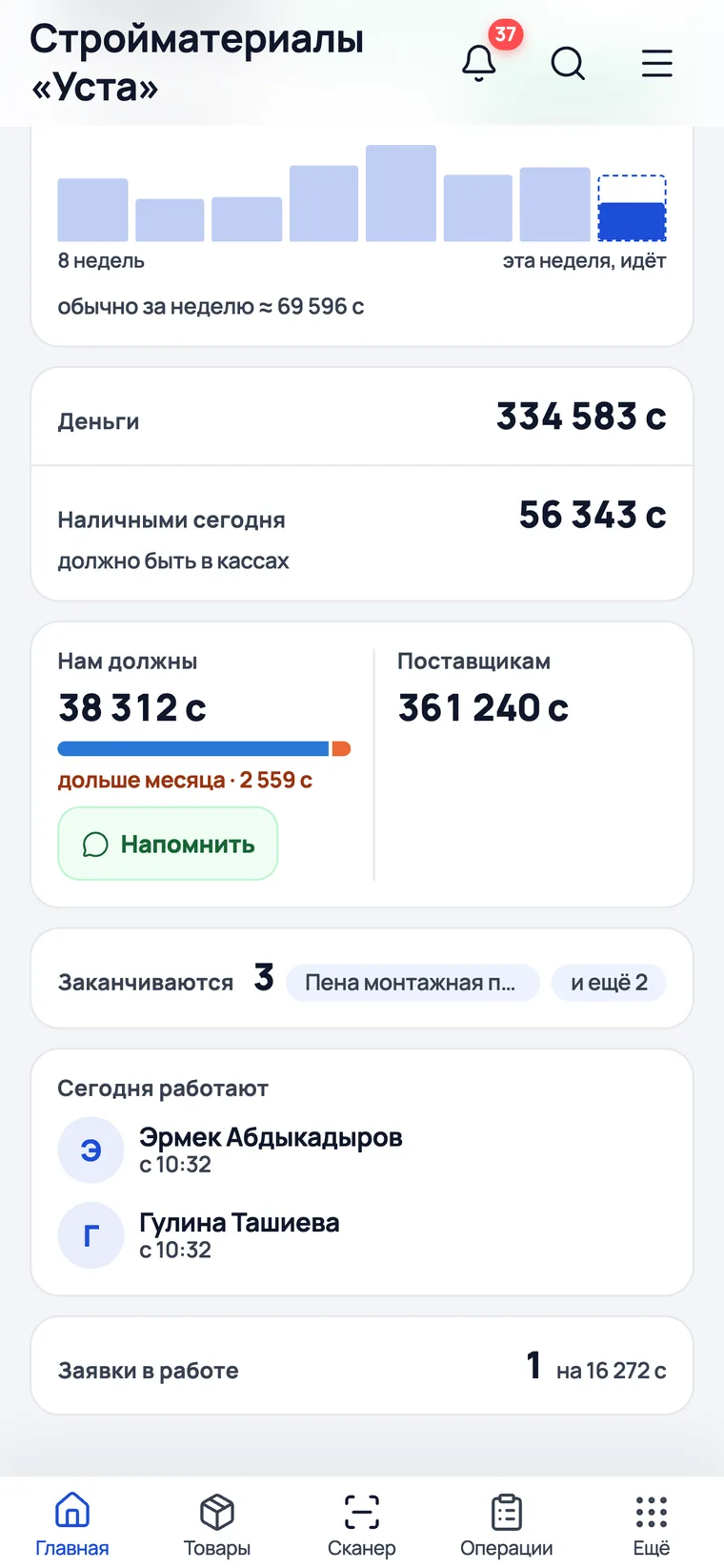
- Each line reads as one phrase: 'Running out 3 · Expanding foam…'. Tap it for the full list.
- The Remind button under a debt opens WhatsApp with the message and amount already written. You just press send.
- The main menu sits at the bottom: Products, Scanner (the round button), Operations and More, where everything else lives.
Home your way: what to show and in which order
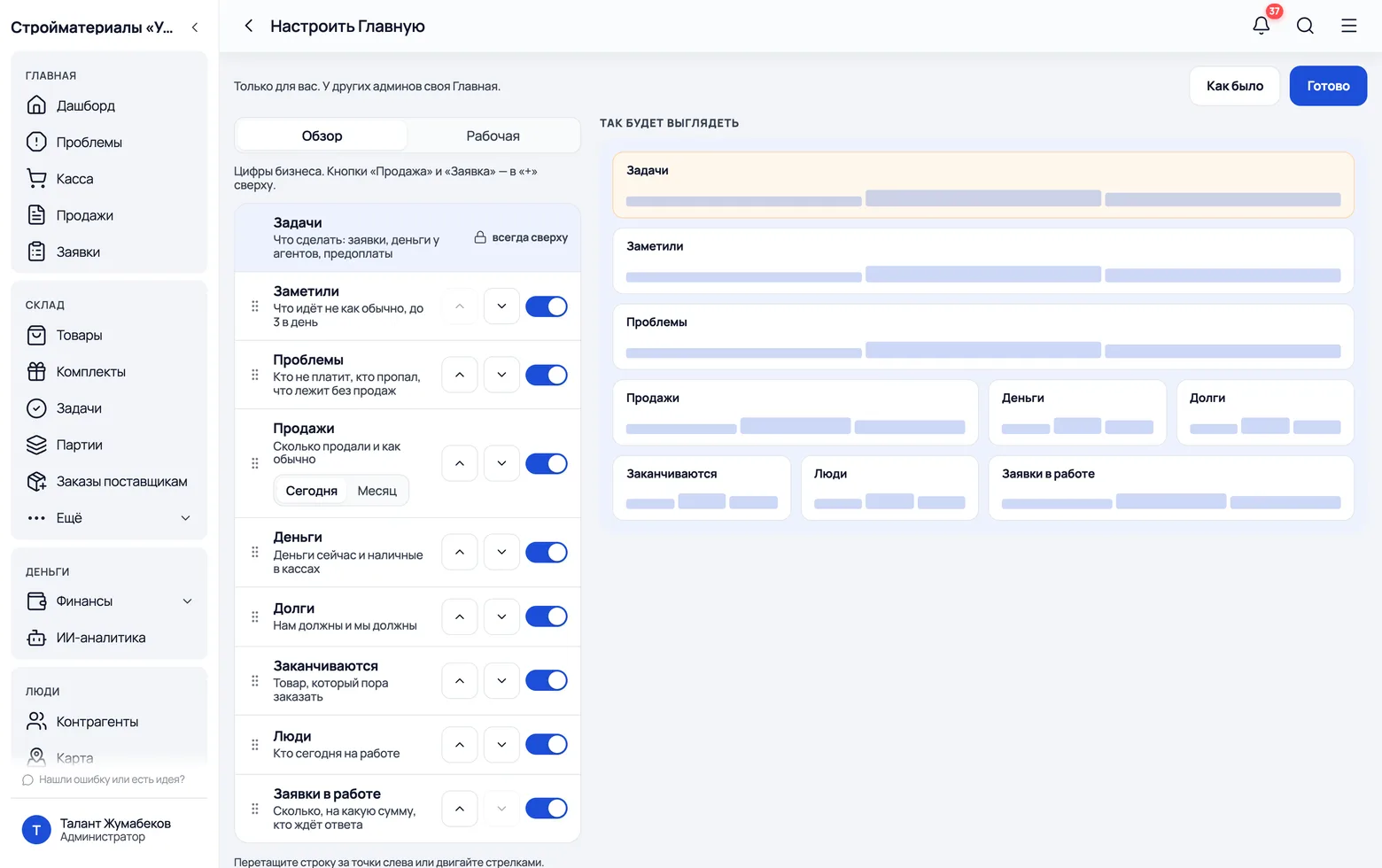
Some owners want debts first, others want sales. The Customize button on Home opens the list of blocks: switch off what you do not need, move what matters up with the arrows. The right side previews the screen at once. Every change saves itself, and 'As before' resets everything.
 1
2
3
4
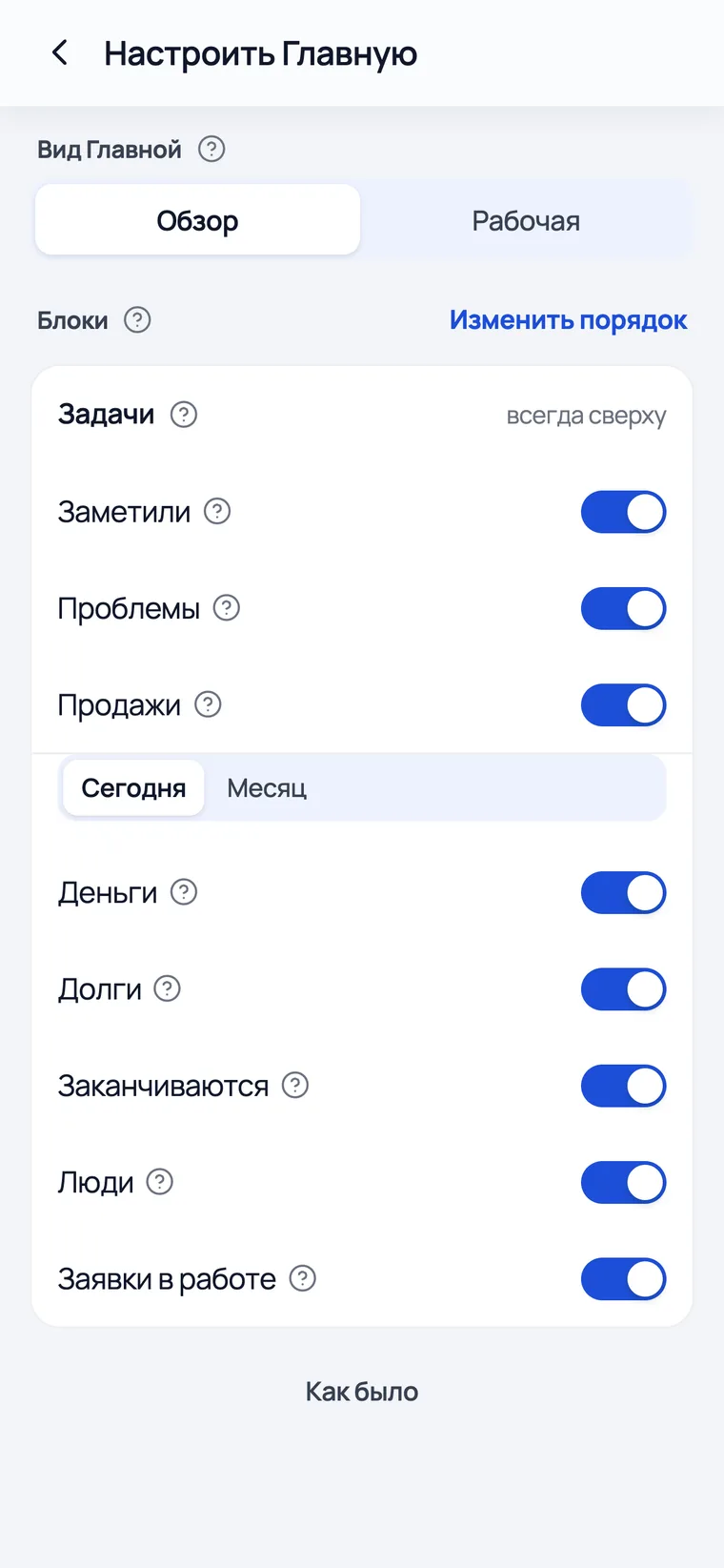
- 1Overview — Home with the business numbers. Working — the old Home with action buttons, if you stand behind the counter yourself.
- 2The switch on the right hides or shows a block.
- 3The arrows change the order: move Debts to the top if crews are your main customers.
- 4Sales have a period: Today or Month. While there are few sales a day, the month is handier; the app suggests the right one itself.
Setting up the shop
Four steps, in order
The yard warehouse and the sales floor
Nobody hauls sacks of mix onto the sales floor: they sit on pallets in the yard, while paint, foam, fasteners and tools stand on the floor. Create two locations and the app knows where everything is. The salesperson sees 'floor 0, warehouse 6' and walks to the yard instead of telling the customer 'out of stock'.
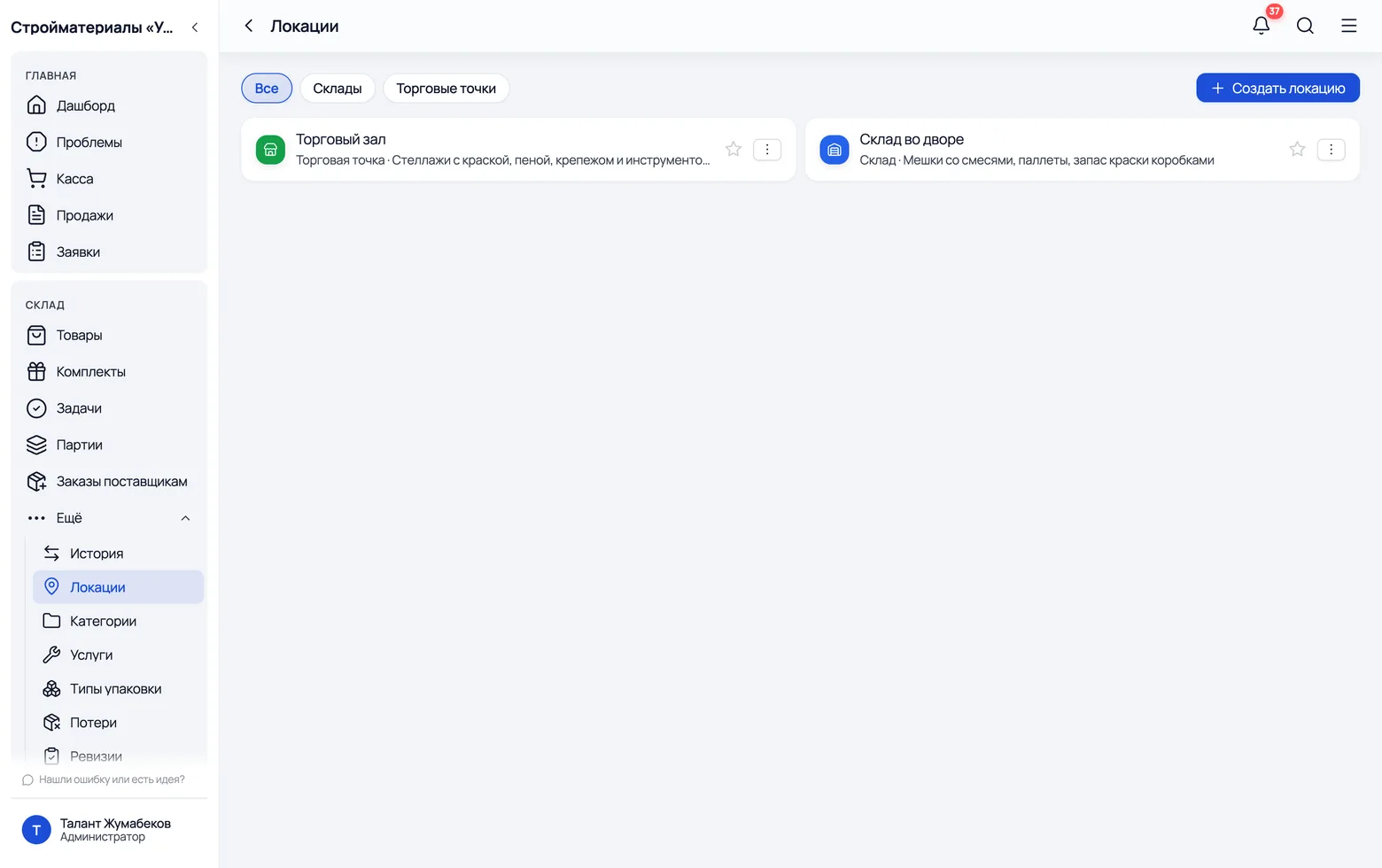
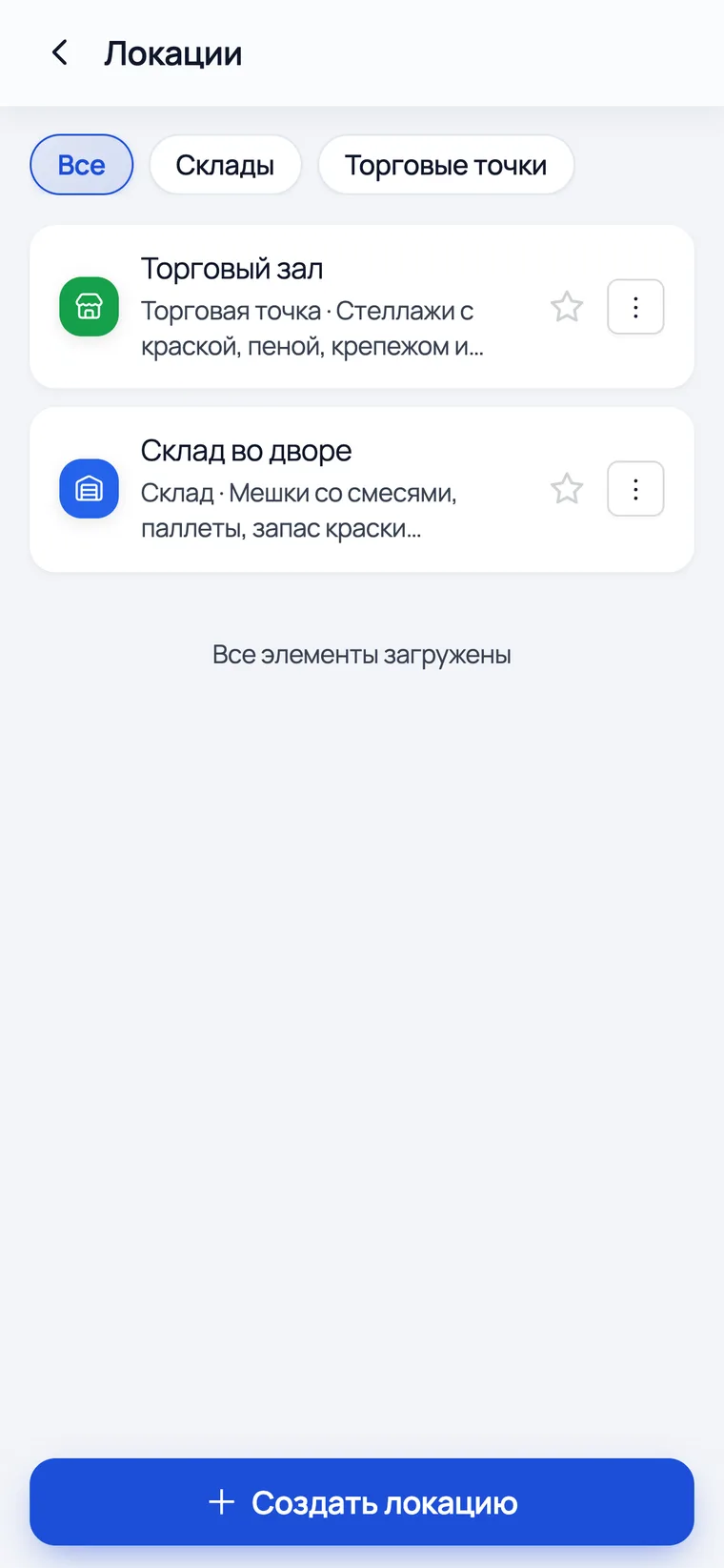
- 1Menu → Warehouse → More → Locations → Create location.
- 2'Yard warehouse' — type Warehouse. 'Sales floor' — type Sales point. Write what lives where in the description: it saves a new salesperson the first week of questions.
- 3The star makes a location the default — deliveries go there unless you choose otherwise.
The catalog: seventeen items in an evening
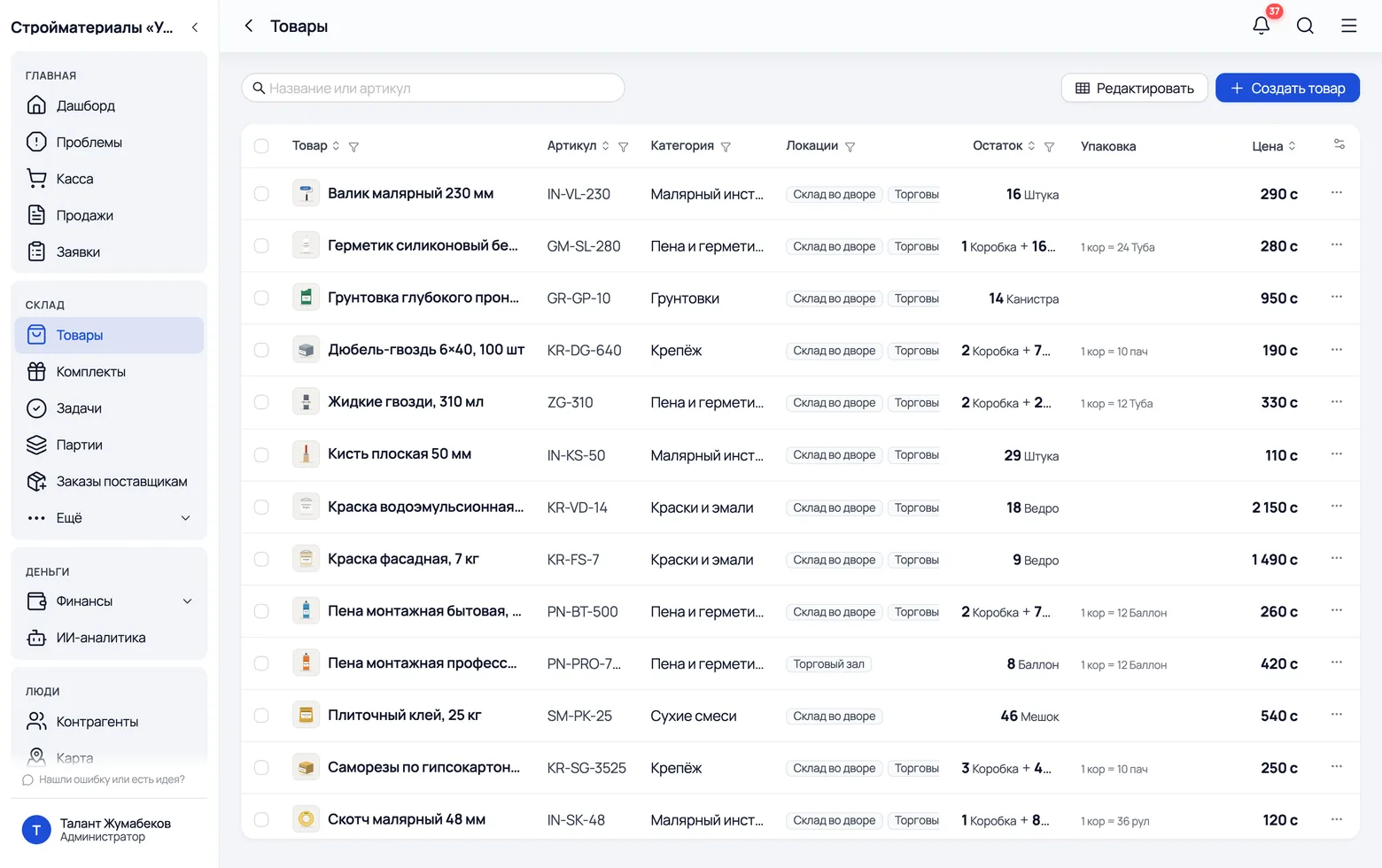
A building supplies shop carries hundreds of items, but you do not have to enter them one by one: the supplier has an Excel price list — load it whole via Data → Import products. Below is what the catalog looks like in the end: categories, SKUs, stock by location and price. Photos are optional, but with them a salesperson finds a can by sight rather than by name.
 1
2
3
4
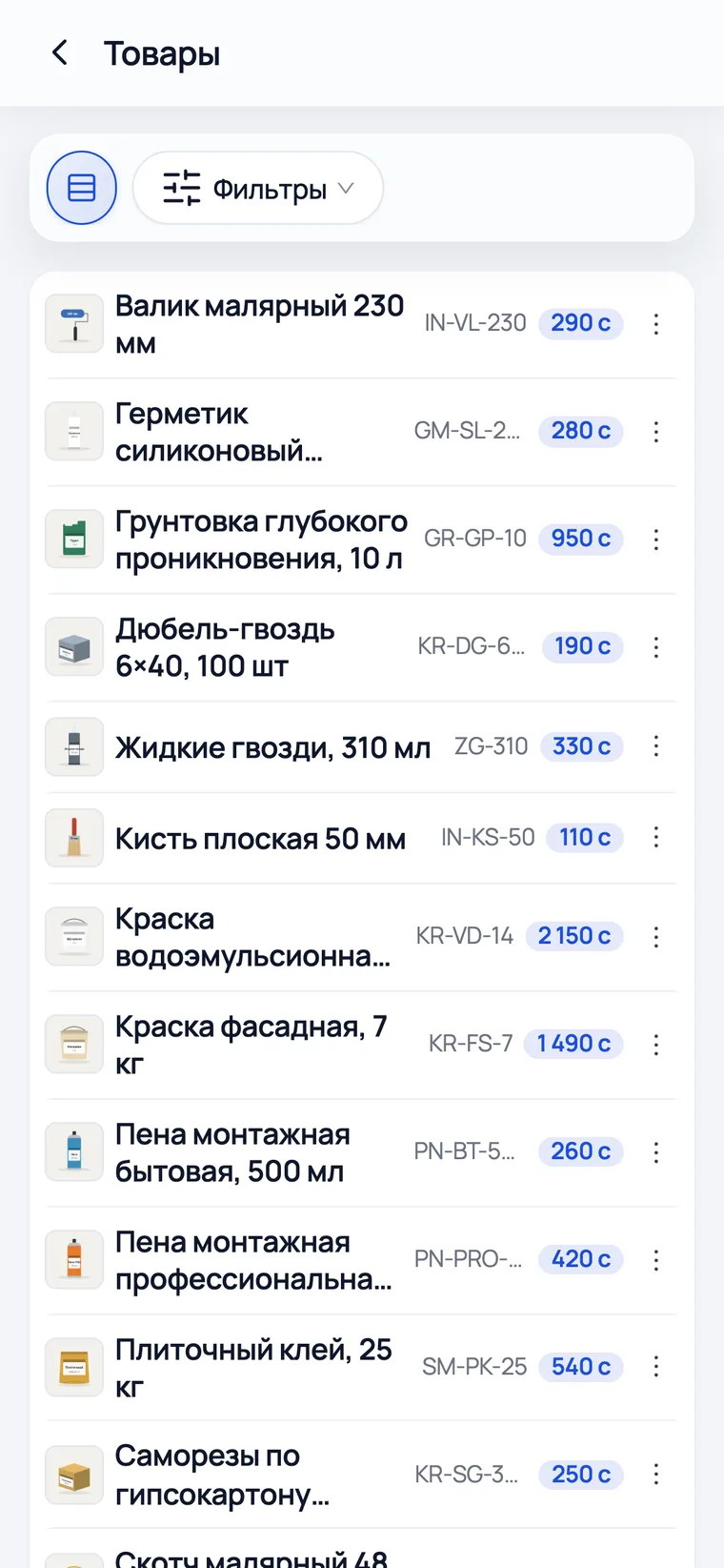
- 1Search understands both names and SKUs: 'expanding foam' and 'PN-PRO' find the same thing, and typing a category name ('mixes') lists all of its products.
- 2Category — paints, foam, mixes, fasteners. Filter the list by it and see profit by it: which group feeds the shop.
- 3Stock comes with its unit: '2 Box + 7 Can' — just as you would count by hand. Packaging is the next step.
- 4Create product — add an item by hand. Name, category, cost, price and minimum price are enough to start selling.
A can or a box: one card, two units
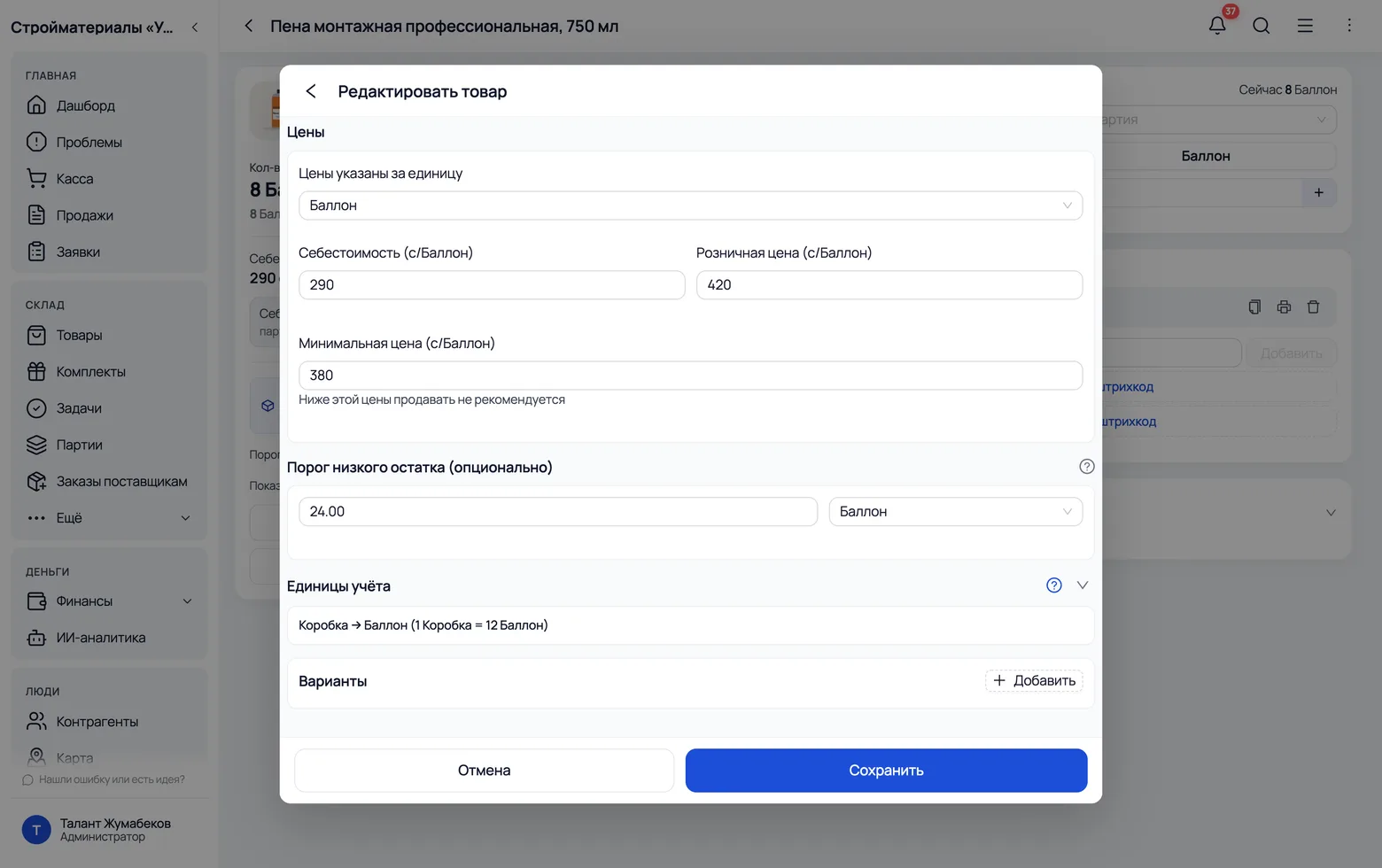
A passer-by buys one can of foam, a crew buys a box of 12. Do not create 'Foam can' and 'Foam box' as two products: the stock splits in two and you will never know how much foam you really have. The right way is one card with units of measure: '1 box = 12 cans'. Sell whichever way is convenient; the stock counts itself.
 1
2
3
4
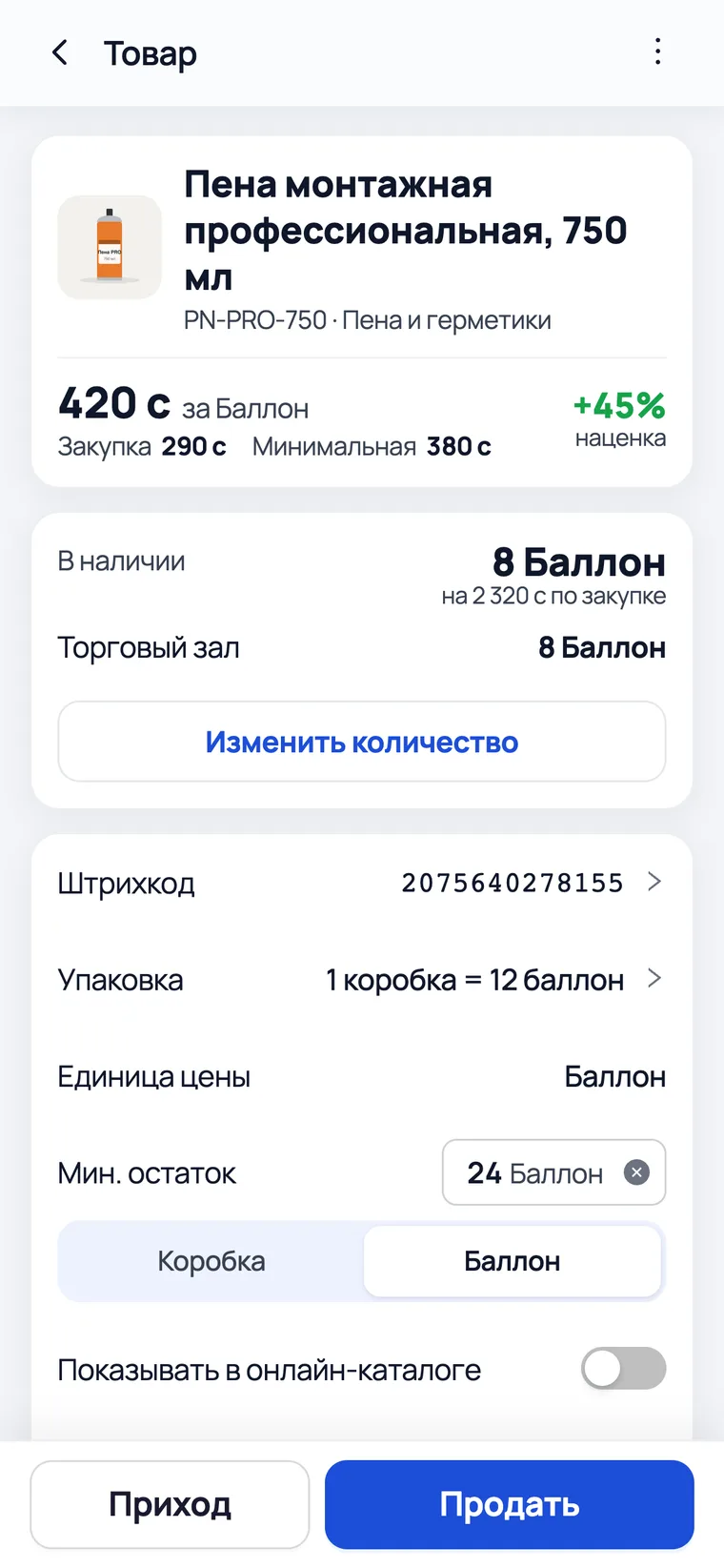
- 1Prices are per unit — pick the unit you are used to quoting. For foam it is per can: 290 cost, 420 retail.
- 2Minimum price — the salesperson cannot sell below it. More on haggling in the next step.
- 3Low-stock threshold — 24 cans, i.e. two boxes. Below that, the foam shows up under 'Running out' on Home.
- 4Units of measure: 'Box → Can (1 Box = 12 Can)'. Adding a level is one line; templates ('Box of 12', 'Box of 24') are created once in Packaging types and picked from a list.
- On the product card the Box / Can toggle shows stock in either unit: '8 cans' is two thirds of a box.
- Sacks, buckets and canisters are a single unit ('Sack', 'Bucket'). Do not complicate them with boxes: nobody sells half a sack.
Haggling without losses and a crew price
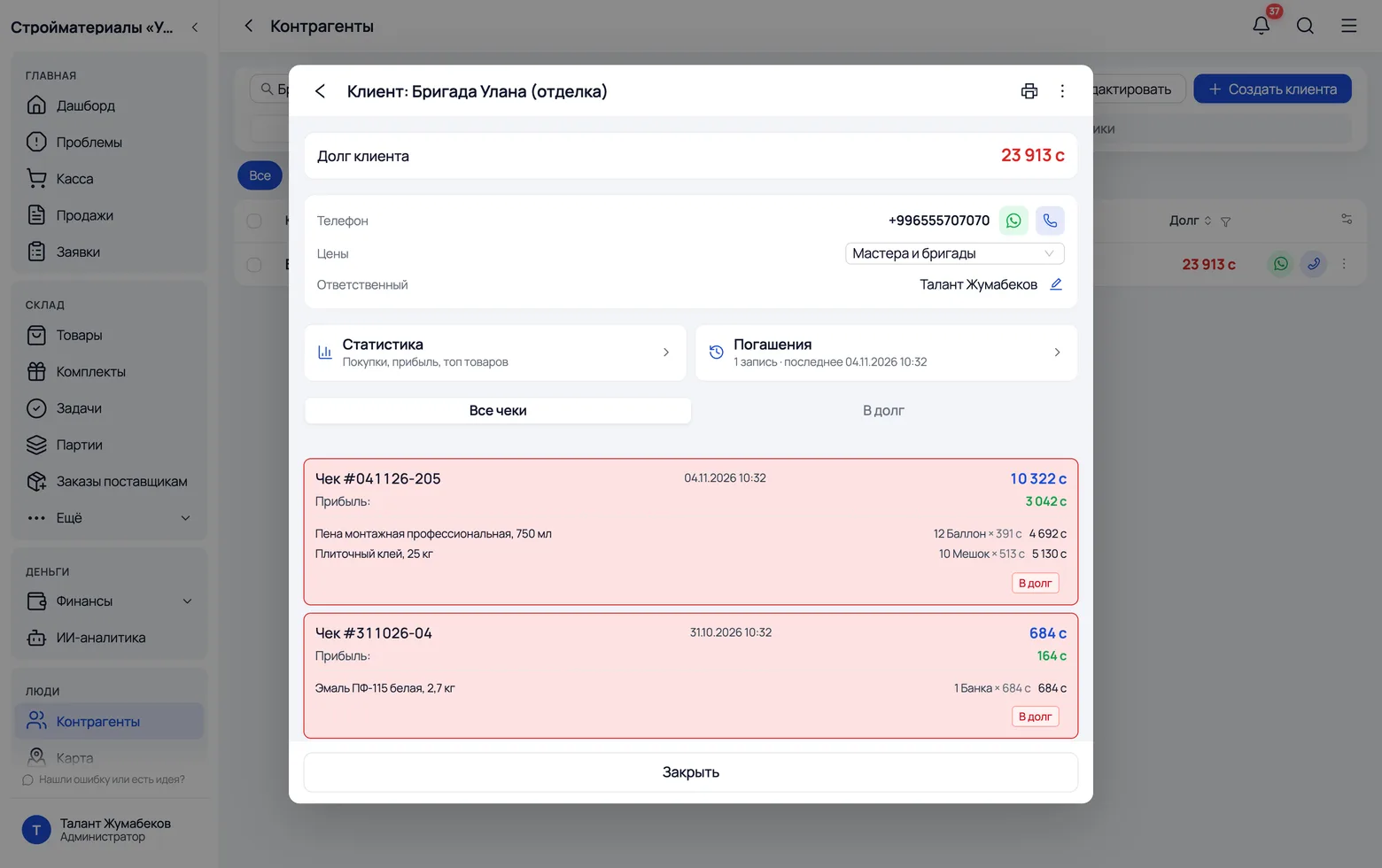
Everyone haggles at a building market, and that is fine — what is not fine is a salesperson 'giving a discount' below cost. So every product has a minimum price: the salesperson can come down, but not below it; the app simply will not let the receipt through. And regular crews do not have to beg for a discount: they are assigned the 'Masters and crews' price list, and their price fills in by itself the moment the salesperson picks the customer.
 1
2
3
- 1Prices on the customer card — which price list they have. 'Masters and crews' has discounts by category: paints −5%, foam −7%, mixes −5%. Fasteners and tools are at the normal price.
- 2Customer debt — what the crew owes right now. Below are all their receipts, with the unpaid ones highlighted in red.
- 3Repayments — when and how much they brought in. The foreman says 'but I paid on Friday' — you open it and look together.
- Price lists live in Menu → Online catalog → Prices (or from a customer card). One list can be assigned to any number of customers.
- The ban on selling below the minimum price is switched on in Settings → Product → Product fields. It does not limit you, the owner: the price of your goods is your call.
Stock comes in
From the truck at the gate to the price on the shelf
Receiving: a truck at the gate
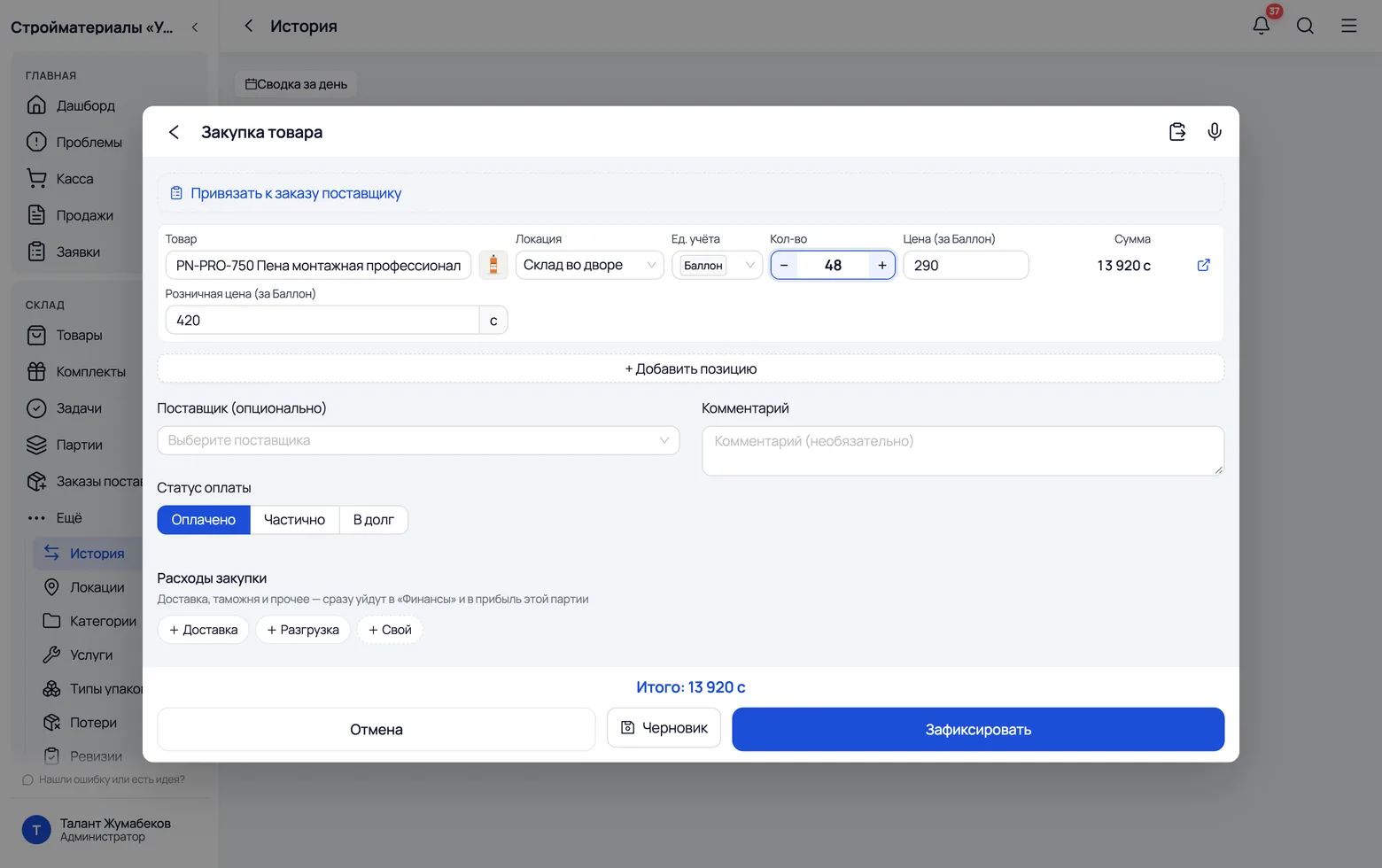
A truck from KraskaTorg has arrived. While it is unloaded you enter the delivery note: product, quantity, purchase price. Foam came in boxes — pick the 'Box' unit, type 4, and the app understands that means 48 cans. Right there you note how much you paid, how much you still owe, and what the driver got for delivery.
 1
2
3
4
5
6
- 1Product — start typing and pick from the suggestions. Location: 'Yard warehouse'. The purchase price fills in from the last delivery; if it went up, correct it and the card remembers the new one.
- 2Unit — can or box. No more counting boxes in your head.
- 3Retail price — if the cost went up, raise the shelf price right here without opening the product card.
- 4Payment status: paid in full — 'Paid'; part of it — 'Partial' with the amount; nothing — 'On credit'. The debt lands on the supplier's card.
- 5Purchase costs — delivery, unloading, your own item. They go into Finance and into the profit of this batch.
- 6Record — the goods are in stock. Tap the microphone icon at the top of the form and you can dictate the delivery note.
The batch: what came in, what sold, what is left
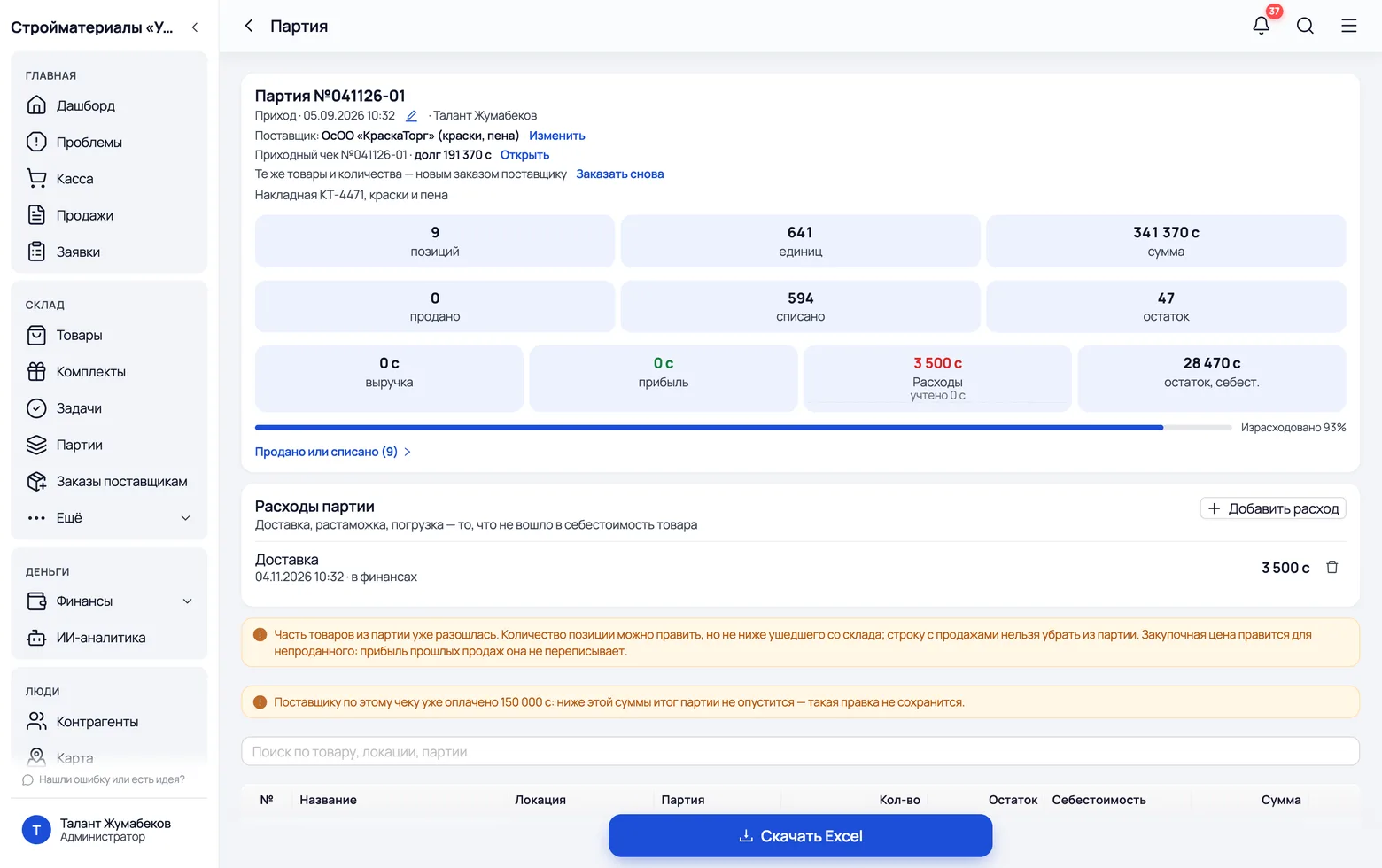
Every delivery becomes a batch — a card for one shipment. It shows what was delivered, how much has gone, what the remainder is worth and what was spent on top for delivery. It answers 'did this truckload pay off', not 'how much do we have overall'.
 1
2
3
4
5
- 1The receiving date is edited with the pencil — if the note was entered a day late.
- 2How many items and units arrived, and for what amount.
- 3The bar shows how much of the batch has gone. At 93% it is time for another truck.
- 4Batch costs — delivery, loaders. You can add them later too, when the driver brings the bill.
- 5Order again — the same supplier and the same goods in one tap; adjust the quantities.
Selling
To a passer-by, to a crew, and with a return
A sale: foam for a crew, with delivery
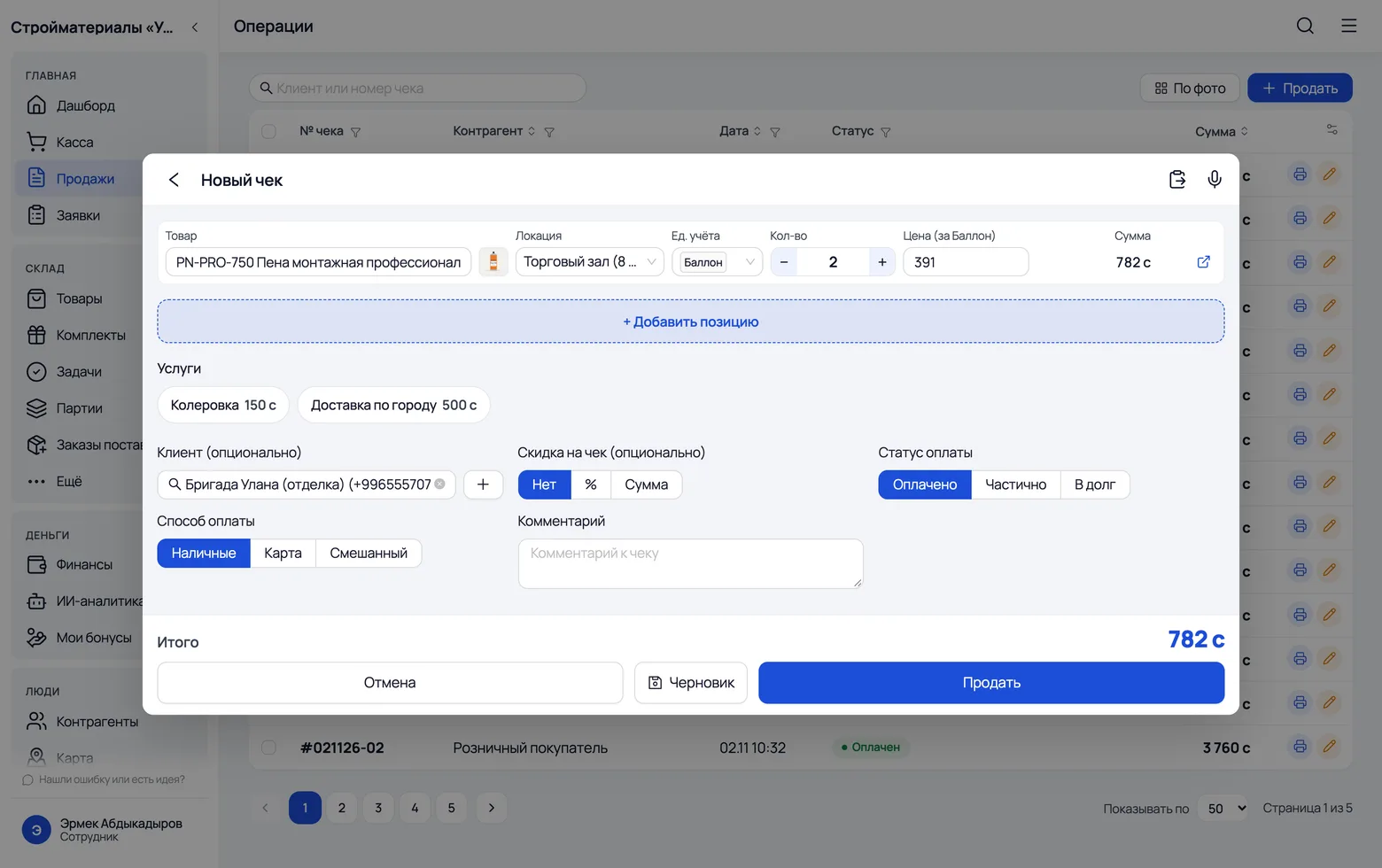
Ulan from the crew walks in: 'Two foams, some sacks of tile glue, and deliver to the site.' The salesperson opens Sales → Sell, picks the product and the customer — and the price turns into the crew price by itself (391 instead of 420). Delivery is added with the 'City delivery' button, the status is 'On credit' because they settle on Fridays. Five taps and the receipt is done.
 1
2
3
4
5
6
- 1Product — search by name or SKU. The location goes where the item actually is: foam on the floor, glue in the yard.
- 2Price is already on the crew's price list. The salesperson can haggle, but the app will not go below the minimum price.
- 3Services — 'City delivery', 'Tinting'. They appear as separate receipt lines.
- 4Customer — 'Ulan's crew'. You can sell without one too: a passer-by does not need it.
- 5Payment status: 'Paid', 'Partial' or 'On credit'. Method: cash, card or mixed.
- 6Total and Sell. Print the receipt right away or send it to the customer as a WhatsApp link.
The till: a passer-by with a bucket of paint
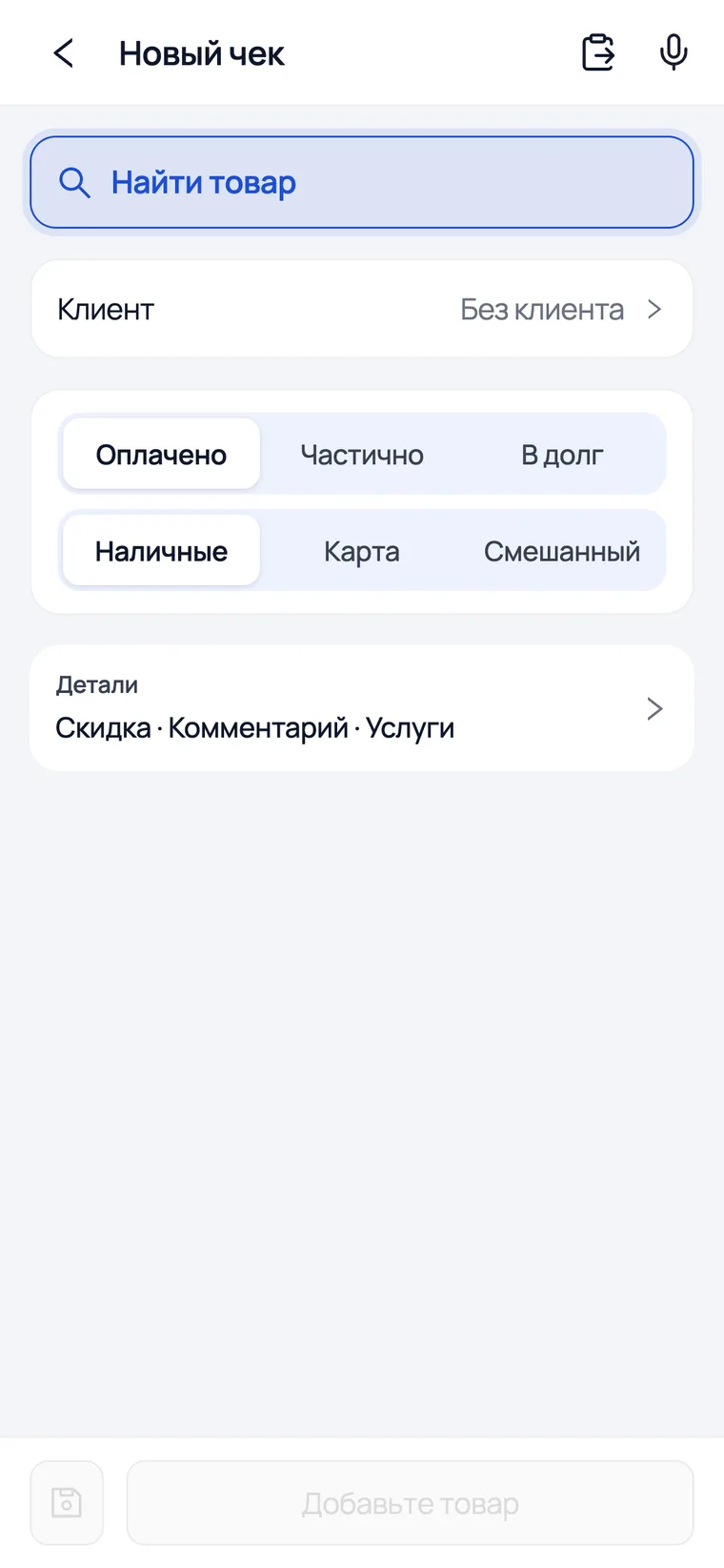
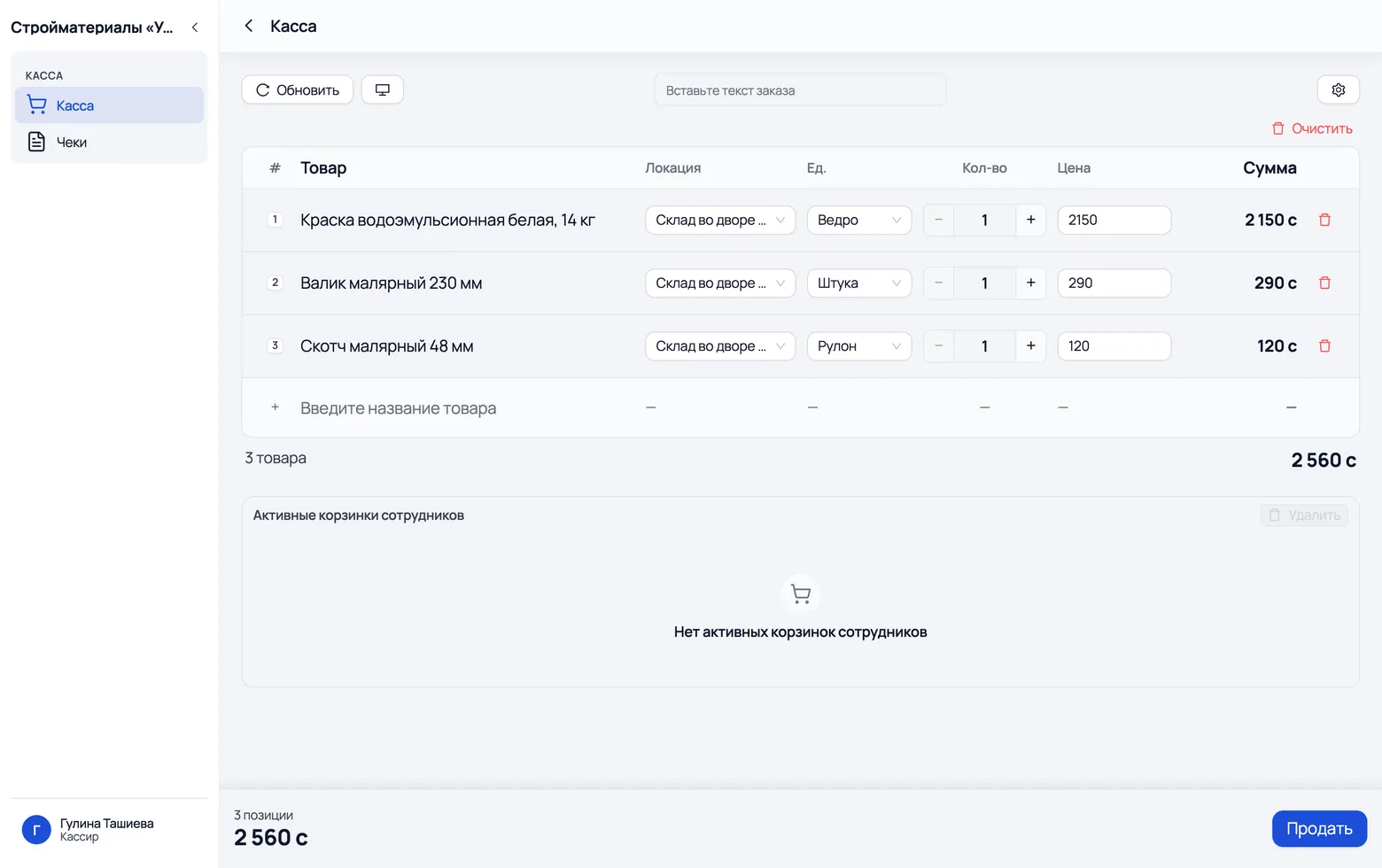
On Saturday there is a queue at the till: a bucket, a roller, some tape — next! That is what the Till screen is for: the barcode scanner drops items into the receipt, keys 1–9 add one more to a line, Enter completes the sale. No mouse at all. The cashier's menu shows only the till and their receipts — nothing else.
 1
2
3
4
- 1The scanner or the input field — the item appears as a line. No barcode on the can? The app issues its own and prints a label.
- 2Quantity — with plus/minus or a digit key: '1' adds another can to the first line.
- 3Customer display — a second monitor where the customer sees the receipt and total.
- 4Sell (or Enter) opens payment: Q/W/E choose the status, A/S/D choose cash, card or mixed.
Crew debts: who, how much and since when
Selling on credit is the main risk of a building supplies shop: the crew promises 'Friday', and there are many Fridays. The app tracks the debt itself, receipt by receipt. When money comes in, press 'Repay' on the customer card: the amount is taken off the oldest receipts first, and a 'Debt repayment' line appears in the day's closing.
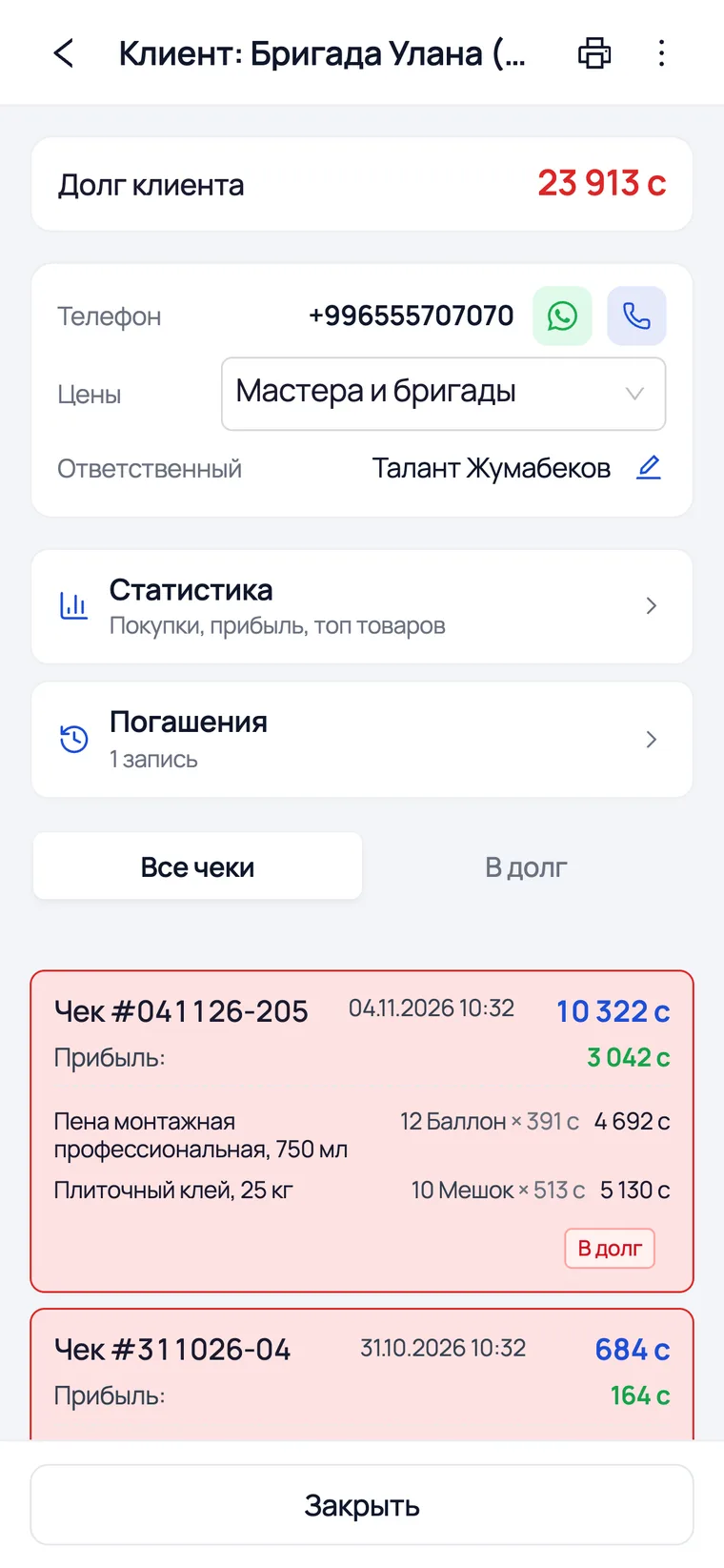
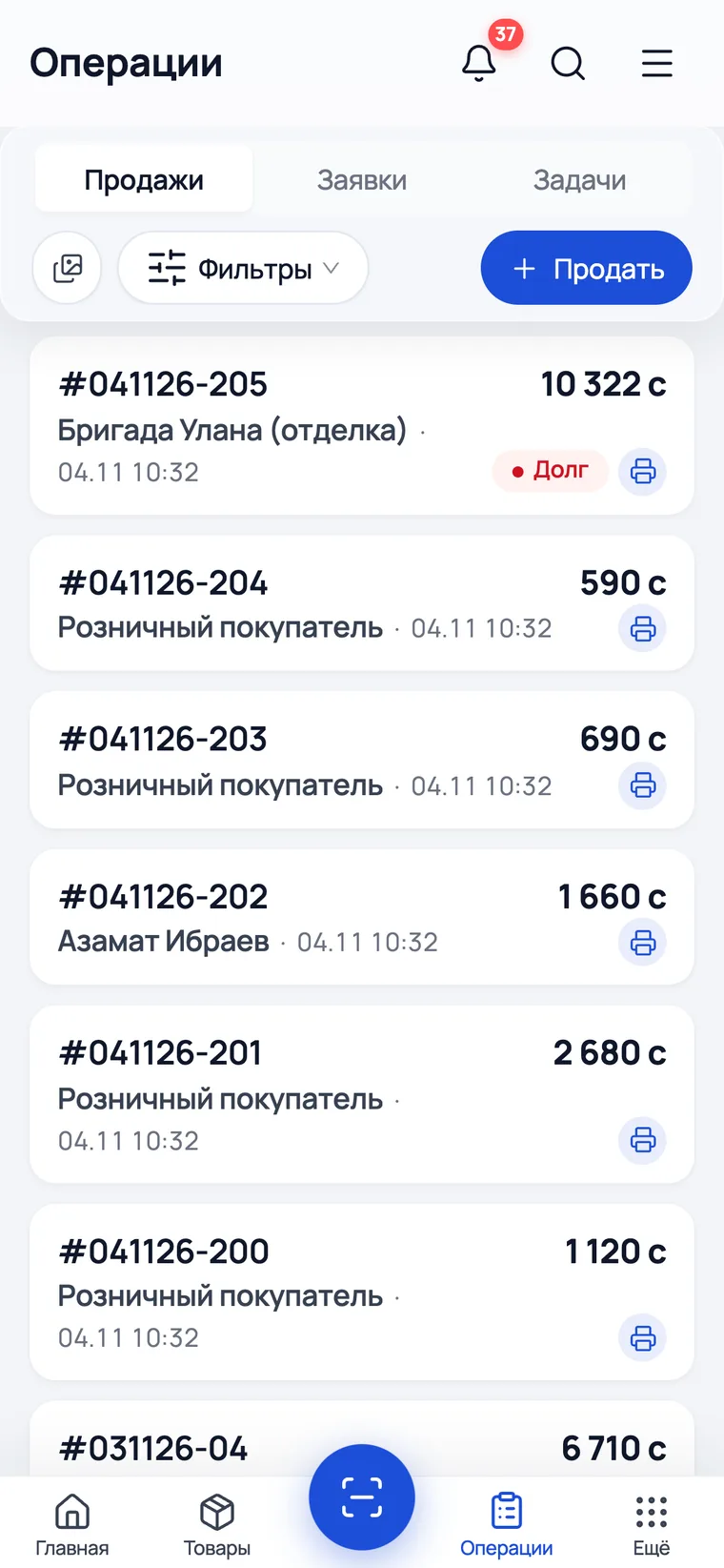
- A red Debt tag in the sales list means the receipt is still unpaid. A partly paid one says 'Partial'.
- A debtor older than a month shows up in Problems on Home by itself — with a call button and the 'overdue' amount.
- They brought half — you enter half. The repayment form deliberately opens empty: 'Full debt' is a separate link, so you never close what was not paid.
- A debt limit and terms for a crew can be fixed in a contract (Settings → Customers → Customer contracts): once over the limit, the app will not let you sell to them on credit.
A return: 'we did not need one of the buckets'
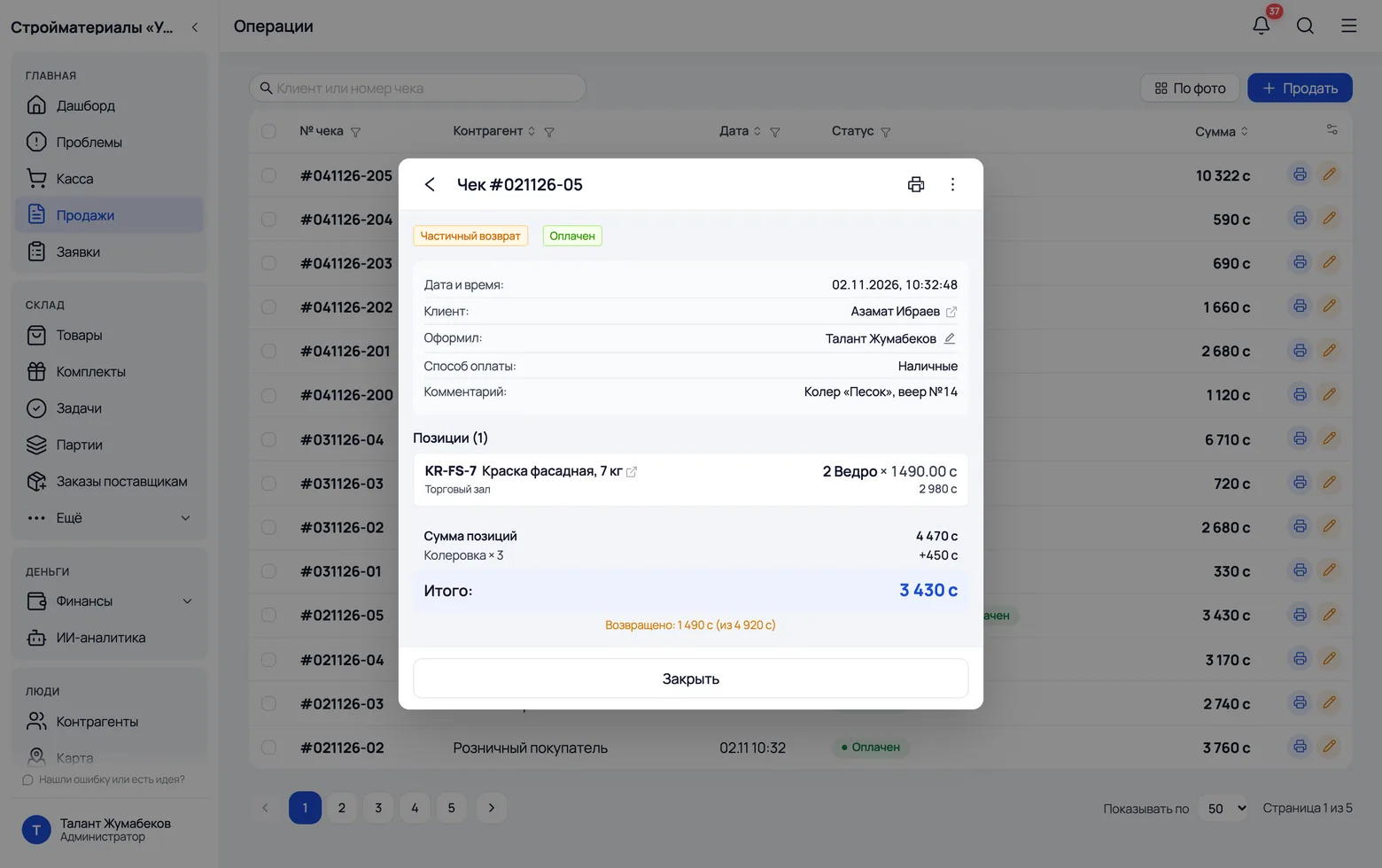
Azamat was painting a facade and took three buckets 'just in case'. One stayed sealed and he brought it back. Open his receipt, ⋯ → Return, tick one bucket, write the reason. The item is back on the shelf, the money comes out of the till, and the report shows it as a return rather than pretending the bucket was never bought.
 1
2
3
- 1The Partial return tag means something has already been returned on this receipt. A week later nobody asks 'why is the total different'.
- 2Receipt lines: 3 buckets of facade paint and tinting for three buckets.
- 3The 'Returned' line is the amount given back to the customer.
Keeping control
What is running out, what was lost, what is in the till
Shortages and supplier orders
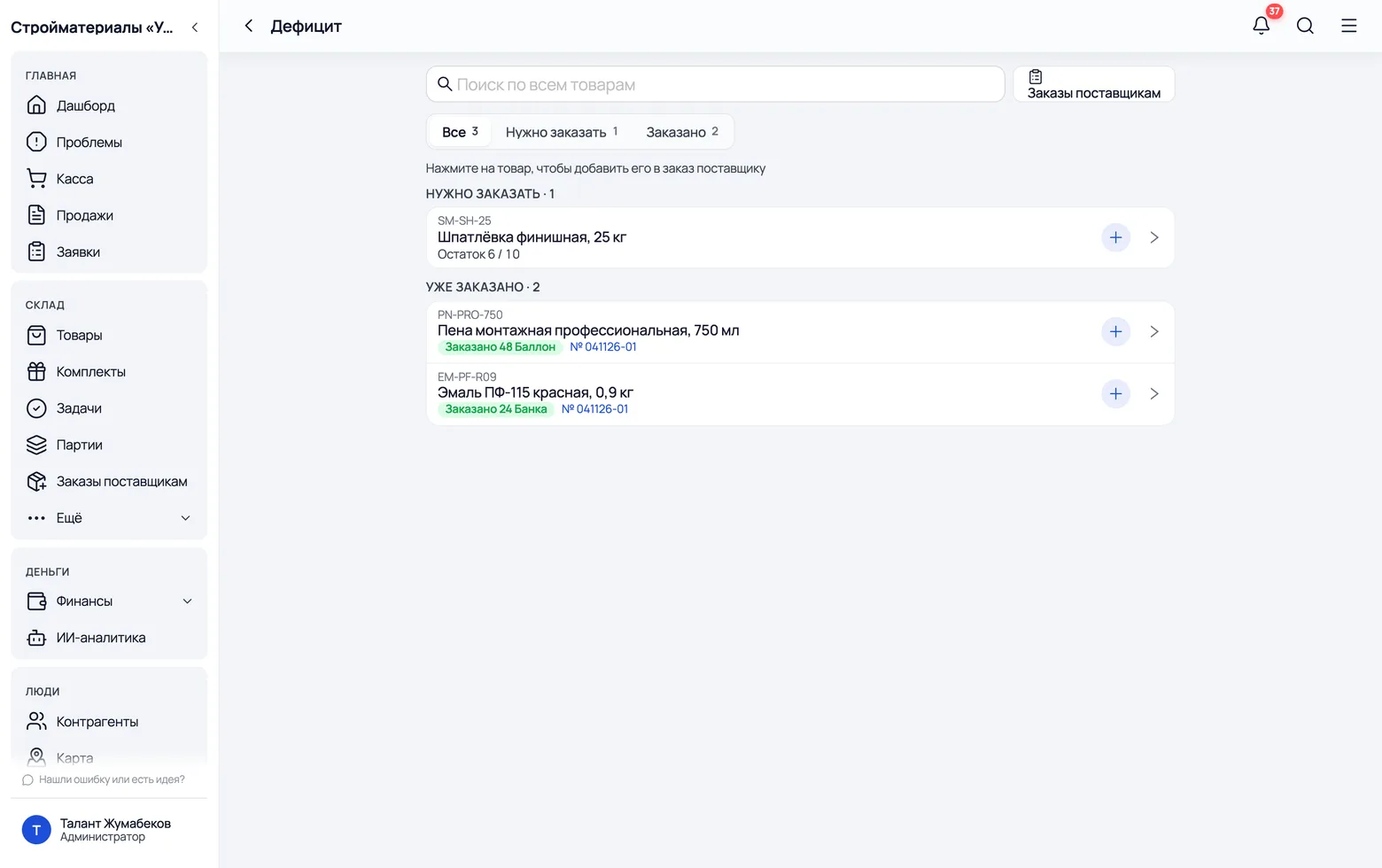
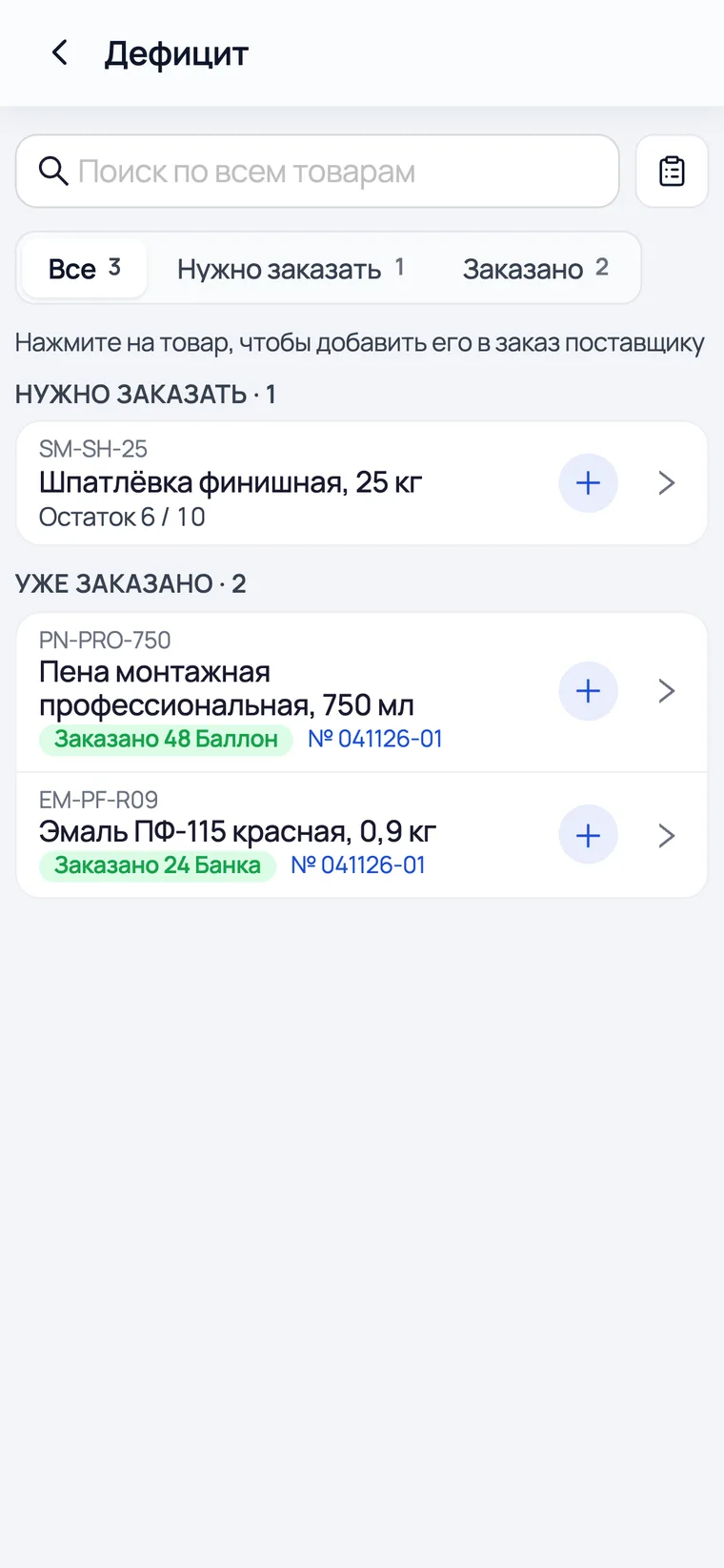
Worse than an empty shelf is a crew that went next door for foam and never came back. The Shortages screen gathers everything below your minimum and splits it into 'needs ordering' and 'already ordered'. Tap '+' next to an item and it goes into the order; the button at the bottom creates the supplier order, and the app writes the WhatsApp message for you.
 1
2
3
4
- 1Filter: All / Needs ordering / Ordered.
- 2Six sacks of putty left against a minimum of 10, and nobody has ordered it yet — first in line.
- 3Foam is already ordered: a green 'Ordered 48 Can' tag and the order number. Nobody will order it twice by mistake.
- 4Supplier orders — all the orders. When the truck arrives, Receive on the order card fills in the quantities by itself.
Losses: a torn sack and a leaking tube
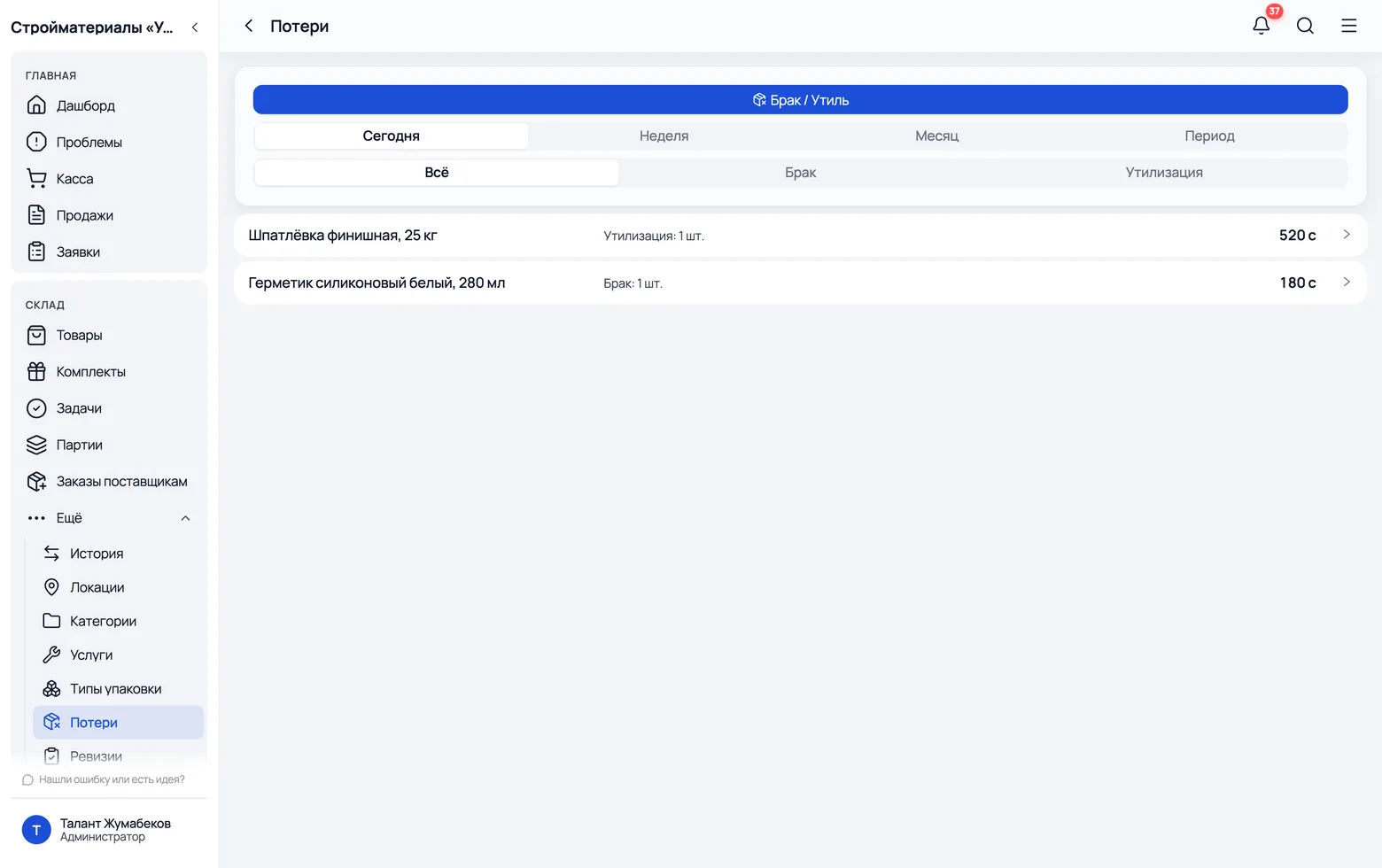
A sack of putty tore during unloading, a tube of silicone leaked on the shelf. If you do not record it, the stock will not add up in a month and nobody will know whether it was stolen or simply torn. The Defect / Disposal button on the Losses screen writes goods off with a reason. Defect — we send it back to the supplier, not a loss. Disposal — thrown away, a real loss that honestly reduces profit.
 1
2
3
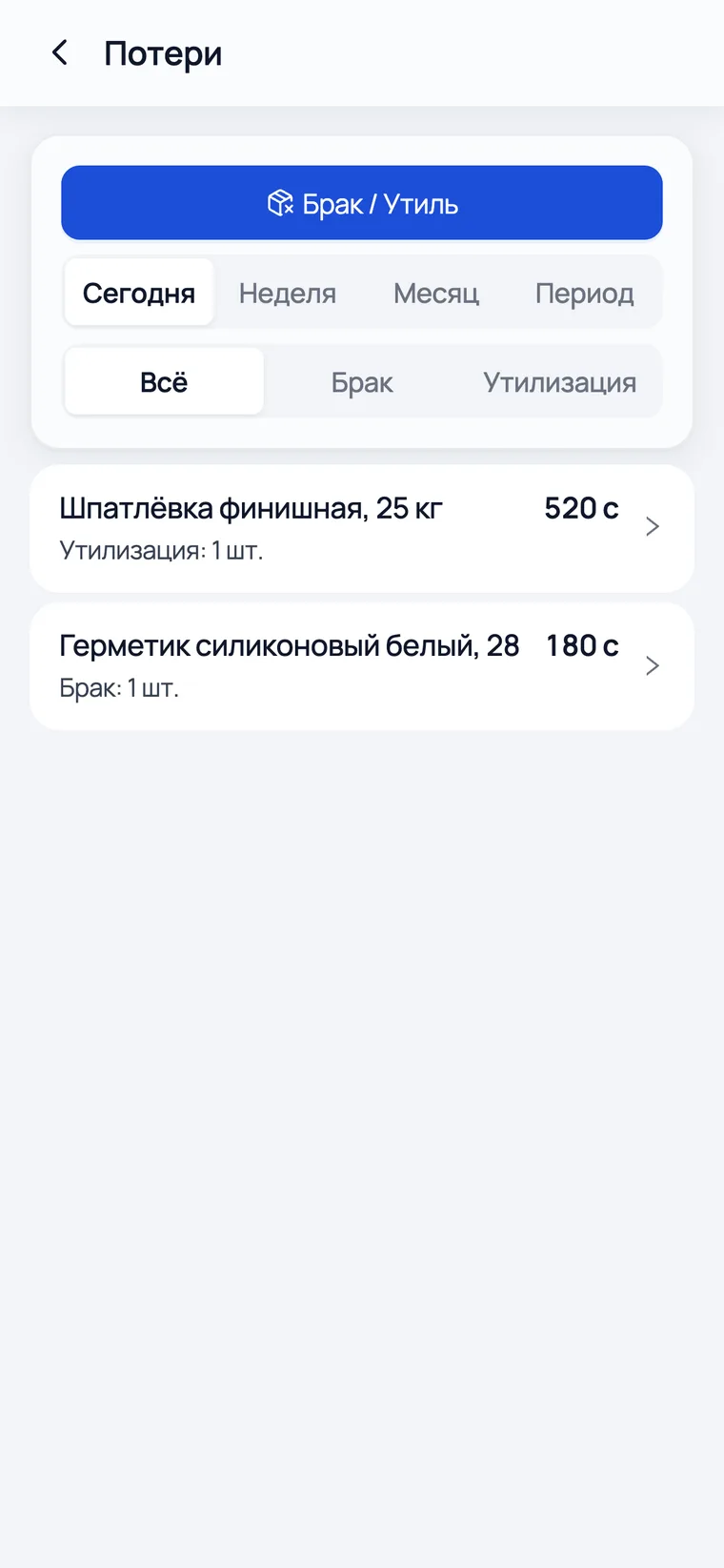
- 1Defect / Disposal — the write-off form: product, quantity, reason, comment ('sack torn while unloading').
- 2Period: today, week, month. If losses grow week by week, it is time to talk to the loaders.
- 3Defects and disposal are kept apart — they mean different things for your money.
Closing the day: what should be in the till
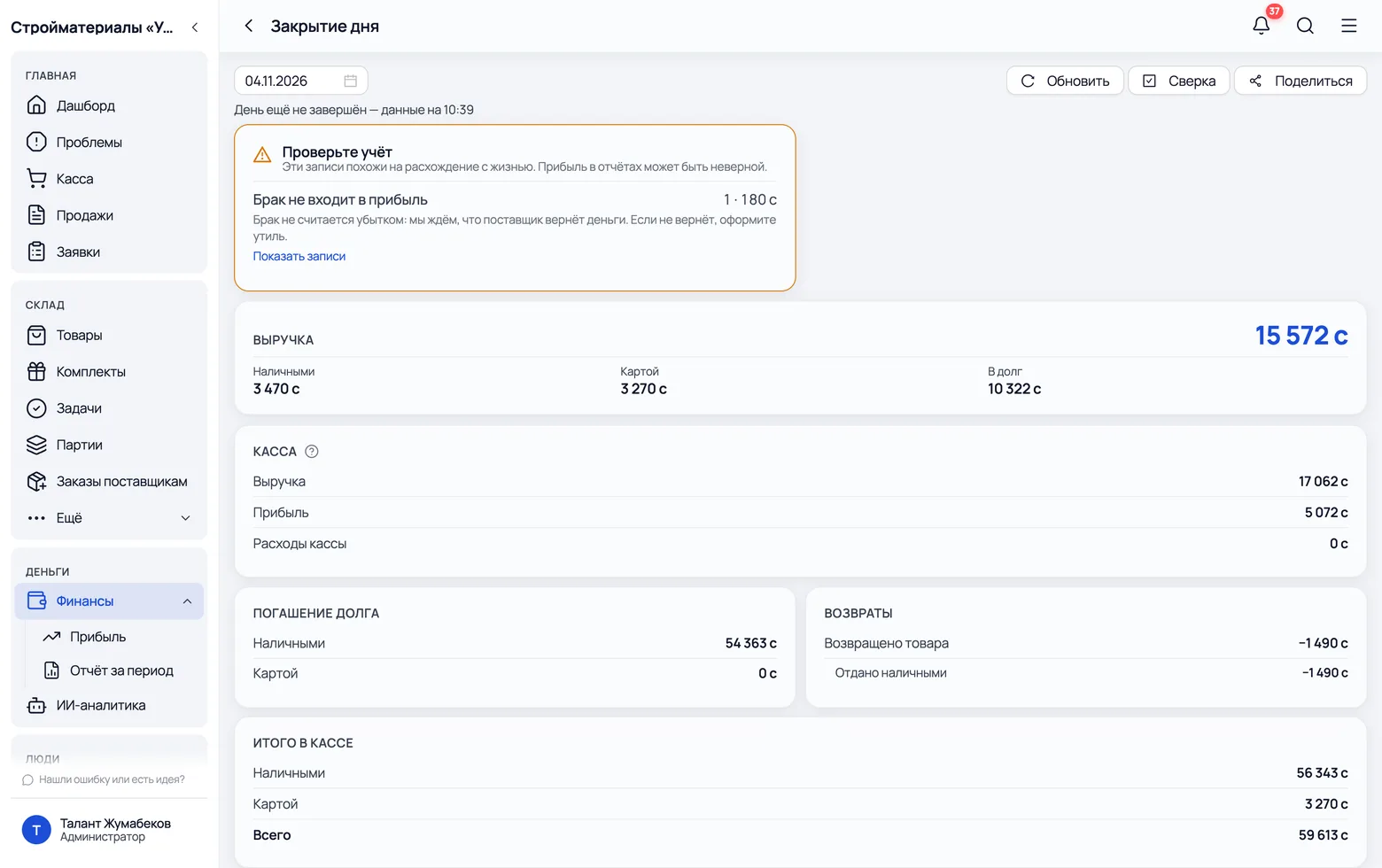
Evening, the shop is closing. Closing the day answers one question: how much money should be in the drawer and how much on the card. Revenue is split into cash, card and credit, with debt repayments, returns and till expenses shown separately. Count the drawer — if it matches, you can go home. If not, you can see where to look.
 1
2
3
4
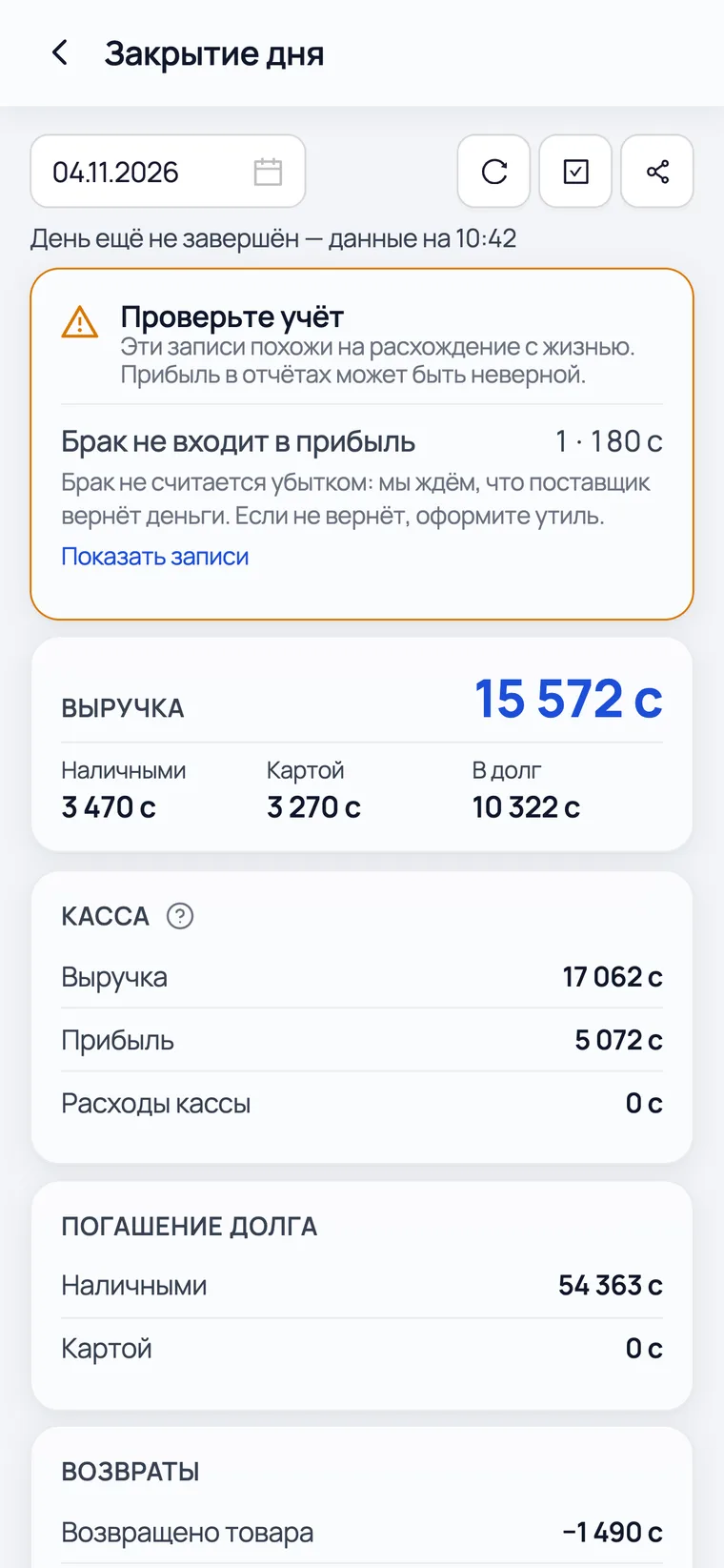
- 1Check the books — the app points out places where the numbers may differ from reality. Today it is a defect not yet returned to the supplier.
- 2Revenue in cash and by card — check the drawer and the terminal against these.
- 3On credit — sold, but no money yet. Do not look for it in the till.
- 4Share — the report as a picture or PDF, for example from the cashier to you on WhatsApp.
Finance: revenue, profit, expenses
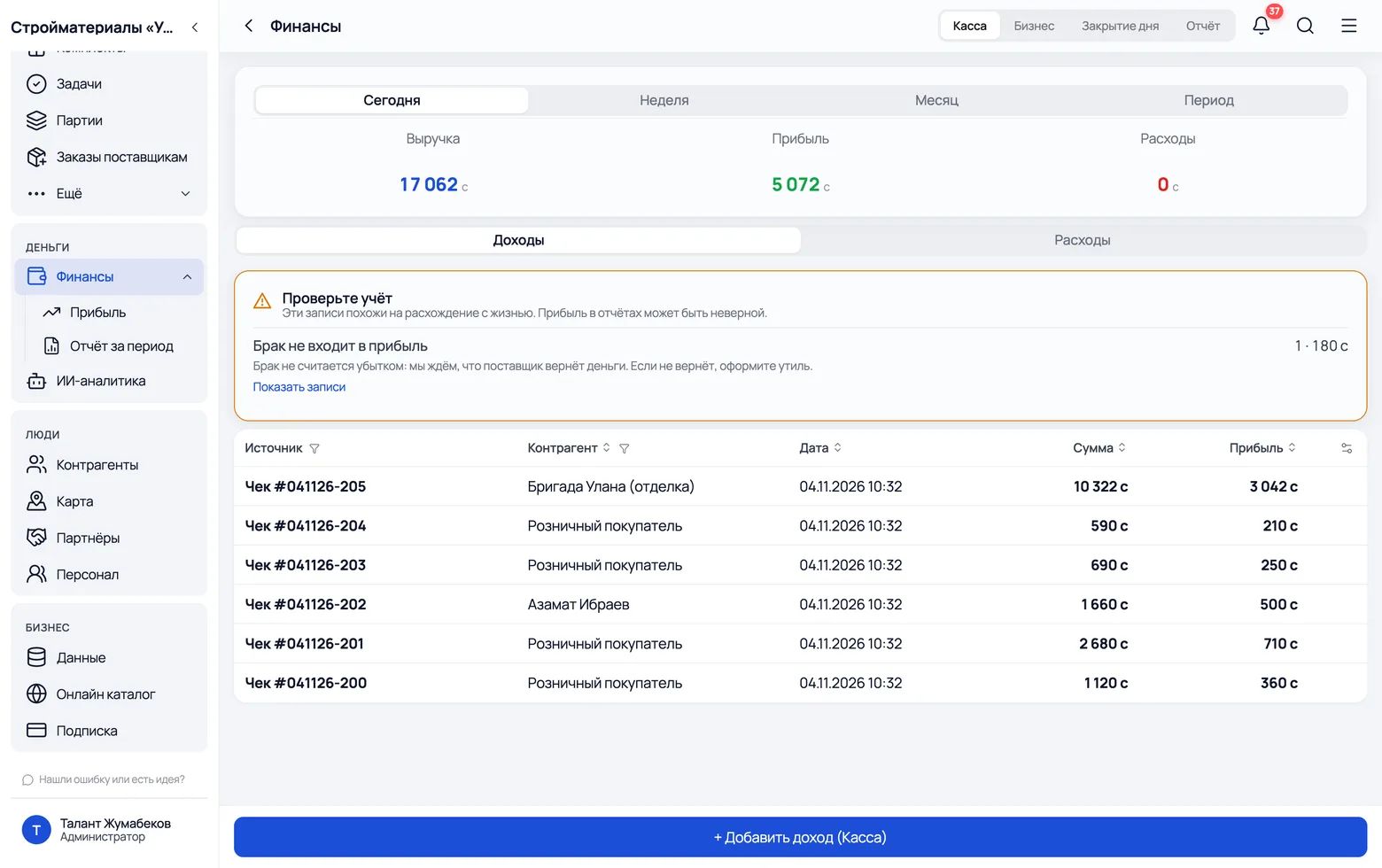
When Home says '15 thousand markup this month', Finance shows what it is made of: every receipt with its profit, till and business expenses (rent, electricity, loaders), and a summary by day, week or any period. Enter the rent for your market container here and the profit becomes honest rather than 'on paper'.
 1
2
3
4
- 1Tabs: Till — drawer money, Business — balance and big expenses, Report — a whole period.
- 2Period — today, week, month or your own dates.
- 3The three key figures: revenue, profit and expenses.
- 4Below is every receipt with its profit. Tap a line to open the receipt.
Want the same in your business?
We will connect your company and help you set it up. 7 days free, no card needed.