Stock batches: where they come from and what they show
The same sugar arrived yesterday at 64 and today at 66. The app remembers both deliveries separately, draws down the older one first, and shows for each: how much was sold, how much is left and how much that delivery earned you.
Where a batch comes from
Three steps, in order
A batch is one delivery of one product
You never create a batch by hand: it appears when you receive goods. It records what arrived, how much, where it went and at what price — and that price stays with the goods until they are sold.
 1
2
3
1
2
3
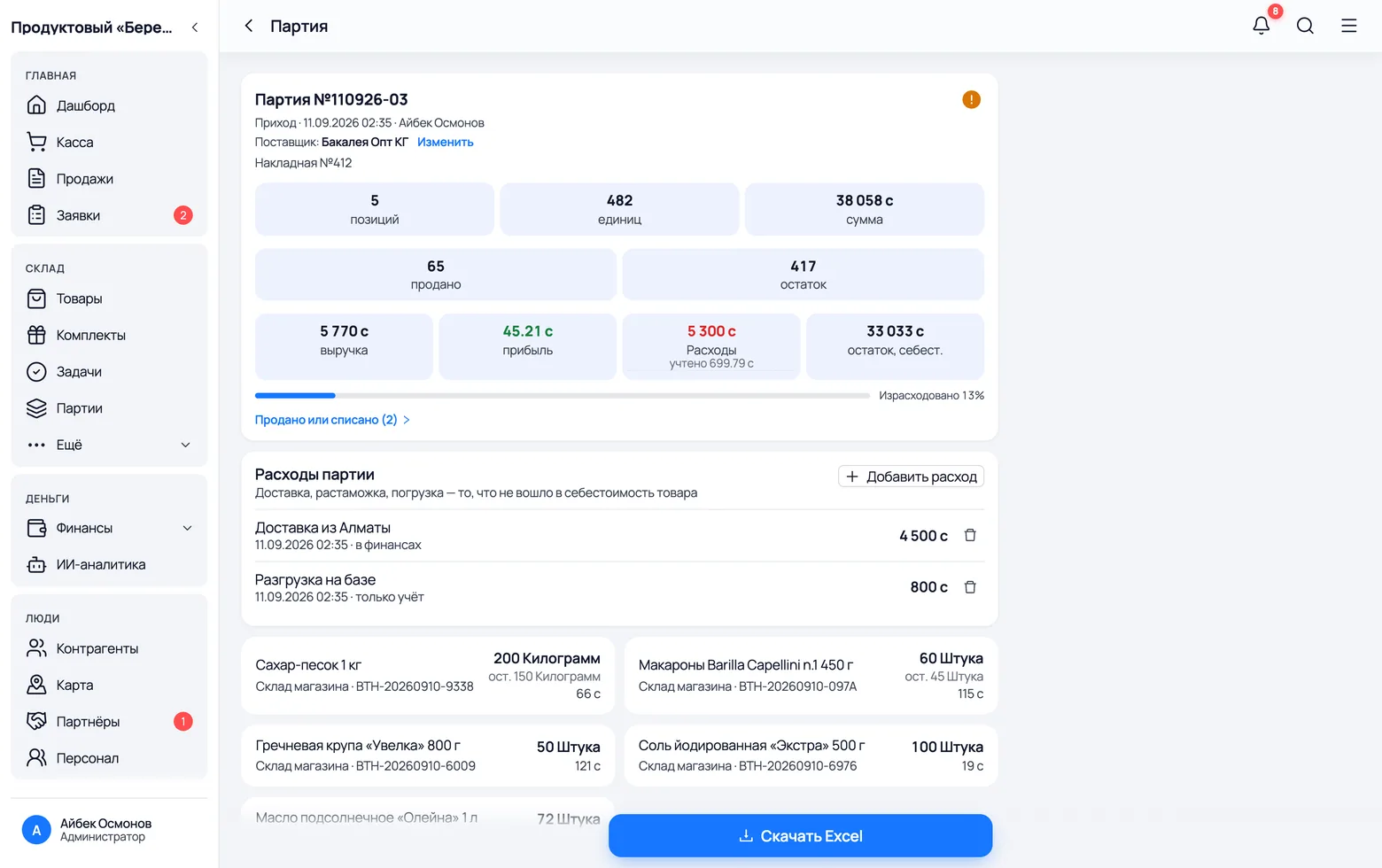
- 1Batch No. 110926-03 — the number the app gave the arrival itself. Next to it: where it came from (Arrival), the date and who entered it.
- 2Supplier and the invoice number. If the supplier was missed at receiving, you can set it here — Change.
- 3Each row below is a separate batch: the product, how much arrived (200 Kilogram), how much is left (150 Kilogram left), where it sits (Store warehouse), its own number BTH-20260910-9338 and the purchase price 66 c.
- One product lives in several batches at once: sugar at 64 from the previous delivery and sugar at 66 from this one are two different batches, even though the product list shows a single line, 'Sugar 1 kg'.
- A batch belongs to a storage place. Move goods from the warehouse to the sales floor and a separate batch is created there, while the warehouse one shrinks. So one delivery gradually splits across two locations.
An arrival creates the batch — nothing else does
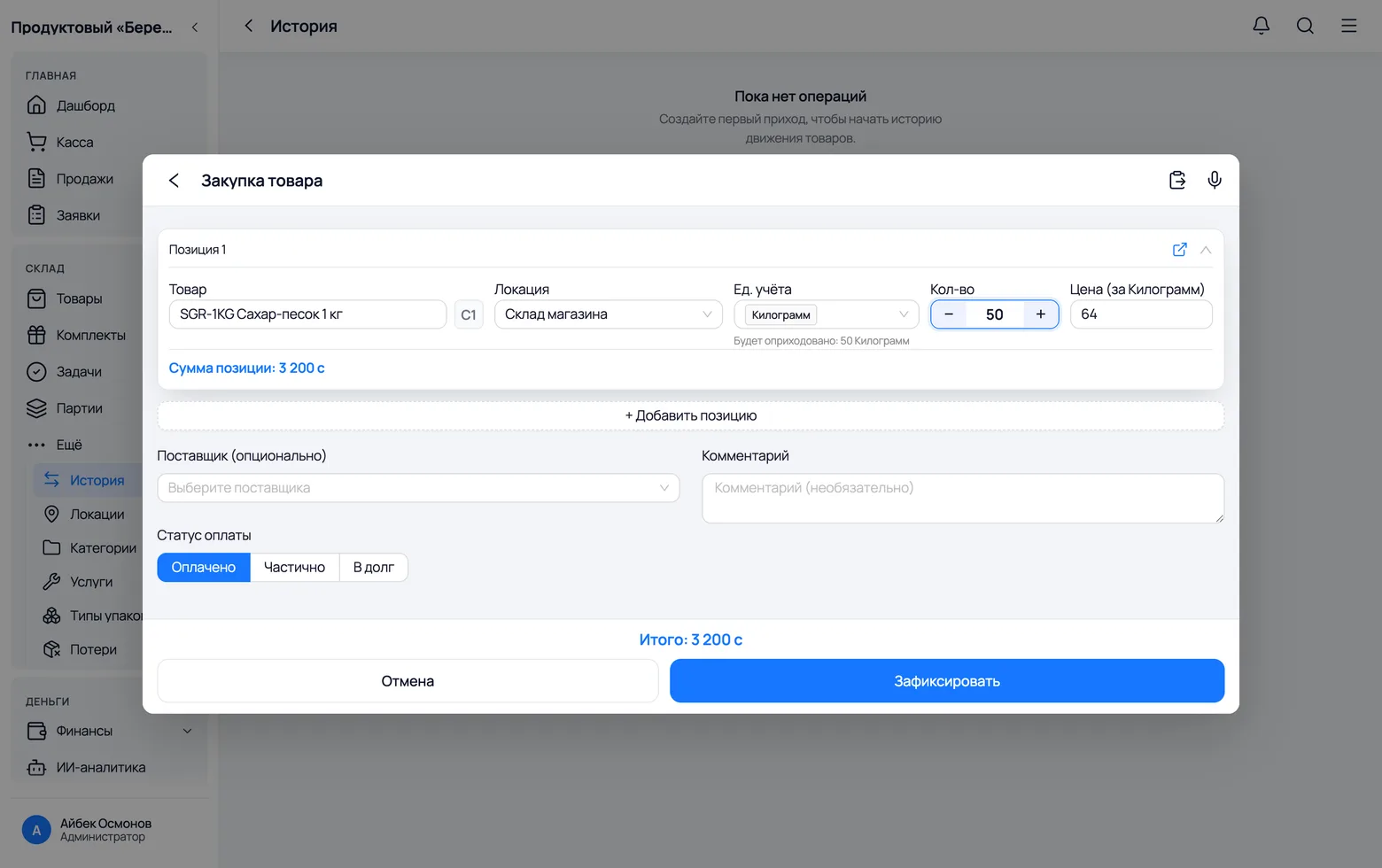
There is no 'create batch' button and there never will be. A batch is born the moment you record an arrival, and it takes its price straight from that form.
 1
2
3
4
1
2
3
4
- 1Product — what exactly arrived. Every row of the form becomes a separate batch.
- 2Location — where it goes. The batch remembers the place: the same product in the warehouse and on the floor are different batches.
- 3Price — the purchase price, per the unit you selected. This is the field that matters most: the profit of every sale from this batch will be calculated from it.
- 4Supplier — optional, but with it the batch answers 'who did we buy this from', and the debt to the supplier is tracked automatically.
- A multi-row arrival is one delivery and as many batches as there are rows. Invoice No. 412 with five items shows as a single card holding five batches with different numbers.
- Any arrival creates batches: a quick arrival, a purchase invoice, or a stock upload from Excel. Afterwards they differ only by the Source column in the batch list.
The Batches screen: every delivery in one list
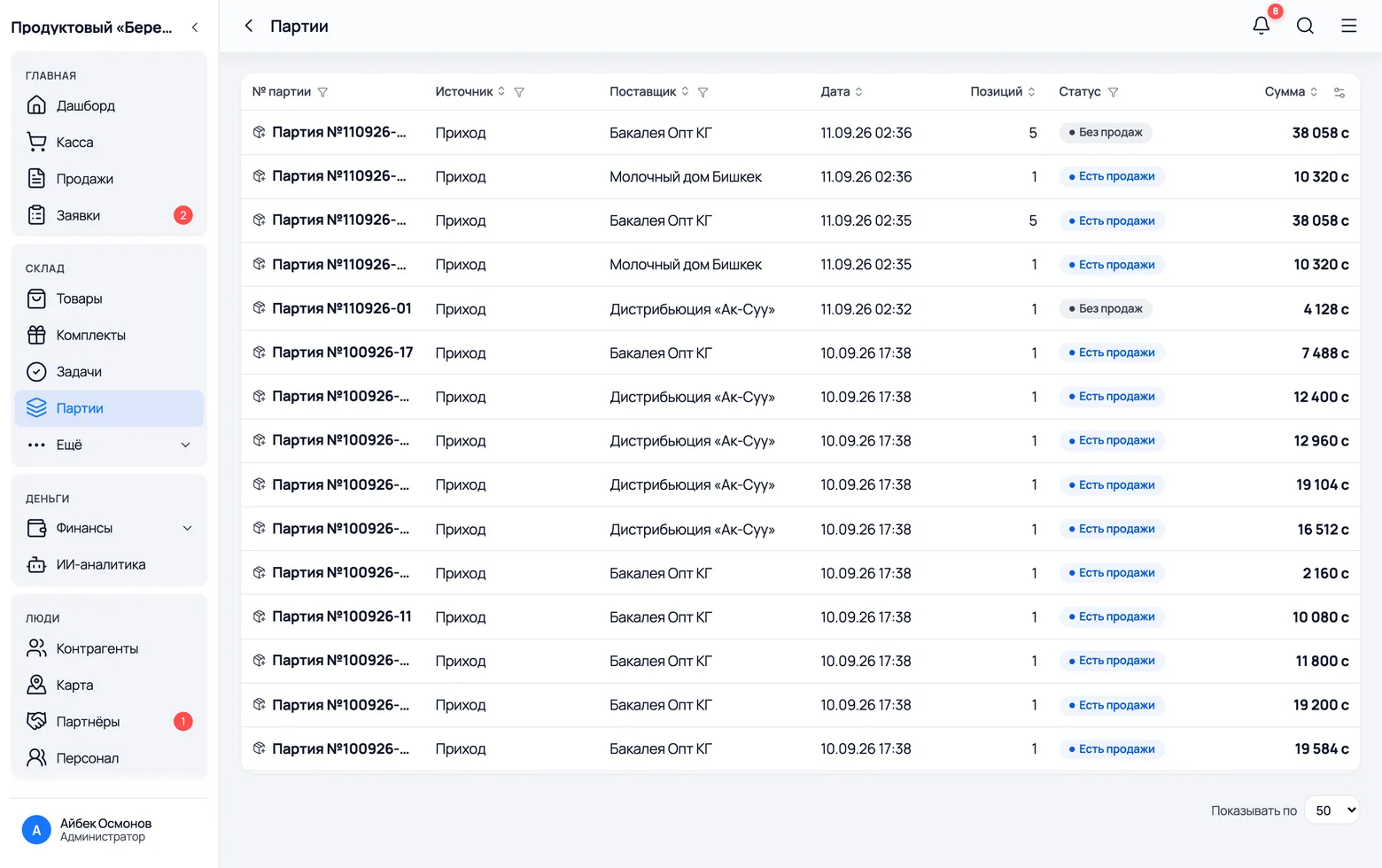
You come here with the question 'what did we actually receive' — and open any delivery to see how it sold through.
 1
2
3
4
1
2
3
4
 5
6
5
6
- 1In the menu on the left: Warehouse → Batches. The screen opens straight into a list; there is no search — the filters hide in the column headers.
- 2Source — where the delivery came from: an arrival, a purchase receipt or an Excel import. The funnel icon next to the column name filters the list.
- 3Items — how many different products were in the delivery. One means a quick single-product arrival; five means an invoice.
- 4Status answers the main question: No sales — the delivery is still fully in stock; Has sales — something has already left it.
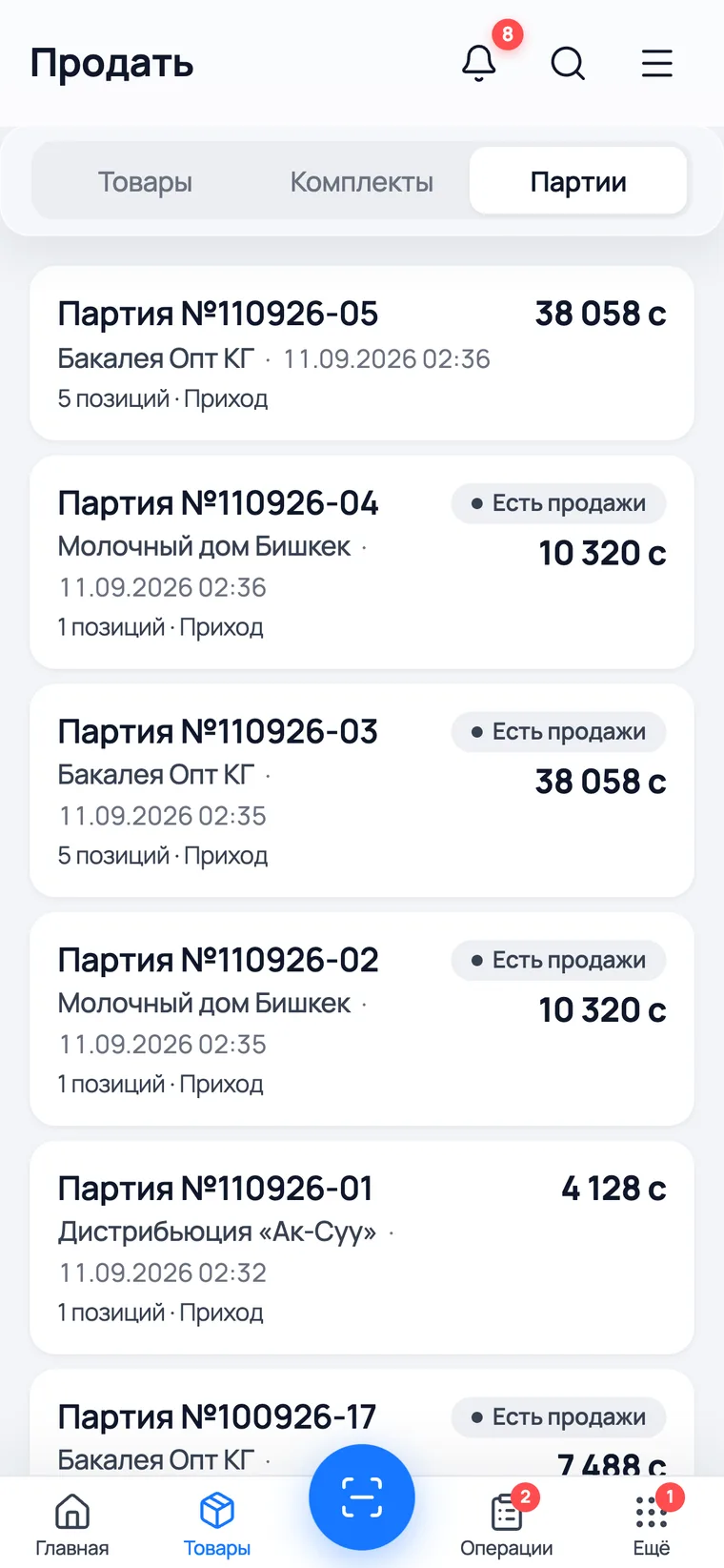
- 5On a phone, batches are the third tab of the Products screen — the Products · Kits · Batches switch at the top.
- 6A card instead of a row: number, supplier, date, total and item count. Tapping opens the same batch card as on a computer.
- The Total column is the purchase cost of the whole delivery, not what you will sell it for. It is not shown to salespeople at all.
What a batch shows
The screens you open for an answer
The batch card: how much came in and how much moved
The tiles at the top answer 'is this delivery still alive': what was in it, how much has gone and how much is still in stock.
1
2
3
4
5
6
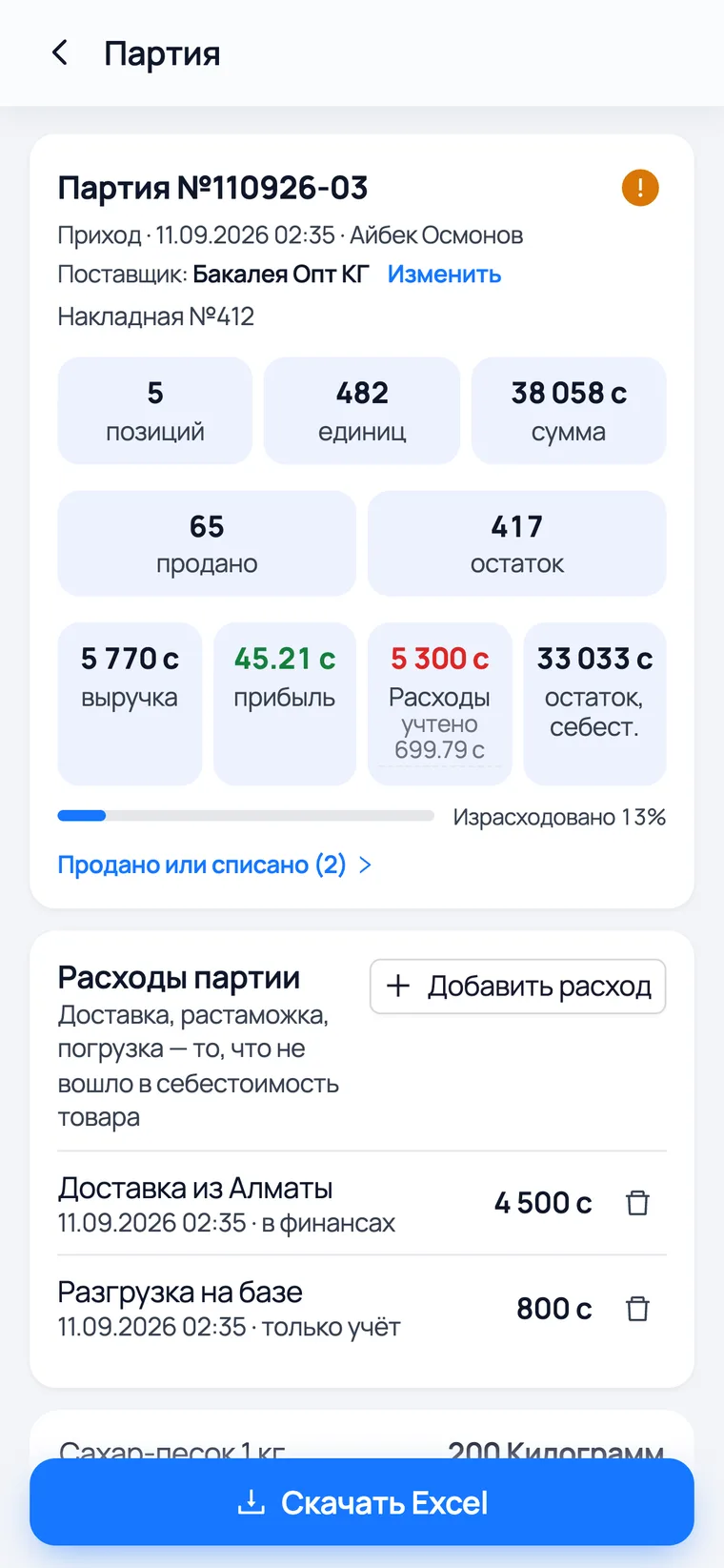
- 1Items — how many different products came in one delivery. Five here: sugar, pasta, buckwheat, salt and oil.
- 2Units — the total in base units: kilograms, pieces and litres added together. It is a rough number, used for the sell-through percentage.
- 3Sold — how much left through receipts. This is what you actually got money for.
- 4Left — how much of this delivery is still in stock right now.
- 5The Used up bar says the same at a glance: 13% of the delivery has left the warehouse, 87% is waiting for a buyer.
- 6Sold or written off opens the list of what is already gone from this delivery, with the quantity for each product.
- The gap between 'sold' and 'used up' is everything that left without a receipt: written-off damage, stock-take corrections and moves to the sales floor. Goods that merely moved to the counter also land in that number, even though they are not sold yet.
- The item rows below show the remainder for each product separately: '200 Kilogram, 150 Kilogram left'. That is more useful than the overall counter when the sugar has moved but the salt has not.
Batches on the product card
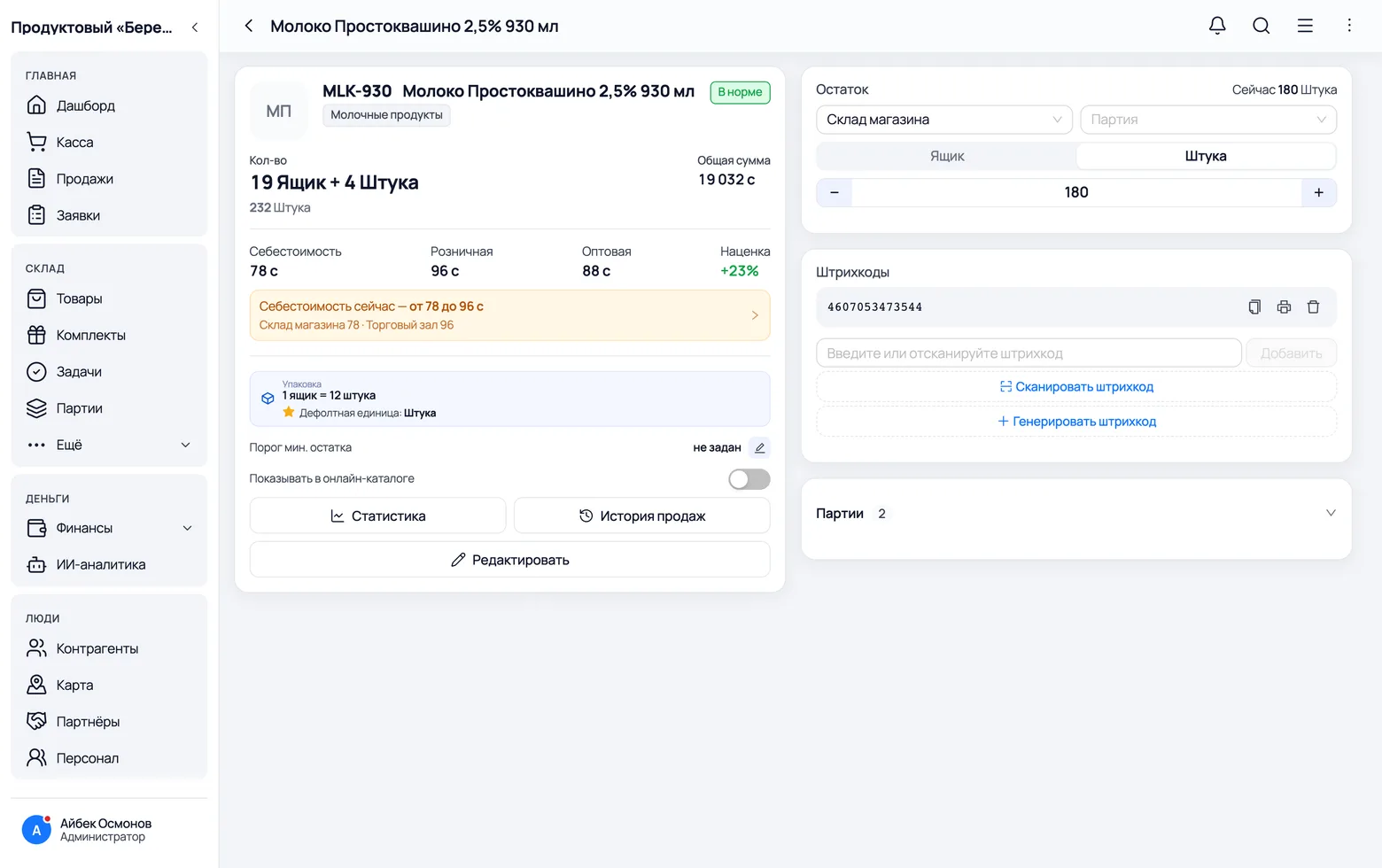
From the product's side you see the opposite: not 'what was in the delivery', but 'which deliveries make up today's stock and at what price each part came in'.
 1
2
3
4
1
2
3
4
 5
5
- 1Cost in the header is the price stored on the product card. It is your reference for markup, not what profit is calculated from.
- 2The yellow banner Cost right now — from 78 to 86 c is the truth: the warehouse holds milk from two deliveries at different prices, and the caption breaks it down by location.
- 3The Batches block at the bottom right expands into a list: number, date, location, price and how much is left in each.
- 4The Batch field in the 'Stock' block is the one place where you pick a batch by hand: to correct the quantity in that exact batch after a shelf count.
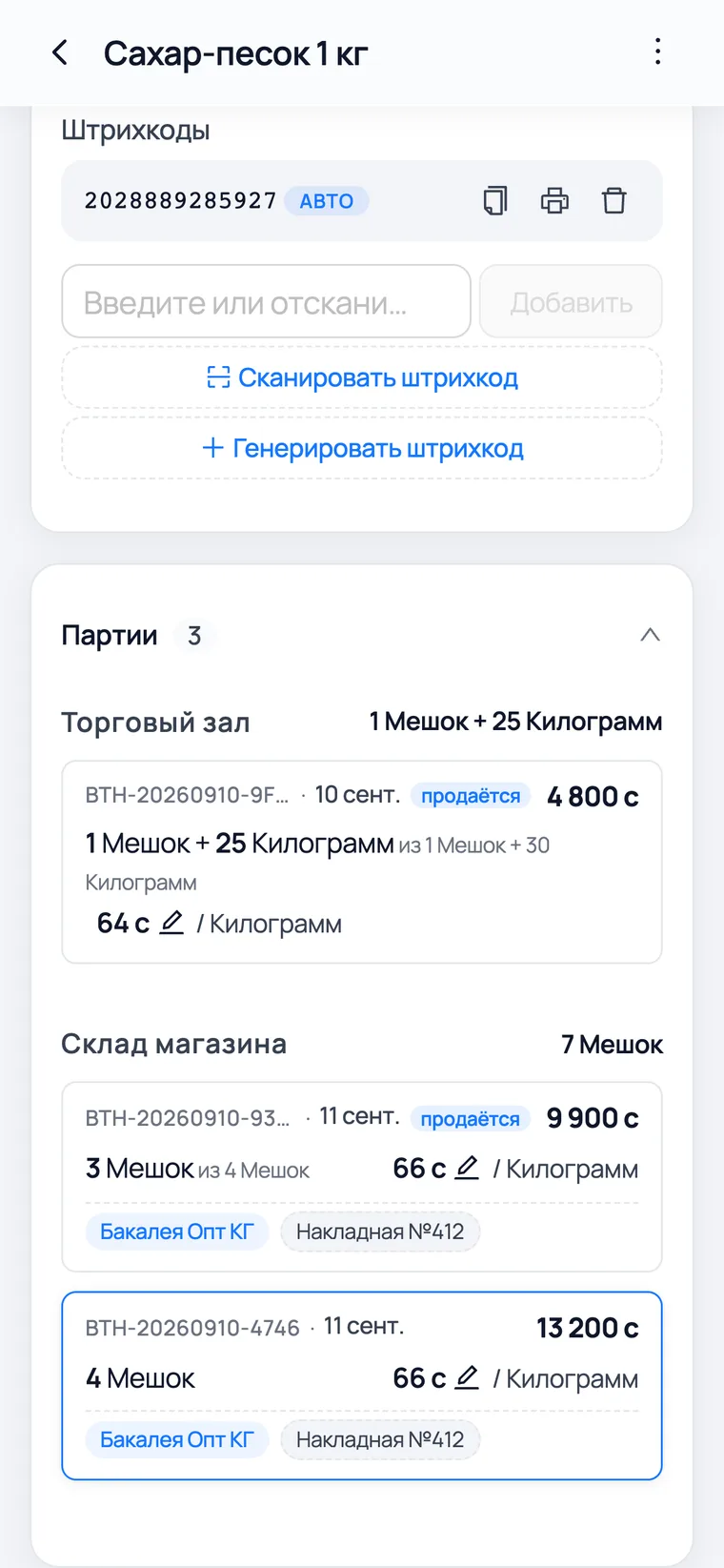
- 5The same on a phone: Batches 3 for sugar — two deliveries in the warehouse and one shelf stock on the sales floor.
- The range banner appears only when batch prices differ. While all goods arrived at one price it is absent — rightly so: there is nothing to report.
- The cost in the card header does not update itself after a pricier arrival: it is a reference price that you set. It does not affect the profit calculation.
Why the box that arrived first is the one written off
The warehouse holds milk from two deliveries: at 78 and at 86. You sell a carton — which price does the app use for profit? Always the one that arrived earlier.
1
2
- 1Until the milk at 78 runs out, every sale's profit is counted at 78. Once it is gone, the next carton is counted at 86, and the range banner disappears on its own.
- 2The selling price does not change: 96 c stays 96 c. Only the side you subtract from changes — which is why profit on the same product drifts over time.
- The rule is called 'first in, first out'. It simply repeats what the warehouse already does by hand: the older stock goes to the front so it does not sit around.
- Without such a rule, profit would depend on which box the salesperson took off the shelf. The same receipt would give different figures on Monday and Tuesday, and there would be nothing to reconcile the report against.
- A single sale can eat two batches at once: 200 kg of sugar with 150 left in the old batch takes 150 at 64 and 50 at 66. There is no separate screen saying 'this much from here, that much from there' — you see the result: the old batch hit zero, the new one shrank.
- The count follows the arrival date, not the expiry date. The app does not know that a curd due tomorrow must go before month-long milk — that is still your head and your eyes.
Why a sale never asks you to pick a batch
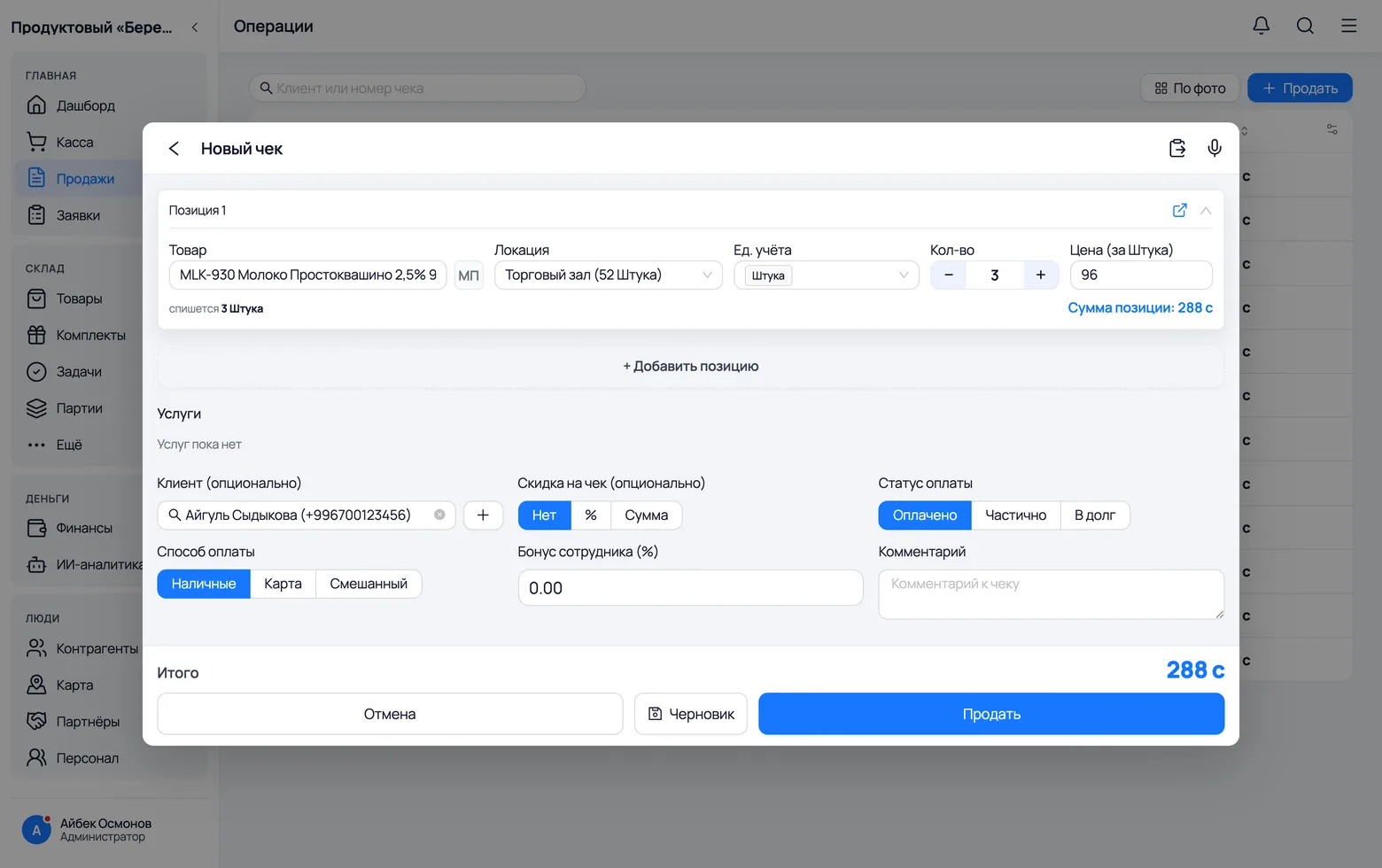
The sale form has a product, a location and a quantity — and not a word about batches. That is not an oversight: the app picks the batch, and there is a reason.
 1
2
3
1
2
3
- 1Product — what you are selling. The app already knows every batch of it.
- 2Location — where you take it from. This is the only choice that narrows things down: warehouse and sales-floor batches never mix.
- 3Quantity — how much. From there the app splits that quantity across batches itself, starting with the oldest.
- The salesperson at the counter does not know purchase prices, and should not. Choosing a batch means choosing the receipt's profit, and that decision cannot sit at the till: one tap would make a sale more or less profitable.
- You can still overrule the automation — just not in a sale. The quantity of a specific batch is edited on the product card, in the Stock block, where the batch is chosen in the field next to the location.
- A return does not ask either: goods go back into exactly the batch they left, at the same purchase price. Otherwise a return would become a way to change profit after the fact.
The money of a batch
How much the delivery earned
How much this delivery earned you
The bottom row of tiles answers the money question: revenue, profit, expenses and the value of what is still unsold.
1
2
3
4
- 1Revenue — how much money came in from receipts containing goods from this delivery. Here, 5 770 c for 65 units sold.
- 2Profit — revenue minus the purchase cost of those very 65 units, minus a share of the expenses. Exactly what stayed with you.
- 3Expenses — delivery, unloading and anything else you booked against this delivery. The caption 699.79 c applied shows how much has already been deducted from profit.
- 4Stock left, at cost — what the goods still sitting in the warehouse cost you. It is neither loss nor profit, it is money tied up in stock.
- Profit counts only what has been sold. 417 units are still in the warehouse and will not enter profit until someone buys them. That is why a fresh delivery almost always shows a small profit — it is the start of the road, not a bad result.
- The batch's profit and the receipt's profit are calculated from the same number — the purchase price of the batch the goods left. So they cannot disagree.
- Only the administrator sees these four tiles. On the same screen a salesperson simply does not have them: purchase prices are not their business.
Delivery, unloading and everything not in the price of the goods
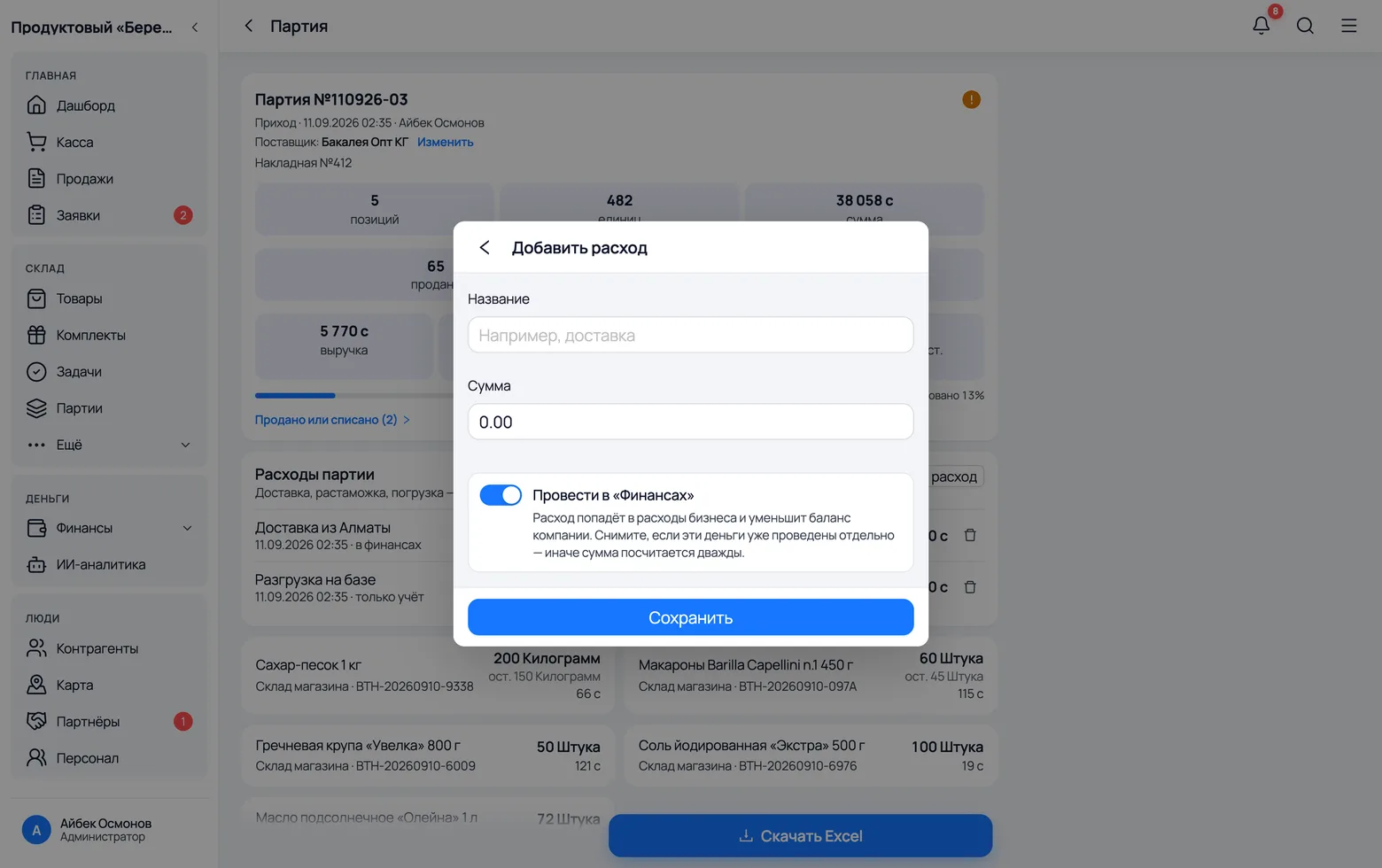
Goods cost more than the invoice says: you also pay the truck, the loaders and customs. Such costs are recorded straight onto the delivery.
 1
2
3
4
5
6
1
2
3
4
5
6
- 1Name — in your own words: 'delivery from Almaty', 'customs clearance', 'unloading at the depot'. You will see the same name later in business expenses.
- 2Amount — what you paid for the whole delivery, not per unit of goods.
- 3The Post to Finance switch decides whether this is money or just a note. On — the amount goes into business expenses and reduces the company balance. Off — the expense counts only towards the delivery's profit.
- 4Save — and the delivery's profit is recalculated at once.
- 5On the card the expenses sit in their own block, each marked with how it was booked: in finance or note only. The bin icon on the right deletes the expense and returns the money to the balance.
- 6The caption 699.79 c applied under the expense total is the part already deducted from profit. The rest is deducted as sales happen.
- Choose note only if you already recorded that money in Finance by hand. Otherwise the same delivery is counted twice: once as a business expense and once as a delivery expense.
- Only the administrator adds and sees delivery expenses. A salesperson does not have this block on screen.
Why delivery is not added to the price of the goods
The obvious move is to split the 5 300 delivery cost across 482 units and add it to each unit's purchase price. The app does not do that — here is why.
1
2
3
- 165 units are already sold — at the old price, and the profit in those receipts was calculated and printed long ago.
- 2Spreading 5 300 c into the cost now would mean rewriting the purchase price retroactively — and the receipt's profit would diverge from the delivery's. Two screens would start telling different stories about one sale.
- 3So the expense lives alongside and is deducted in the share that belongs to what was sold: of the 5 300, profit currently carries 699.79 c. Sell the delivery out and the whole amount is deducted, exactly once.
- If all 5 300 were deducted at once, a fresh delivery would show a loss that later 'recovers' by itself. A number that first alarms you and a month later corrects itself stops being trusted entirely — useful parts included.
- The share is based on the cost of what sold, not on piece count. One invoice can hold items at 19 c and at 121 c, and splitting the expense evenly per unit would push the salt's delivery cost onto the pasta.
- The card deliberately shows both numbers: the full expense total and the applied part. The first answers 'how much did we spend', the second 'how much of it has been earned back'.
When something does not add up
Rare, but worth knowing
Why a batch with sales cannot be edited
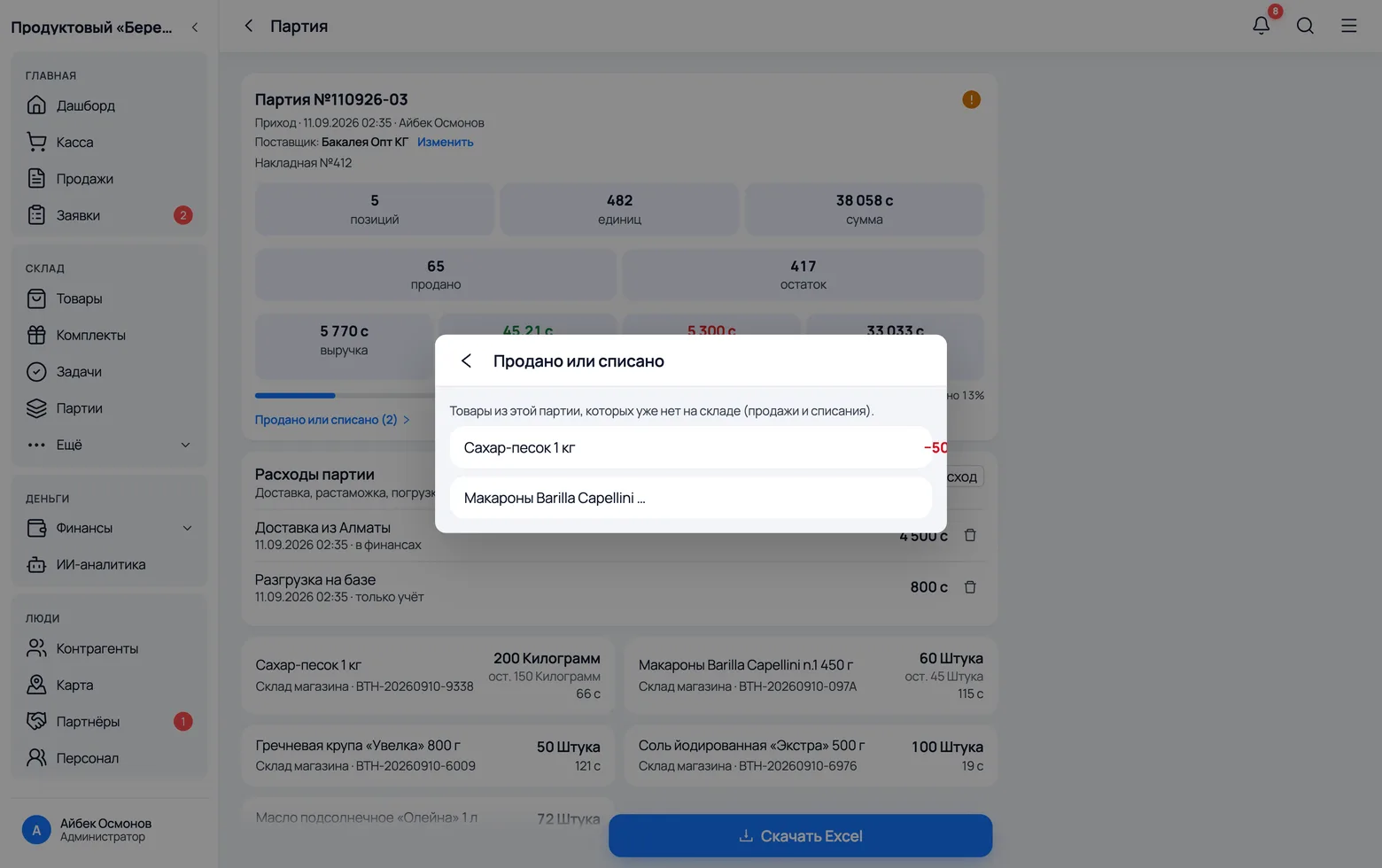
The orange marker in the corner of the card means the delivery is locked for editing. Not a ban for its own sake: goods have already been sold from it.
1
2
 3
3
- 1Tap the marker and the app explains why the card is read-only. Only deliveries with nothing sold or written off can be edited or deleted.
- 2One exception is the supplier: it can be set or changed at any time. It affects neither stock nor profit.
- 3Sold or written off shows exactly what is gone: Sugar 1 kg −50. The minus is the quantity that left, not a debt.
- The reason is simple: those goods are already in someone else's hands, and their purchase price is already written into a customer's receipt. Changing it retroactively would rewrite the profit of long-closed sales.
- If you got the price wrong on a delivery that already has sales, fix the arrival itself in History, not the batch. That recalculates the stock, the cost of goods sold and the profit on receipts.
- Only deliveries uploaded from Excel can be edited or deleted outright, and only while untouched. Arrivals and purchase receipts have their own documents and money movements — those are what you edit.
When the stock figure does not add up
A product's stock is the sum of its batches, not a separate number stored somewhere on the card. So discrepancies are hunted in the batches.
1
2
3
- 1Stock shows the figure for the selected location. Add up the remainders of all batches in that location — you should get the same number.
- 2The Batch field next to the location is where quantities are corrected precisely. Pick the batch you recounted on the shelf and enter the actual number.
- 3The Batches block shows what the stock is made of: where it sits, how much and at what price. Usually the answer is right there.
- Nine times out of ten the 'missing' goods simply moved to another location: the batch is intact but sits on the sales floor while you are looking at the warehouse. Check that first, with the location switch.
- Still nothing? Go to History: it shows every movement of the goods, its time and its author. A batch alone will not tell you who touched it; history will.
- A genuine mismatch is rare and usually comes from an interrupted operation: the connection dropped at the exact moment of a sale. Mismatches across the whole database are fixed by the WMS administrator with a dedicated procedure that rebuilds stock from the batches; there is no need to nudge numbers one by one.