A receipt by voice and by text: the item list without typing
The salesperson taps the microphone, names three items — and they land in the receipt. A list copied from a chat gets into the document the same way. A person always stands between the recognition and the receipt: they see the transcript and fix it themselves. Every screen is real, captured in the working app.
By voice
Three steps, in order
Two buttons in the document header
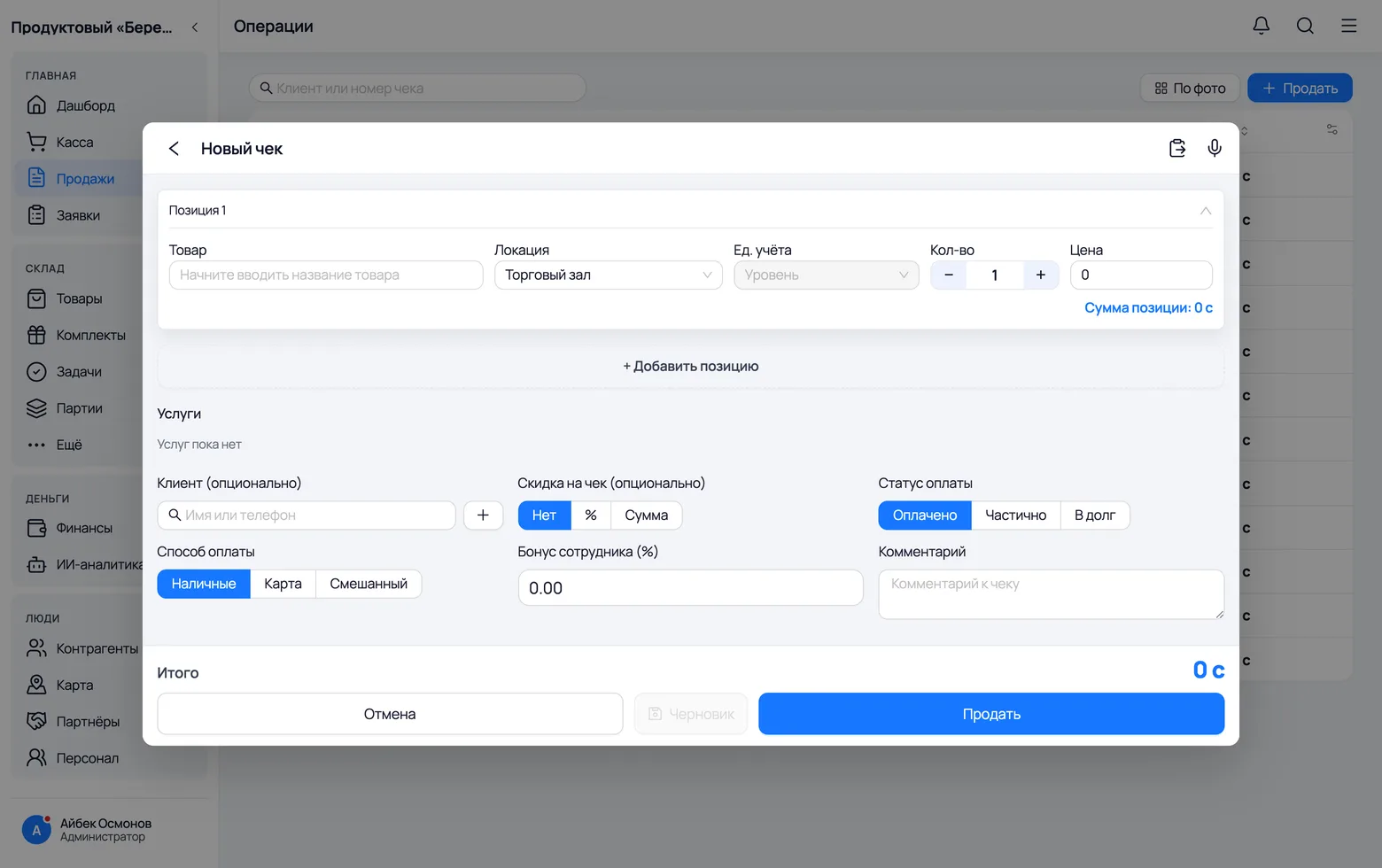
The microphone and the paste button sit side by side in the header of a sale, an order and an arrival. Both lead to the same place — the 'Order text' window, from which the list goes to be parsed.
 1
2
1
2
 3
3
- 1Paste text — the left icon. It opens the window where you paste the list from the clipboard or type it by hand.
- 2Microphone — the right one. One tap and recording starts; you do not have to hold your finger down.
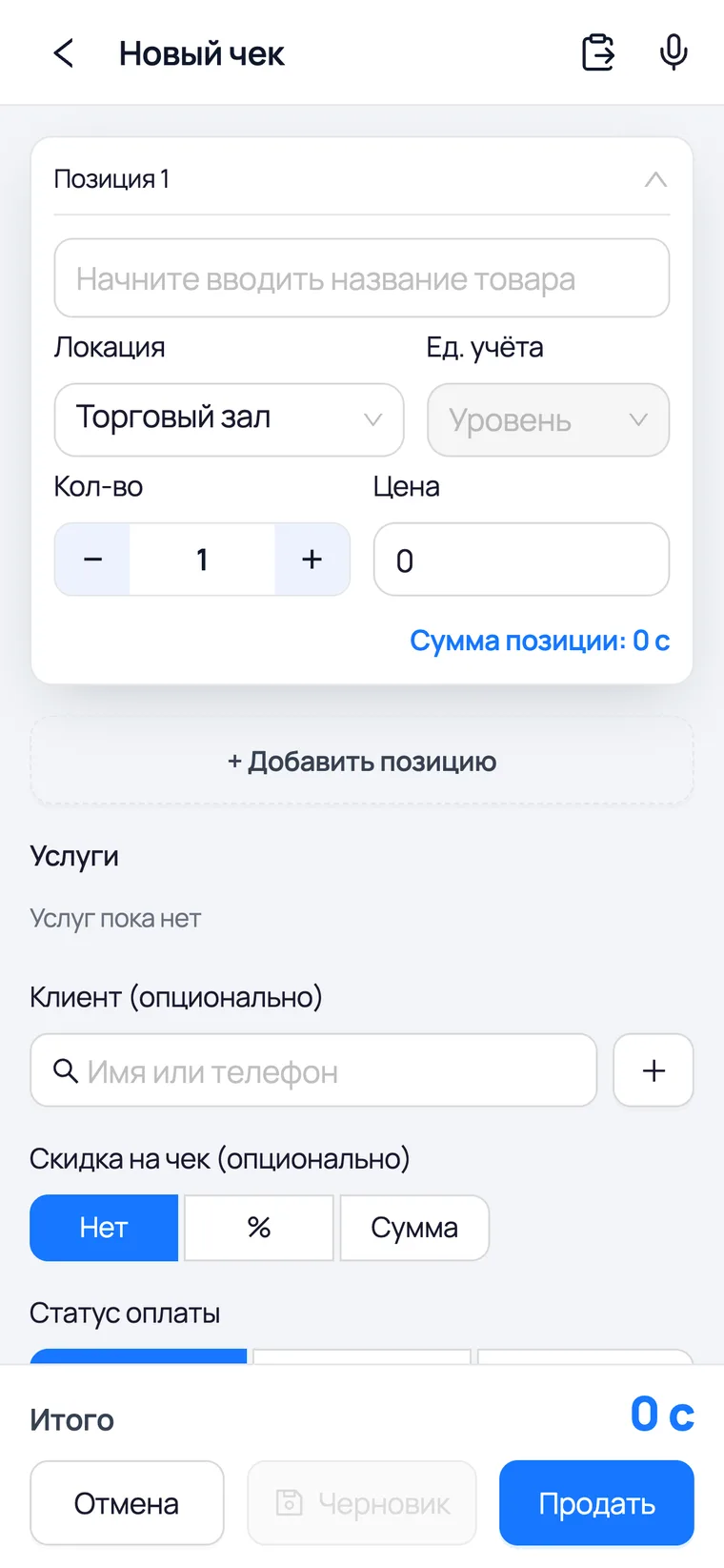
- 3On a phone both icons are in the same place, in the form header. Dictating is easier from a phone: it is in your hand while your hands are busy with the goods.
Dictate the list
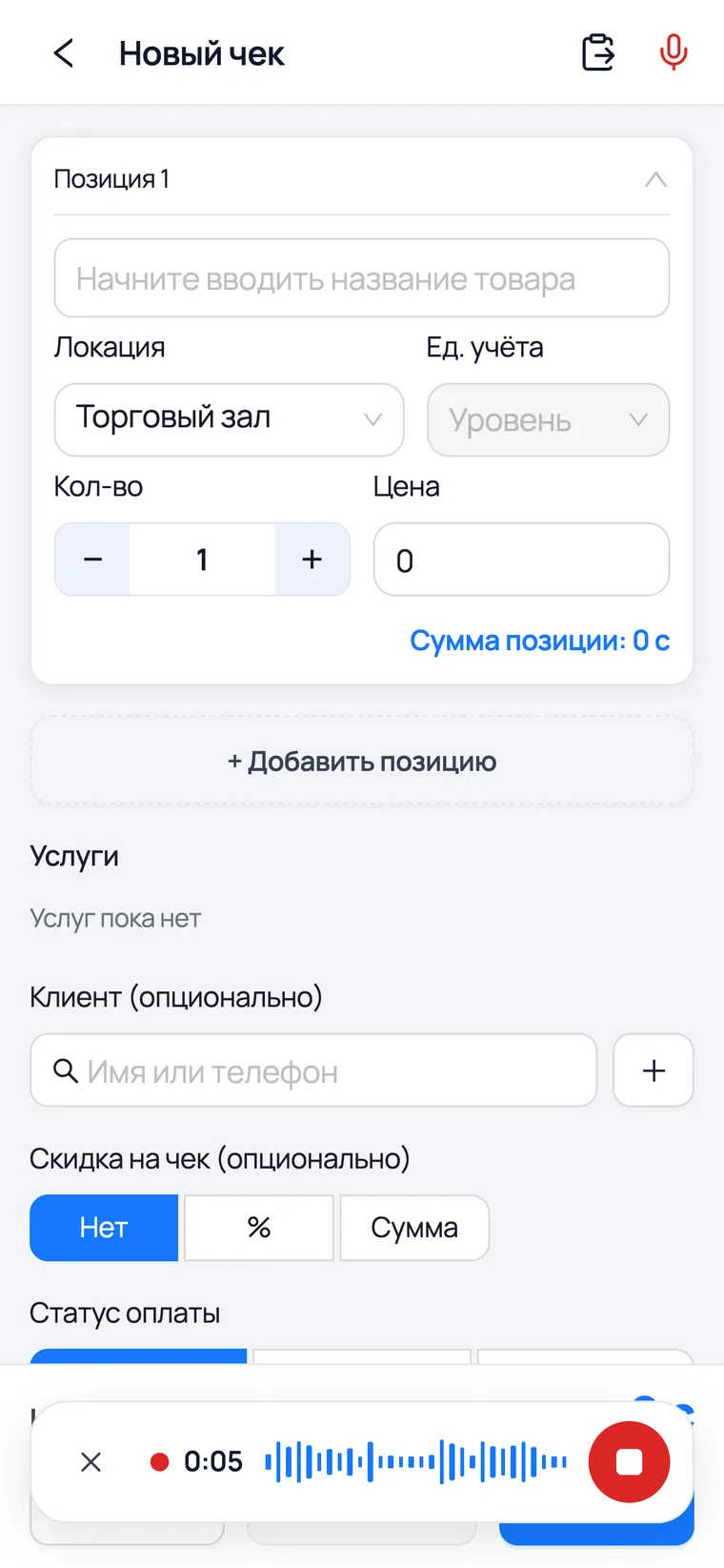
Tap the microphone and speak normally: name, quantity, unit, price. 'Prostokvashino milk, three cases. Wheat bread, ten pieces.' Recording continues until you press stop, and the panel at the bottom shows the time and a live waveform.
 1
2
3
4
1
2
3
4
- 1The timer counts the recording. There is no need to dictate for longer than a minute: at the 60th second the recording stops by itself and what was heard goes to be transcribed — a forgotten open microphone will not wait for you.
- 2The waveform is drawn from the actual microphone level, not for decoration. If it stands still, you are not being heard: check the microphone permission in your phone settings.
- 3The cross on the left — throw the recording away and send it nowhere.
- 4The square on the right — stop: the recording goes off to be recognised. During recording the microphone in the header works as a stop button too.
Check the transcript — what is in the field is what goes into the document
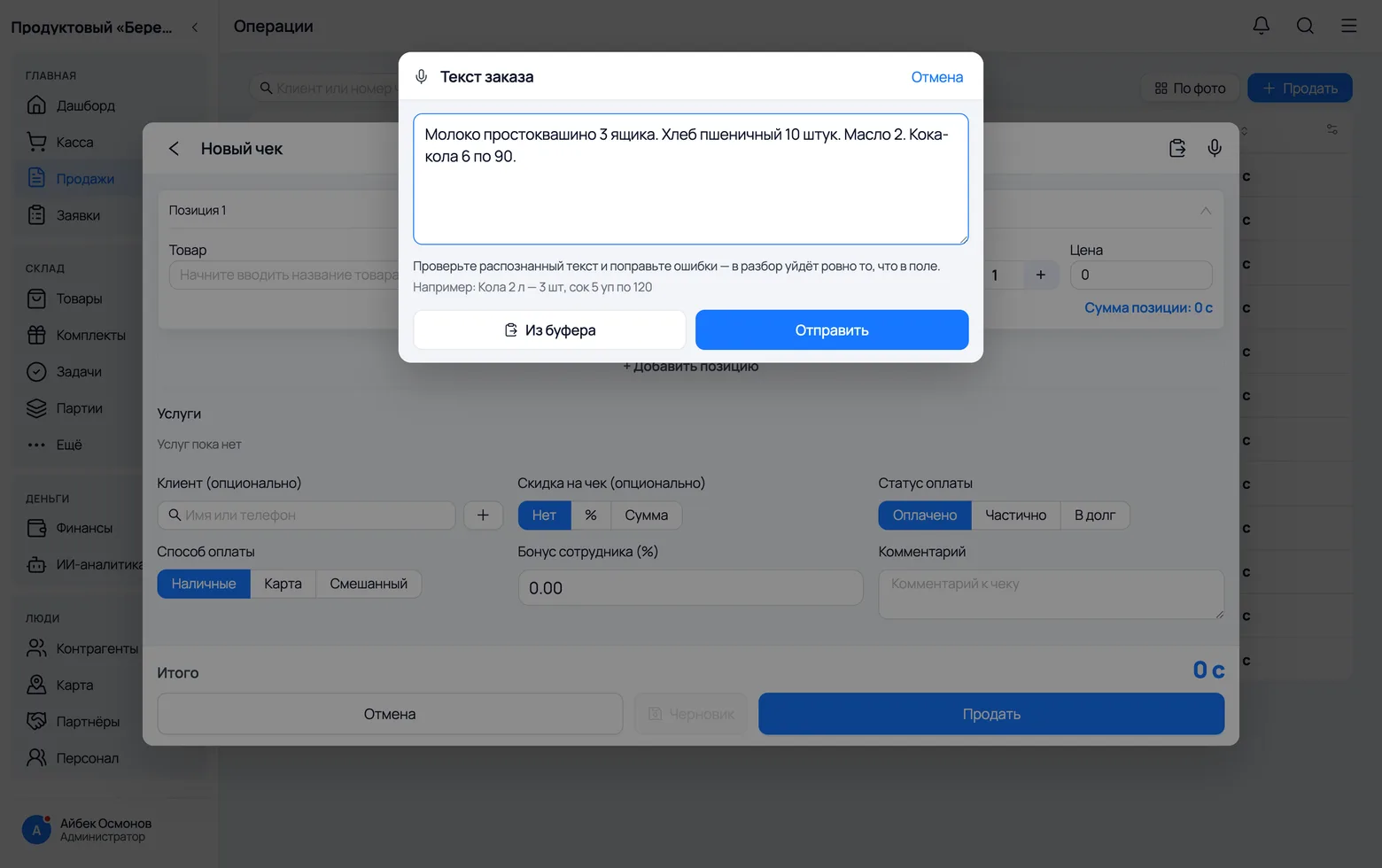
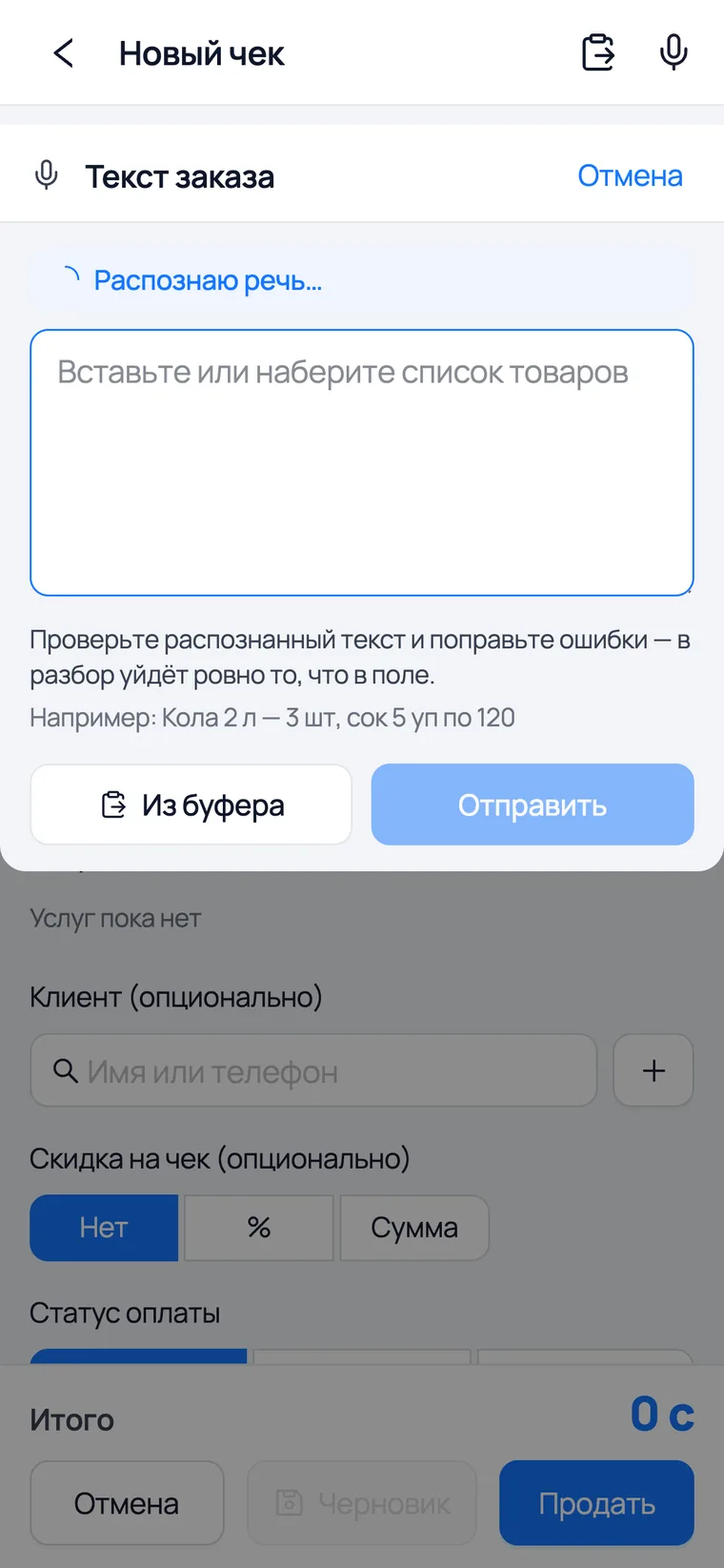
What was recognised does not go into the document by itself. It is shown in the 'Order text' window: you fix any mishearing by hand and only then send the list to be parsed. That is why 'it heard the wrong thing' never turns into the wrong item in a receipt.
 1
2
3
1
2
3
 4
4
- 1The transcript field. Edit it right here: exactly what is in the field goes to the parser — no more, no less.
- 2Send — the list goes to the parser. This is the only button after which anything appears in the document.
- 3From clipboard — append what you have already copied to what you dictated. One window serves both ways, so you can freely mix them.
- 4The window opens immediately after stop, with the status 'Recognizing speech…'. The field is free meanwhile: you can start typing — the transcript is appended as a separate line and will not overwrite what you typed.
By text
The same parser, another way in
The same list, only as text
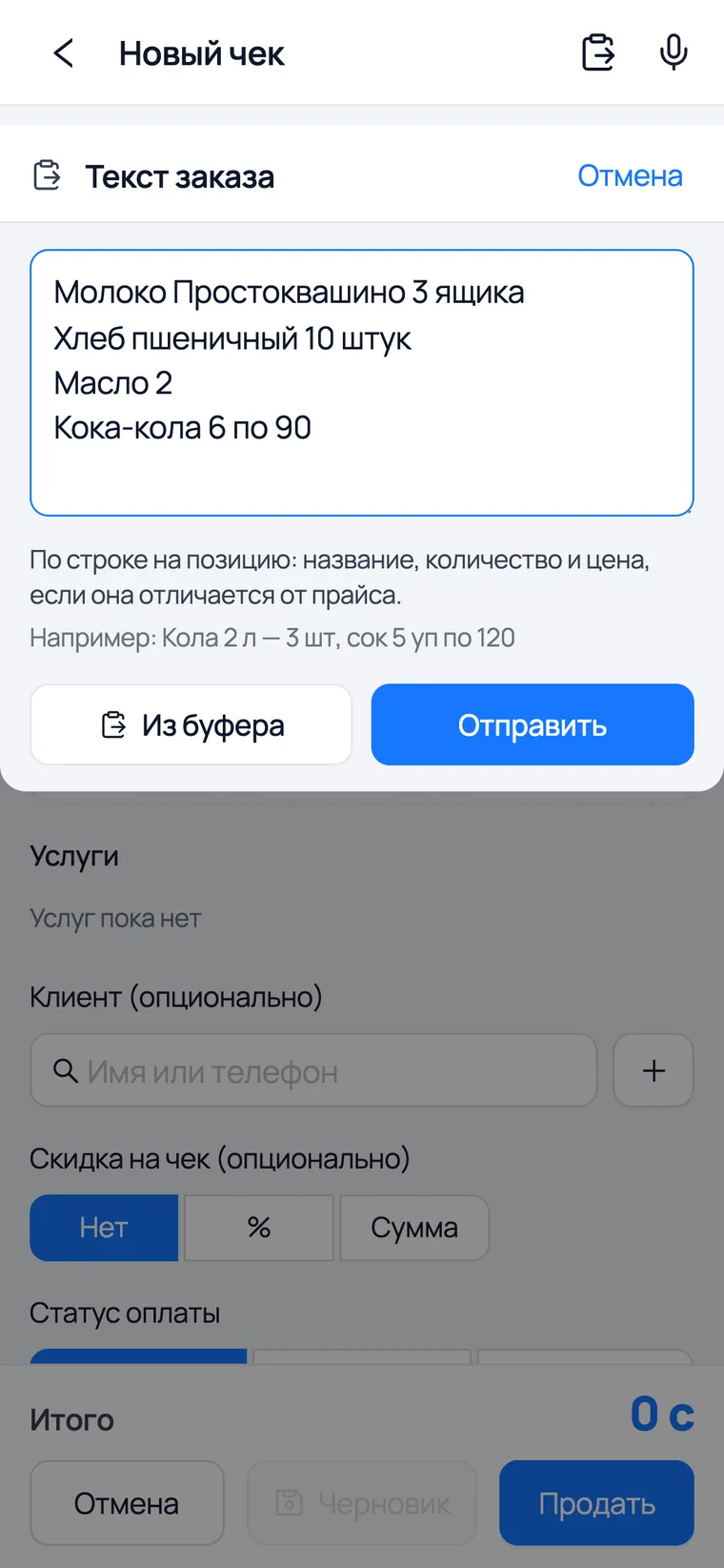
An order from WhatsApp, from a notepad or from an email is pasted into the same window. It is parsed by the same code as the dictated text — which is why the result is the same.
 1
2
3
1
2
3
- 1From clipboard pastes what you copied. On a phone that is a single tap instead of a long press on the field.
- 2The format is simple: one line = one item. Name, quantity and price — if it differs from the price list.
- 3Send — and the parsed lines land in the document. Extra words ('I'll pick it up tomorrow', 'please') are simply skipped.
What you get
Items, prices and the doubtful lines
What ends up in the document
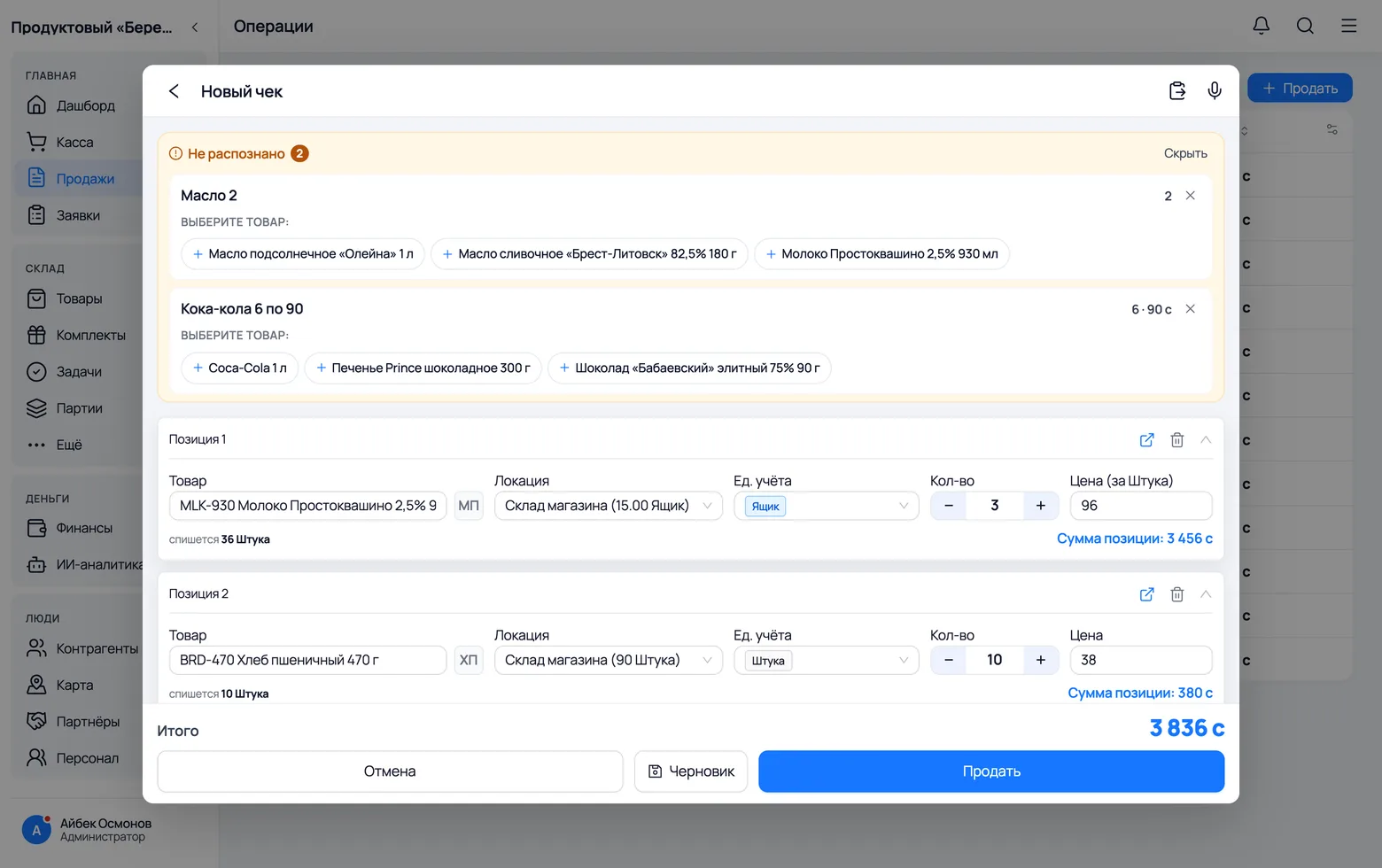
The parsed lines become items: with quantity, unit of measure and price. From there the document is an ordinary one — customer, payment status, location.
 1
2
3
1
2
3
- 1The items are added — one per recognised line. Whatever you typed by hand stays: parsing adds, it does not replace.
- 2Quantity and unit come from the text. 'Three cases' becomes three cases rather than three pieces, if the product has such a packaging level.
- 3Price — the one spoken aloud or written in the line. If none was given, the price from the product card is used.
Not recognised: pick the product yourself
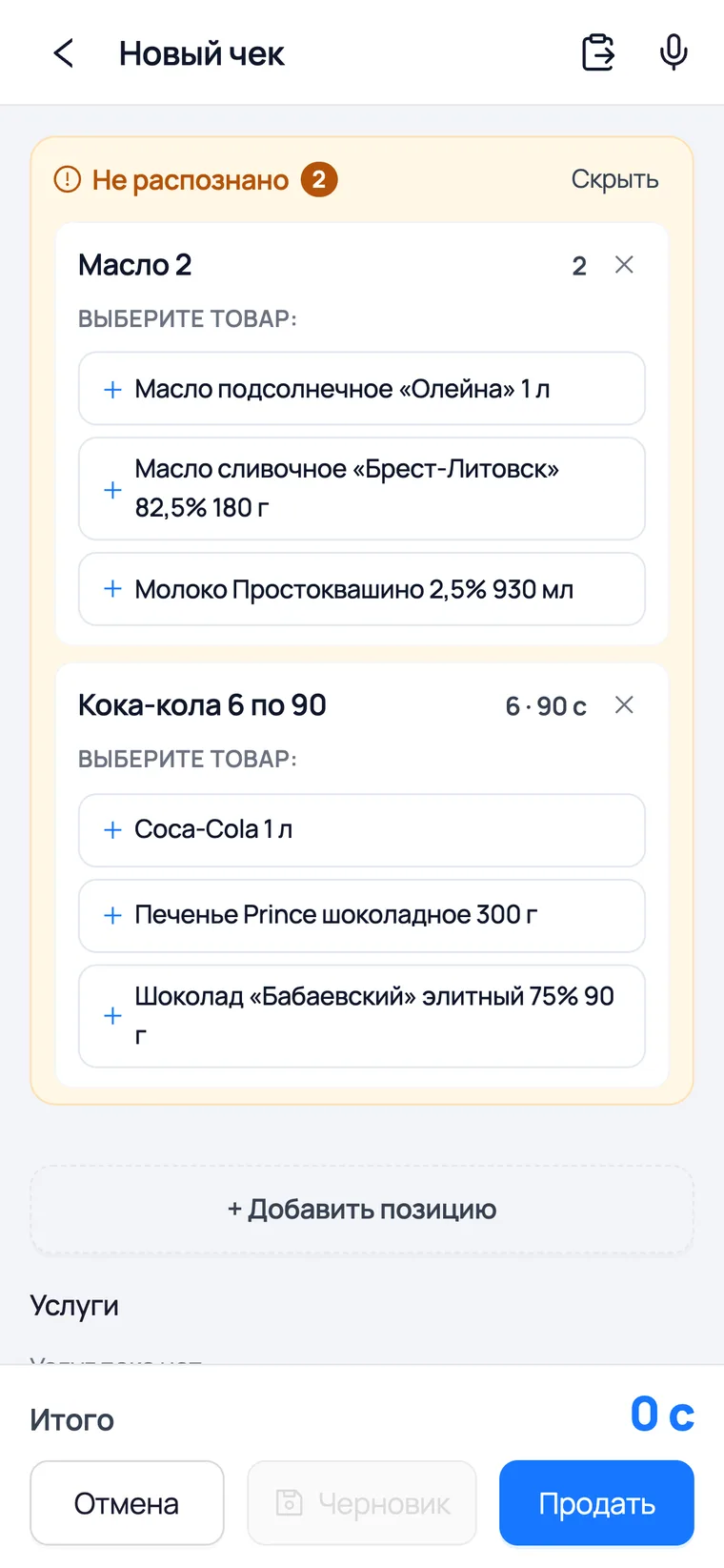
A generic name — 'butter', 'juice', 'drill bit' — is not collapsed into a single product. You may have ten sizes of it, and a guess here costs more than a question: the wrong one would land in the receipt. So such lines are collected into a panel above the items.
 1
2
3
1
2
3
- 1The 'Not recognised' panel sits above the items; the counter shows how many lines are waiting for a decision.
- 2Under the line are the 'Choose a product' suggestions. Tapping the right one adds the item: the quantity, unit and price from the line are kept. Three suggestions are shown, the rest behind the 'More' button.
- 3The cross removes the line. If the right product is not among the suggestions at all, it is not in your catalogue: create the card and parse again, or add the item by hand.
Where else
Orders, arrivals and what to do when it does not work
Orders and arrivals: exactly the same
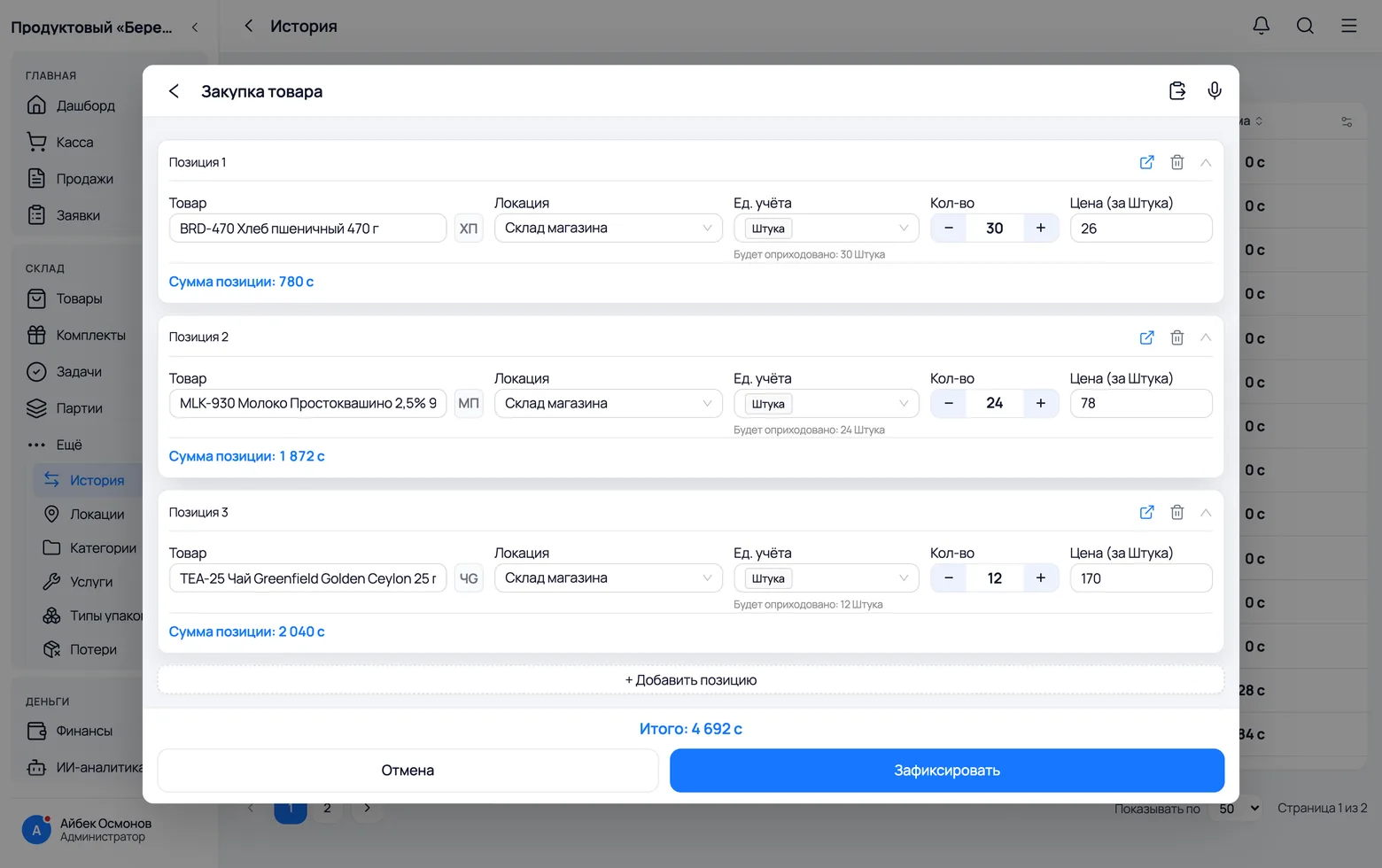
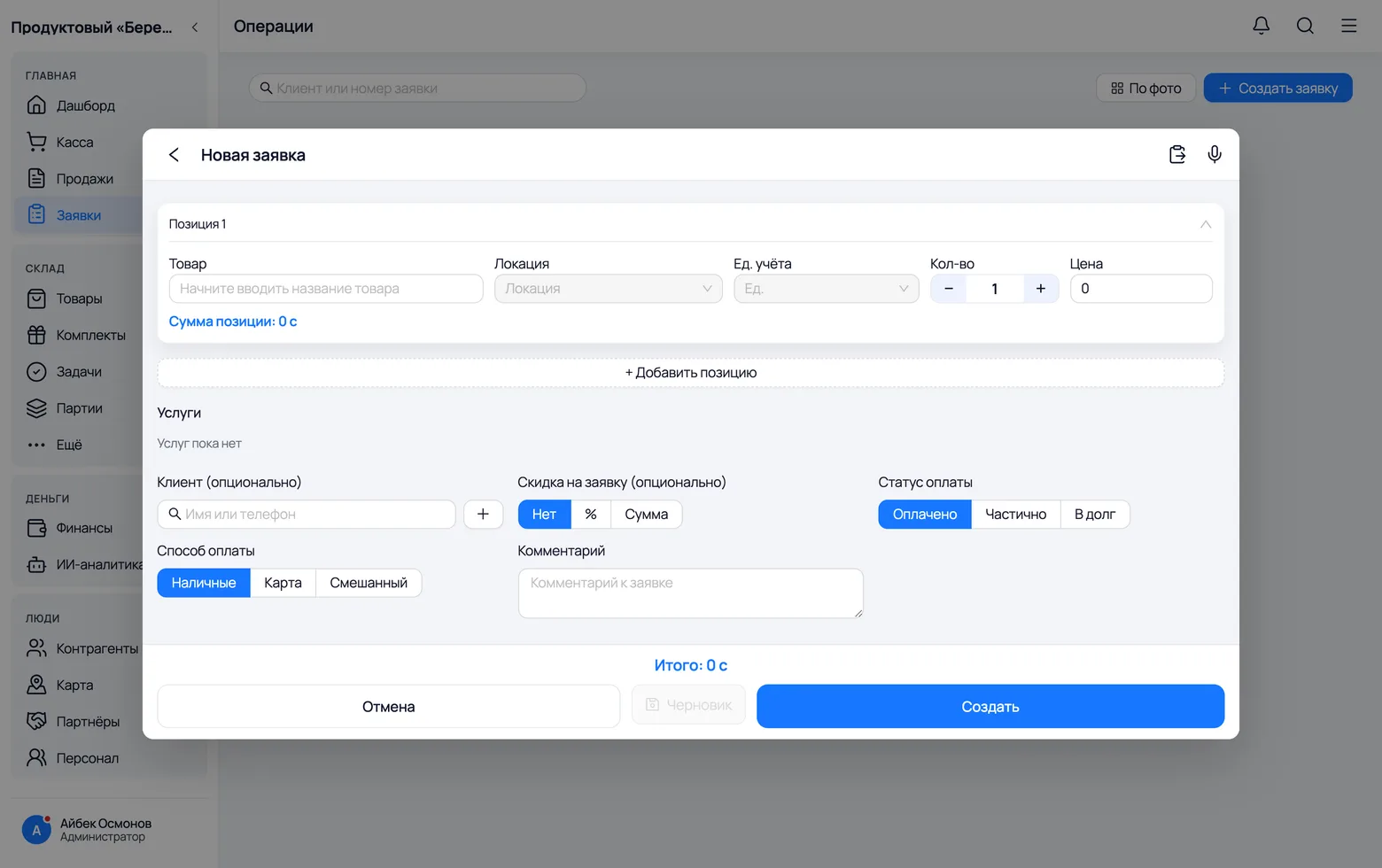
The buttons live in three forms and share one pipeline. There is exactly one difference — which price is used when none was given.
 1
1
 2
2
- 1Arrival. The price from the text goes into the purchase price and belongs to the unit you named: '30 pieces at 26' means 26 per piece, 'a sack at 78' means 78 per sack. For the second one the price field shows the figure converted to the base unit (1.56 per kilogram) — the line total stays the same. If no price was named, the purchase price from the card is used, never the selling one: the selling price never leaks into a purchase.
- 2An order. Behaves like a sale. An unfinished order can be parked as a draft and picked up later — the parsed items are saved with it.
When it does not work
Four reasons the button stays silent, and what to do about each.
- 1No buttons at all — this is the Base plan. Text parsing and voice input work on Full.
- 2'No microphone access' — the permission was not granted or was revoked. Phone settings → the app → Microphone. The app cannot grant it for you.
- 3'Recording is too short' — the tap on the microphone was accidental: anything shorter than half a second is not sent for recognition.
- 4'Limit reached' — voice and text pasting have separate monthly limits per company, counted independently: dictating does not spend the pasting limit. Each limit can be extended with a plan add-on, separately.